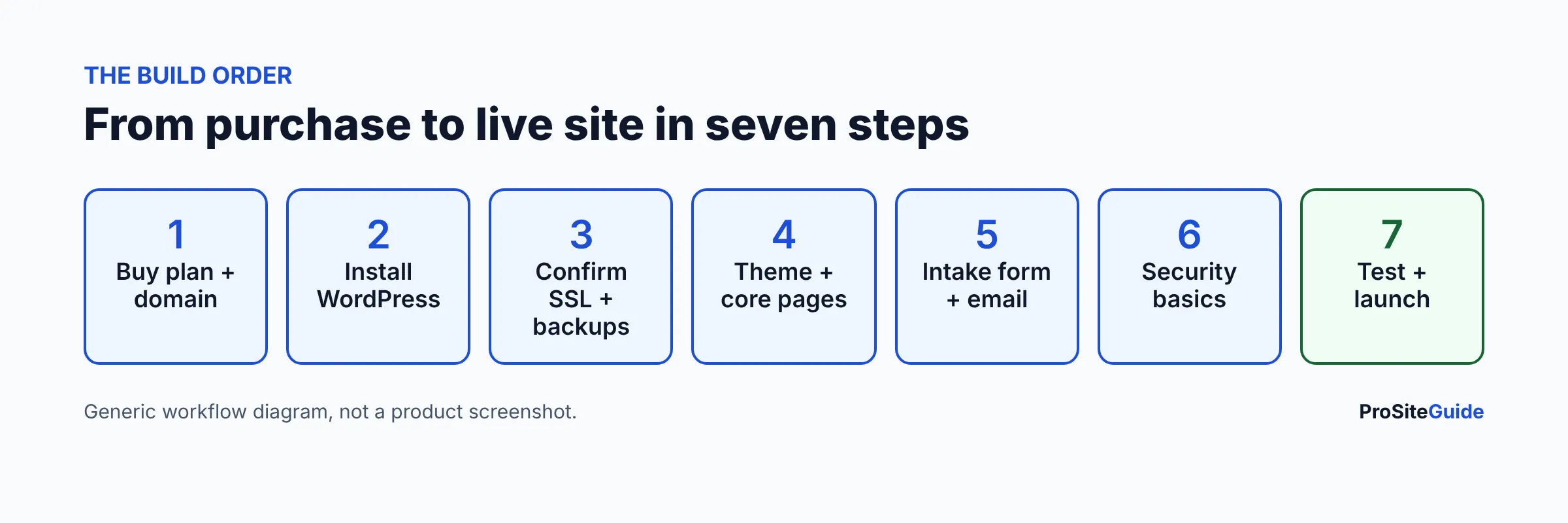
Quick answer: To build a law firm website on Hostinger, buy a hosting plan (Unlimited is the usual pick for a firm because it includes daily backups), register your domain, install WordPress from hPanel, confirm SSL and backups, add four core pages (home, practice areas, attorney bios, contact), set up business email, lock down logins, and test before launch. A first version of a small firm site is realistic in a few days, if the content is ready.
This guide walks through each step in order. It assumes a solo lawyer or a small firm that wants a brochure-style site with a contact form, not an e-commerce store. For a verdict on whether Hostinger is a good host for firms at all, read our Hostinger review for law firms. Here we focus on doing the build.
Key takeaways
- Hostinger plans and prices change often, and the headline price needs a 48-month prepayment. Check Hostinger’s pricing page before you buy and budget for the renewal price.
- Per Hostinger’s plan page, Premium has weekly backups and Unlimited has daily backups. For a law firm, daily is the safer choice.
- WordPress gives you the most control and the best long-term options. Hostinger’s Website Builder is faster to start but harder to move away from.
- The hard part is not installing WordPress. It is the content, the intake form, security and ongoing updates.
- If nobody at the firm will handle updates and backups, choose managed hosting instead.
Should a law firm build on Hostinger WordPress or use Hostinger Website Builder?
Hostinger offers two ways to make a site. WordPress is the open-source content management system (CMS) that powers a large share of the web, and you install it on your hosting account. Hostinger Website Builder is Hostinger’s own drag-and-drop tool with AI features and templates.
| WordPress on Hostinger | Hostinger Website Builder | |
|---|---|---|
| Control and flexibility | High: themes, plugins, custom forms, SEO tools | Lower: limited to what the builder offers |
| Speed to first draft | Moderate (AI starter site option exists) | Fast |
| Moving later | Standard; see our guide to moving hosts | Hard: you generally rebuild elsewhere |
| Maintenance | You handle updates, plugins, security | Handled inside the platform |
| Best for | Firms that want SEO growth and custom pages | A very simple holding page or a one-person practice that will never grow |
For most firms we recommend WordPress. It matches how law firm sites usually grow (more practice area pages, a blog, intake integrations). Our Squarespace vs WordPress vs Wix comparison covers the platform decision in more depth. The rest of this guide assumes WordPress.
Step 1: Which Hostinger plan should a law firm choose?
Hostinger’s WordPress hosting page lists three main tiers. The figures below are the promotional terms shown there in November 2026, paid upfront for 48 months, excluding tax. Hostinger changes promotions frequently, so confirm everything on Hostinger’s pricing page.
| Plan | Promo price | Renewal | Websites | Storage | Backups | Mailboxes |
|---|---|---|---|---|---|---|
| Premium | $1.99/mo ($95.52 upfront) | $10.99/mo | 3 | 20 GB SSD | Weekly | 2 per site, free for 1 year |
| Unlimited | $2.79/mo ($133.92 upfront) | $16.99/mo | Unlimited | 50 GB NVMe | Daily | Unlimited per site, free for 1 year |
| Cloud Startup | $7.99/mo ($383.52 upfront) | $25.99/mo | Unlimited | 100 GB NVMe | Daily and on-demand | Unlimited per site, free for 1 year |
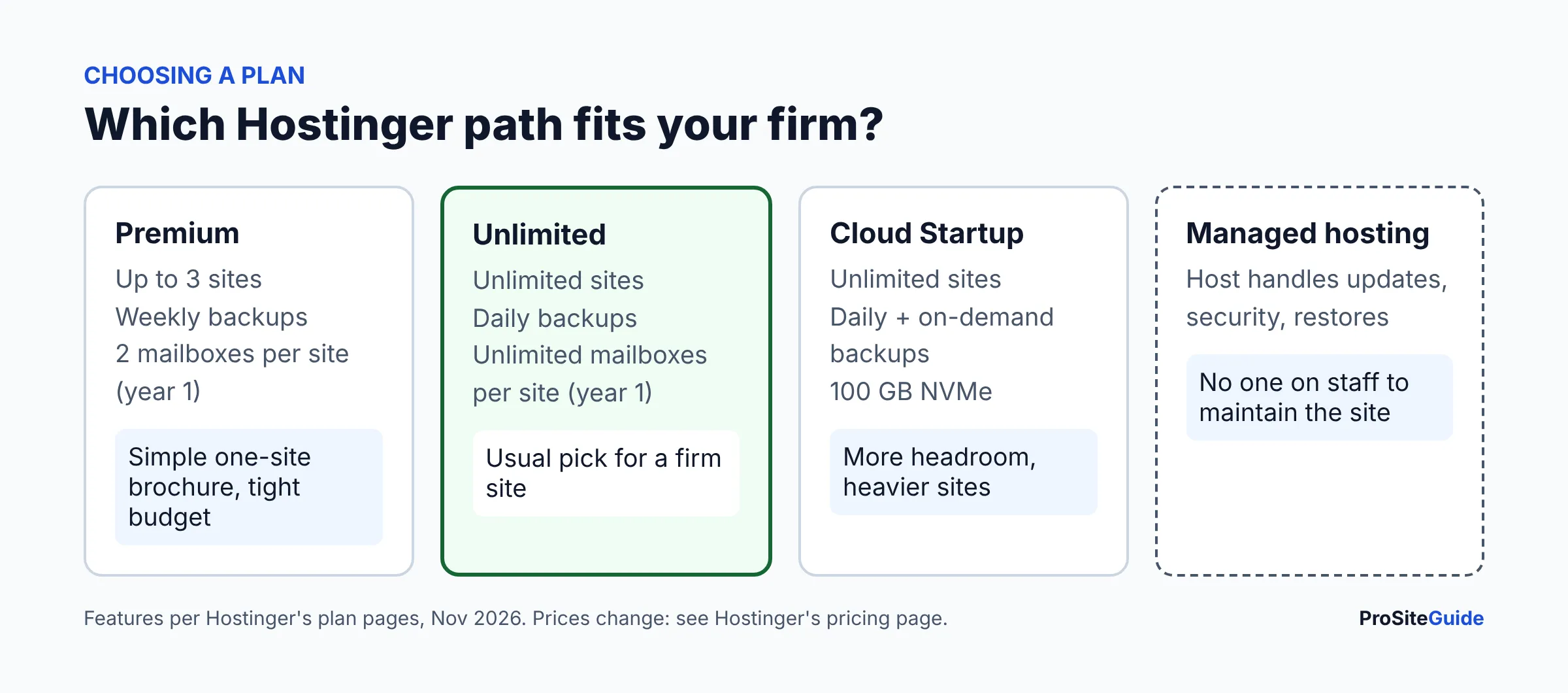
All three plans show a free domain for the first year and a 30-day money-back guarantee. Hostinger also notes that its “unlimited” features are subject to a Fair Usage Policy. Note that Hostinger’s pages are not fully consistent on Premium’s backup wording, so read the comparison table at checkout.
Which plan for which firm?
- Premium: a solo lawyer with one simple site and a very tight budget, who is comfortable that backups run weekly.
- Unlimited: most small firms. Daily backups matter if you add intake forms or publish often, and unlimited mailboxes cover staff addresses in year one.
- Cloud Startup: only if the site has grown heavy (many pages, large media) or you want on-demand backups.
Two cost points to plan for: the low monthly price requires the long term, and the renewal rate is several times higher than the promo. Multiply the renewal monthly price by 12 when you build the firm’s budget. For wider cost context, see how much a law firm website costs. If you are weighing Hostinger against other hosts, see our Hostinger vs SiteGround comparison.
Step 2: How do you choose and register the domain?
The domain is your web address and the base of your email addresses (for example, you@yourfirm.com). Hostinger’s plans show a free domain for one year, after which it renews at the regular rate, so check the renewal price for your extension before you pick it.
- Use the firm name or lawyer name. Avoid hyphens and numbers.
- Compare extensions in our .law vs .com vs .attorney guide. Eligibility rules and renewal costs differ.
- Register the domain in the firm’s name with a firm-controlled email address, not a personal one that may disappear. See the best domain registrars for law firms if you prefer to keep the domain separate from hosting. Our GoDaddy domain walkthrough shows that route.
Keeping the domain at a separate registrar from the host is a common risk-reduction choice, since losing access to one account does not lock you out of both.
Step 3: How do you install WordPress with Hostinger hPanel?
hPanel is Hostinger’s control panel. According to Hostinger’s WordPress installation tutorial, there are two routes, and the menu names may change, so treat these as a guide.
Route A: the onboarding wizard (new plan)
- After purchase, follow the onboarding chat. On an existing plan, go to Websites, then Create site, then WordPress.
- Enter your domain and keep the suggested server region unless most visitors are elsewhere.
- Create the WordPress admin login: language, admin email and a strong administrator password.
- Choose “Build from scratch” for a blank site, or the AI option for a generated starter. For a law firm, we suggest blank; AI-generated placeholder text is easy to leave behind by mistake.
Route B: the WordPress installer (existing hosting site)
- In hPanel, open Websites, choose Manage site, then Website, then WordPress Install, and click Install.
- Enter the website title, administrator email, username and password. Do not use “admin” as the username.
- Under Advanced you can set an installation path. Leave “Create new database” selected.
- Hostinger’s tutorial suggests updating only to minor versions automatically so security and bug-fix updates apply. Then click Install.
Hostinger warns that the installer overwrites existing files in the target site, so back up first if there is content you want to keep.
Step 4: Is SSL included, and what about backups?
SSL (the padlock and https:// in the address bar) encrypts traffic between a visitor and your site. Hostinger’s tutorial says SSL activates automatically once your domain connects to the server, and that SSL and Force HTTPS are on by default. If you see a “connection is not private” warning right after launch, it is usually still being set up. Confirm the status on the hPanel dashboard and test every page, since mixed http/https content is a common leftover.
Backups are copies of your site you can restore after a mistake or hack. Per Hostinger’s plan page, Premium backs up weekly and Unlimited and Cloud Startup daily. Set this up before you add content, and then:
- Look at the Backups section in hPanel and note the schedule.
- Do one test restore on a staging copy, or at least confirm you know where the restore button is.
- Keep an independent off-site copy too. WordPress’s own hardening guide advises regular backups of files and the database, with several past snapshots, and testing that you can restore them.
Step 5: What pages does a law firm website need?
A theme (the design layer) gives you the layout; the pages carry the value. Start with our list of WordPress themes for law firms. A fast, well-supported theme beats a flashy one. Then build these pages in this order:
- Home: who you help, where, and one clear way to contact you.
- Practice area pages: one page per service, not one page listing everything. See how to write practice area pages.
- Attorney bio pages: credentials, bar admissions, approach. See how to write an attorney bio.
- Contact / intake: phone, address, hours and a form. Keep the form minimal and avoid collecting confidential case details. See how to add a secure contact form.
- Privacy policy and disclaimer: including a notice that sending a message does not create an attorney-client relationship, worded to your state bar’s advertising rules. Ask your state bar or counsel what is required.
Also review accessibility from the start; our accessibility guide explains WCAG basics.
Step 6: How do you set up business email on Hostinger?
Hostinger plans show mailboxes for the first year (Premium: 2 per site; Unlimited and Cloud Startup: unlimited per site). Hostinger also sells standalone Business Email plans; its email hosting page lists Starter, Standard and Premium tiers with 5 GB, 20 GB and 50 GB per mailbox, and says the page does not state where data is stored. If client confidentiality or storage location matters to the firm, ask Hostinger directly.
Many firms prefer a dedicated email suite with stronger admin and compliance controls. Compare options in Google Workspace vs Microsoft 365 for law firms, and set up SPF, DKIM and DMARC using our business email guide. For sensitive client communications, see law firm email encryption.
Step 7: What security basics should you do on a new WordPress site?
Law firm sites hold contact details and are trusted by clients, so a hacked site is costly. The WordPress.org hardening guide lists the fundamentals:
- Keep WordPress, themes and plugins updated; enable automatic updates where appropriate.
- Use long, unique passwords from a password manager and turn on two-step authentication. Our password manager guide compares options.
- Avoid common admin usernames like “admin”.
- Install only plugins you need and remove unused ones.
- Back up and test restores.
Then add a security plugin and work through our law firm website security checklist. See WordPress security plugins for law firms, and our Sucuri review if you want a cloud firewall. If something goes wrong, read what to do if your law firm website is hacked.
Step 8: What should you check before launch?
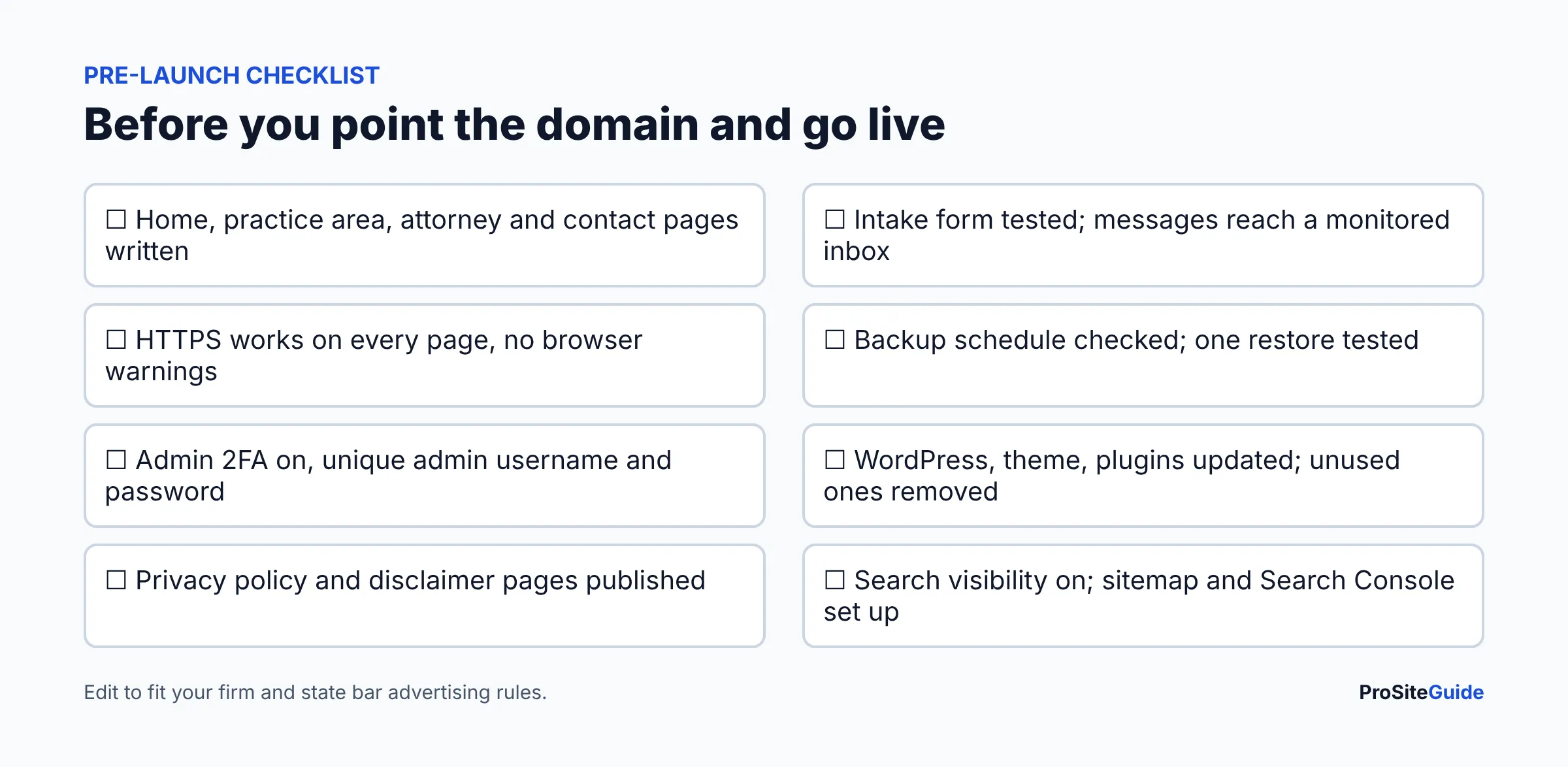
Work through the checklist above, then test on a phone and a laptop, submit the form yourself, and confirm a human reads the inbox. Next, set up measurement with GA4 and Search Console, and claim your Google Business Profile. Our free website checklist and local SEO checklist cover what comes next. Speed matters too; see law firm website speed.
When should a law firm choose managed hosting instead of Hostinger?
Shared and cloud plans like Hostinger’s give you a server and tools, but you remain responsible for the WordPress layer: updates, plugin choices, security and restores. Consider managed WordPress hosting if:
- No one at the firm, or on retainer, will update and monitor the site.
- You want the host to handle malware cleanup, staging and expert support.
- The site generates enough business that downtime or a hack would cost more than the price gap.
See our Kinsta review, WP Engine review and the three-way comparison. Budget cost is only part of the picture; website maintenance takes time or money wherever you host. Browse more in our tool comparisons or start from Start Here.
FAQ
How long does it take to build a law firm website on Hostinger?
Installing WordPress takes minutes. Hostinger’s tutorial says installation takes about two minutes. The real time goes into writing pages, collecting bios and photos, and testing, which commonly takes days to weeks.
Is Hostinger good for a law firm website?
It can be a good-value option for a simple brochure site if someone handles updates and backups. Our Hostinger review covers strengths and limits in detail.
Does Hostinger include a free domain and SSL?
Hostinger’s plan pages show a free domain for the first year, and its tutorial says SSL and Force HTTPS are on by default once the domain connects. Renewal prices for the domain are separate; see Hostinger’s pricing page.
Does Hostinger back up my WordPress site daily?
Per its plan page, Unlimited and Cloud Startup have daily backups, and Premium has weekly. Always confirm the current schedule in hPanel and keep an independent copy.
Can I use Hostinger Website Builder instead of WordPress?
Yes, and it is faster to start. The trade-off is less flexibility and a harder move later. Most firms planning to grow content and SEO choose WordPress.
How much will Hostinger cost after the first term?
As of November 2026, the page showed renewals of $10.99/mo (Premium), $16.99/mo (Unlimited) and $25.99/mo (Cloud Startup). Prices change, so check before you buy.
Conclusion: next steps
- Decide WordPress vs builder (we suggest WordPress) and pick a plan, with Unlimited as the default.
- Register the domain, install WordPress and confirm SSL and backups on day one.
- Write the four core pages and a minimal intake form before launch.
- Lock down logins and updates, then run the launch checklist.
- If maintenance is not realistic in-house, price managed hosting or a maintenance service.
Want this handled for you? ProSiteGuide builds and maintains fast, secure WordPress sites for law firms. Book a free consultation.