Quick answer: Law firm email encryption means protecting the message itself, not just the connection it travels over. Most small firms already have what they need: Microsoft 365 Business Premium includes Microsoft Purview Message Encryption, and Google Workspace Enterprise Plus includes Gmail client-side encryption. For other plans, a service such as Virtru or Hushmail for Law, or a secure client portal, fills the gap. Gmail’s confidential mode is not encryption, so don’t rely on it for sensitive client files.
The ethics rule behind this is flexible. ABA Formal Opinion 477R says ordinary unencrypted email is generally still acceptable for routine messages. Stronger measures, such as encryption, are expected when the information is sensitive enough to call for them. This guide explains the three layers of email encryption, which option fits which firm, how to switch it on in Microsoft 365 and Google Workspace, and when you need it.
Key takeaways
- TLS is the floor, not the ceiling. It protects mail between servers, but the message sits readable in each mailbox, and TLS can quietly fall back to an unencrypted connection.
- Check your plan before you buy anything. Purview Message Encryption is included in Microsoft 365 Business Premium and E3/E5. Gmail client-side encryption needs Enterprise Plus, Frontline Plus, or Education Standard or Plus.
- Confidential mode only restricts what recipients can do. Google’s own help page says recipients can still take screenshots, and malicious programs may still copy the message.
- The ethics test is case by case. Weigh how sensitive the information is, how likely a disclosure is, and what safeguards cost (ABA 477R and Model Rule 1.6 Comment [18]).
- Portals often beat email for large files, ongoing document exchange, and clients who share a computer or email account.
What does “encrypted email” actually mean?
“Encrypted email” covers three different things that offer very different protection. Vendors use the term loosely, so it helps to know which one you’re getting.
1. TLS (encryption in transit)
TLS (Transport Layer Security) encrypts the connection between two mail servers, much as HTTPS protects a website connection. Google says Gmail always tries to send messages over TLS. If the receiving server doesn’t support it, though, the message is sent anyway over a connection that isn’t secure. TLS also does nothing once the message arrives. It sits readable in the sender’s Sent folder and the recipient’s inbox, and in any forward, sync, or backup along the way.
2. Message-level encryption (provider-managed keys)
Message-level encryption encrypts the email and supported attachments themselves, so only an authorized recipient can open them, whichever servers the message passes through. Microsoft Purview Message Encryption works this way. Recipients outside Microsoft 365 sign in or use a one-time passcode to read the message. By default Microsoft manages the encryption root key, and “bring your own key” (BYOK) is an option. Message-level encryption can also apply rights such as Do Not Forward.
3. End-to-end / client-side encryption
End-to-end (or client-side) encryption encrypts the message on the sender’s device, and the provider can’t decrypt it. Google describes Workspace client-side encryption as end-to-end encryption that Google servers and third parties can’t decrypt. Proton Mail, and services that let the firm hold its own keys, fall into this group too. The trade-off is more setup and more limits: Gmail CSE, for example, turns off some features while encryption is on.
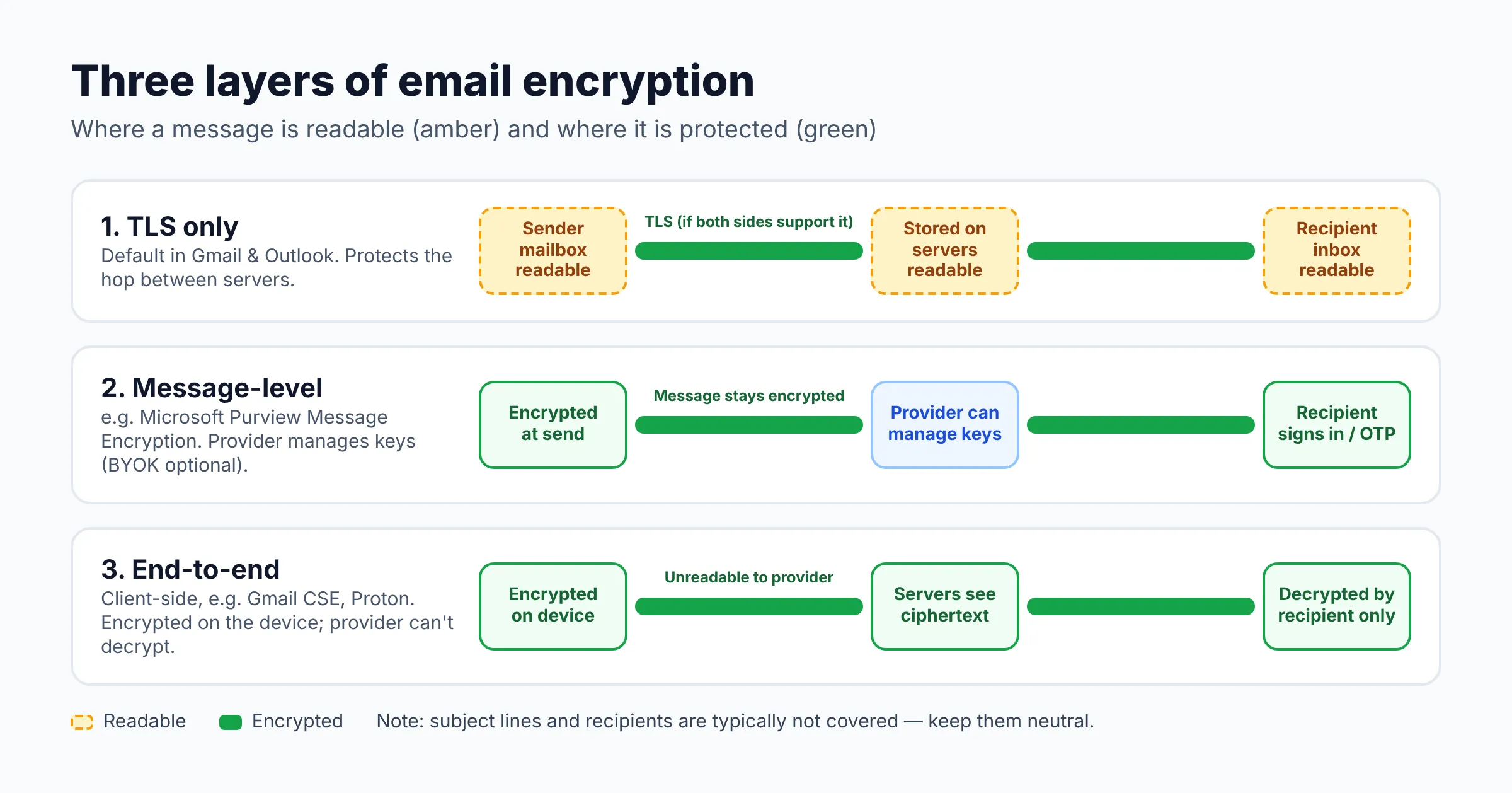
None of the three hides everything. Gmail’s CSE documentation notes that the subject, timestamps and recipients don’t get the additional encryption. Keep client names and matter details out of subject lines, whichever tool you use.
Do lawyers have to encrypt email? What ABA Opinion 477R says
No blanket rule requires lawyers to encrypt every email. The duty is to make “reasonable efforts” to protect client information. In ABA Formal Opinion 477R (2017, copy hosted by the Tennessee Board of Professional Responsibility), the ABA’s ethics committee concluded:
- A lawyer generally may send client information over the internet after taking reasonable efforts to prevent unauthorized access. The use of unencrypted routine email “generally remains an acceptable method” of communicating with clients.
- Special precautions may be required when a client agreement or a law requires them, or when the information calls for a higher degree of security. The opinion says “particularly strong protective measures, like encryption, are warranted in some circumstances.”
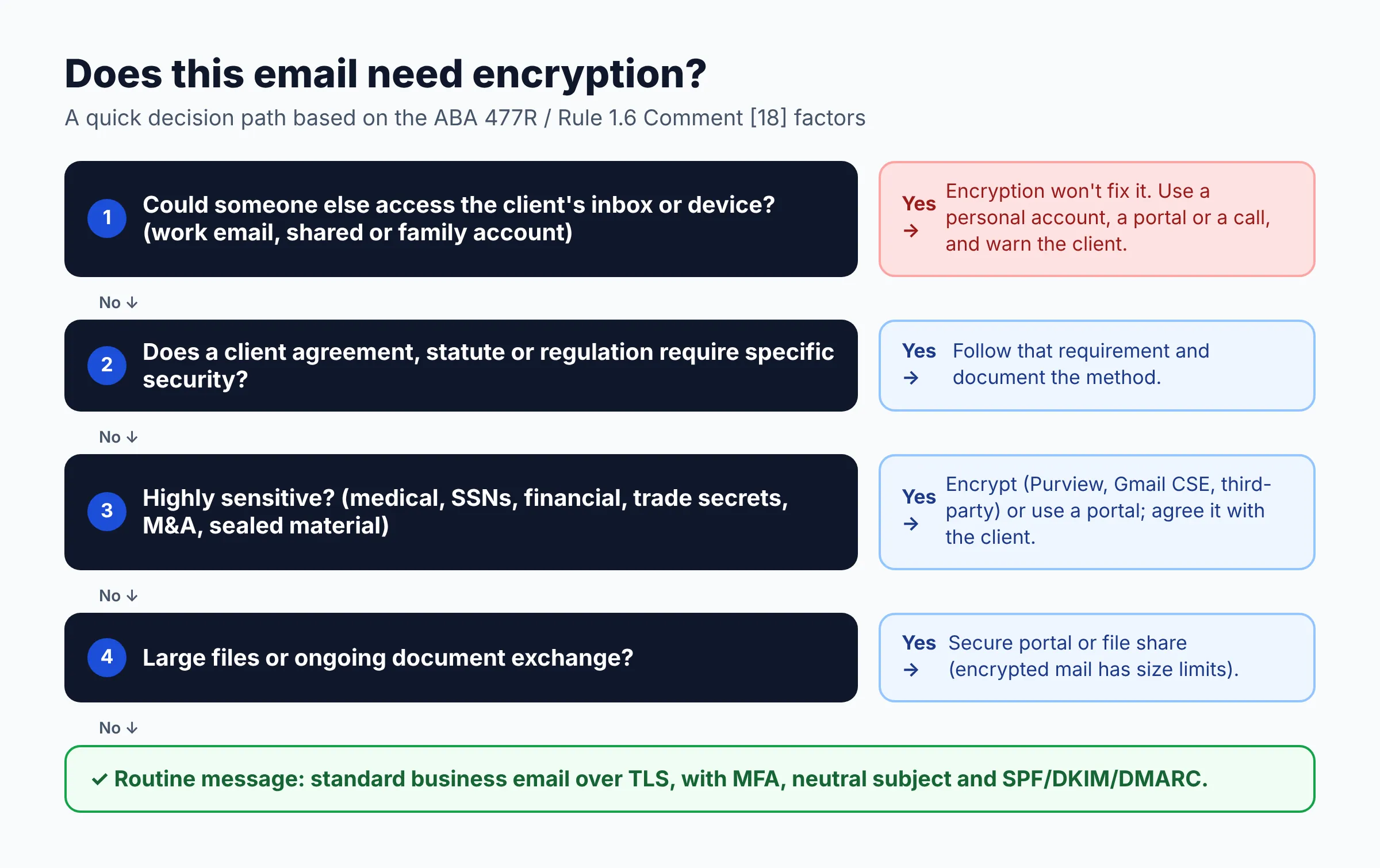
- Lawyers must decide case by case, using the Model Rule 1.6 Comment [18] factors: how sensitive the information is, how likely a disclosure is without more safeguards, what those safeguards cost, how hard they are to implement, and whether they make it harder to represent the client.
- Lawyers should be careful when a client uses a device or account that a third party can access, such as an employer’s email system. The lawyer should consider warning the client about the risk.
- For highly sensitive information, the lawyer should explain the risks to the client and agree on a method, such as “high level encryption or personal delivery.”
The opinion also lists practical steps: understand the threat, know where client data is sent and stored, use reasonable security measures, label confidential communications, train staff, and vet technology vendors. Many states have their own ethics opinions on email and cloud services, so check your state bar’s guidance as well.
When is encryption warranted? A decision table
This table turns the 477R factors into everyday scenarios. It’s a starting point for a written firm policy, not a substitute for your own judgment or your state’s rules.
| Scenario | Sensitivity / risk | Reasonable method |
|---|---|---|
| Scheduling, reminders, “your filing was accepted” | Low | Standard business email over TLS, with MFA and SPF/DKIM/DMARC in place |
| Routine correspondence with opposing counsel or the court | Low to moderate | Standard email. Consider enforced TLS for firms you email often |
| Medical records, Social Security numbers, bank or tax documents | High | Encrypt the message (Purview, CSE or a third-party service) or use a portal |
| Trade secrets, M&A, IP, sealed or protected material | High | End-to-end encryption or a portal with access logs. Agree the method with the client |
| Client emails from a work account or a shared/family account (e.g., employment dispute, divorce) | High (third-party access) | Encryption doesn’t fix this. Move to a personal account, a portal, or phone/in person, and warn the client |
| Large document sets or ongoing exchange | Varies | Secure portal or file share. Purview caps encrypted messages at 25 MB |
| Client or engagement letter requires specific security | Contractual | Follow the agreement. Document the method |
| A statute or regulation applies to the data | Legal requirement | Meet that requirement. Confirm with the client and your compliance adviser |
Law firm email encryption options compared
How we compared: this table is based on each vendor’s official documentation and pricing pages as of November 2026. We haven’t run hands-on tests. Where a vendor didn’t publish a price we could verify, the table says so.
| Option | Encryption type | What the recipient does | Plan / price (as of Nov 2026) | Best for |
|---|---|---|---|---|
| Microsoft Purview Message Encryption | Message-level, rights management (Microsoft-managed key; BYOK optional) | Reads natively in Outlook. Gmail/Yahoo users get a wrapper email and open it in a web portal | Included in M365 Business Premium, E3/E5. Add-on (Azure Information Protection P1) for Business Basic/Standard | Firms already on Microsoft 365 |
| Gmail client-side encryption (CSE) | End-to-end (Google can’t decrypt) | With Assured Controls: existing Google account or guest account. Otherwise S/MIME certificate exchange | Enterprise Plus, Frontline Plus, Education Standard/Plus. Simplified setup also needs the Assured Controls add-on | Larger Workspace firms with high-sensitivity matters |
| Gmail confidential mode | Not encryption (access restrictions) | Opens a link, possibly with an SMS or email passcode | Built into Gmail | Expiring low-risk messages only |
| Virtru | End-to-end email and attachments | No username or password required (Starter plan) | Starter $119/month incl. 5 users, Business $219/month incl. 5 users (billed annually) | Adding encryption to Gmail or Outlook without changing plans |
| Proton Mail for Business | End-to-end encryption (per Proton); password-protected email to non-Proton recipients | Opens with a password you share separately | Mail Essentials $6.99/user/month (annual billing). Workspace plans are on a promotional price | Firms willing to move their whole mailbox to Proton |
| Hushmail for Law | Encrypted email with archive; encrypted forms from Essentials up | Not detailed on the plans page; confirm with vendor | Law Basic, Essentials, Growth (per user). Price not shown in the page text we could read, so confirm with the vendor | Solos who want email, intake forms and e-signatures in one tool |
| Paubox | Automatic TLS-based encryption, with a secure web app if the recipient’s server lacks TLS | Usually nothing (“No portals or passwords”) | Standard, Plus, Premium. Price not published in readable form, so confirm with the vendor. 14-day trial | Firms that handle health information and want no friction for recipients |
| Secure client portal | Encrypted storage and access; nothing travels as an attachment | Logs in to the portal | Varies (often part of practice management software) | Ongoing document exchange, large files, shared-account clients |
Paubox is a different model from the others. Its page says outbound email is encrypted automatically, and recipients normally need no portal or password. If the recipient’s mail server doesn’t support TLS, the message goes to a secure web app instead. It’s easy for clients, but ask the vendor how that compares with message-level encryption for your risk level. The page also says a business associate agreement (BAA) is included with all accounts.
Still choosing between the two big suites? Our Google Workspace vs Microsoft 365 comparison for law firms covers pricing, security and practice management integrations. Built-in encryption is one of the clearest differences between them.
Microsoft 365 message encryption: which plans include it?
Microsoft’s Message Encryption FAQ lists Purview Message Encryption as part of Microsoft 365 Business Premium, Office 365 and Microsoft 365 Enterprise E3 and E5, Office 365 A1/A3/A5, and Government G3/G5. On Business Basic, Business Standard, Exchange Online Plan 1 or 2, Office 365 E1 or F3, you can add Azure Information Protection Plan 1 to get it. Each user who sends encrypted mail needs a license.
Other limits worth knowing, all from Microsoft’s FAQ:
- Messages, including attachments, can be up to 25 MB.
- OneDrive and SharePoint “cloud attachments” aren’t encrypted. Attach the file itself, or use a portal.
- PDF attachments are encrypted only if an admin turns on PDF encryption.
- Revoking a sent message works from Outlook on the web. Expiration and revocation for external recipients are part of Advanced Message Encryption.
- The old Office 365 Message Encryption was deprecated on July 1, 2023. Purview Message Encryption replaces it.
How to set up encrypted email in Microsoft 365
Do this after the basics in our Microsoft 365 setup guide for law firms (MFA, admin roles, domain), and test with a non-firm account before you roll it out.
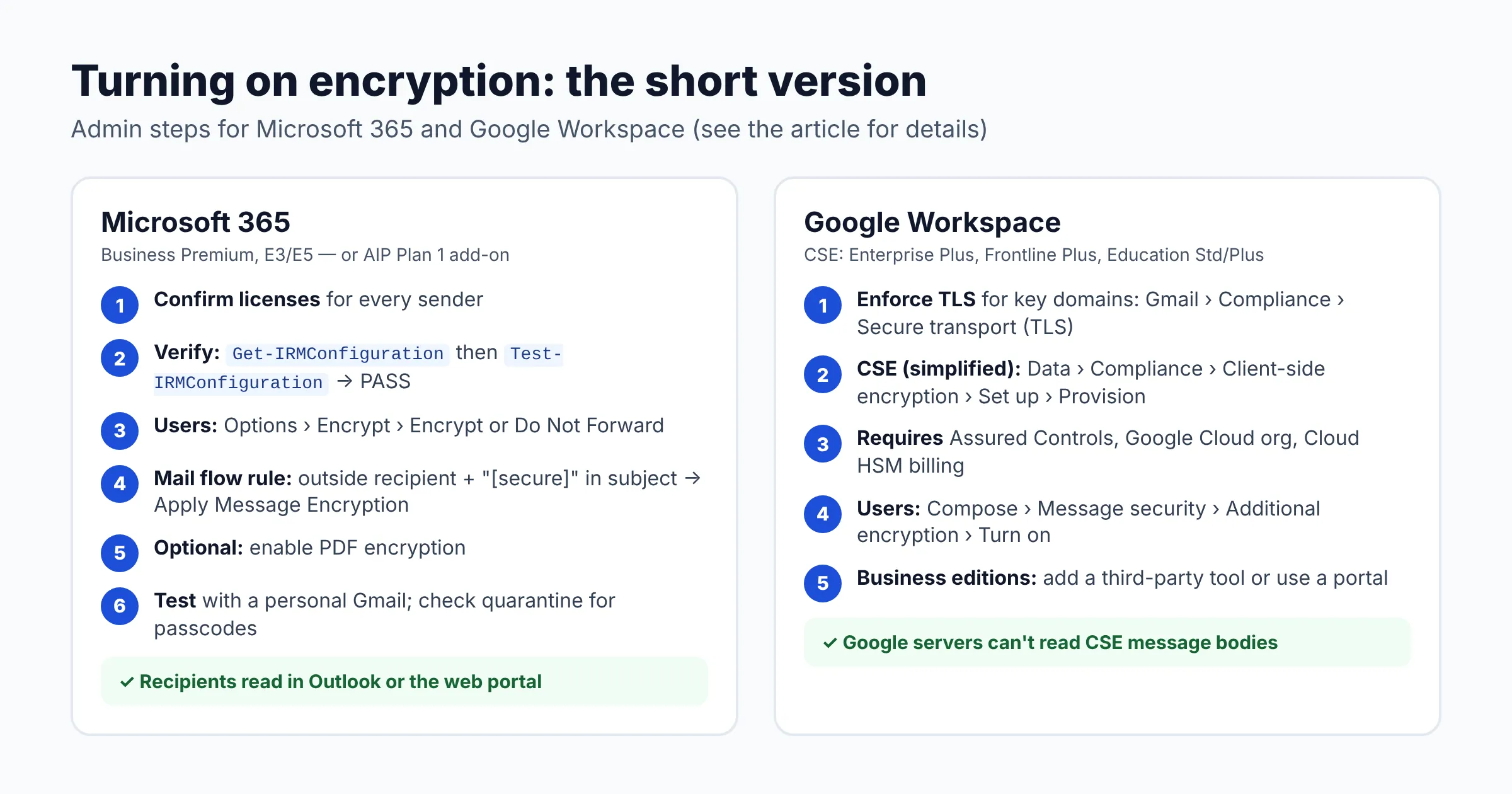
- Confirm licensing. In the Microsoft 365 admin center, check that each lawyer and staff member who will send encrypted mail has Business Premium, E3/E5, or the AIP Plan 1 add-on.
- Verify the service is on. Microsoft says message encryption activates automatically when Azure Rights Management is active, which is usually the case. To confirm, connect to Exchange Online PowerShell and run
Get-IRMConfiguration.AzureRMSLicensingEnabledshould beTrue. Then runTest-IRMConfiguration -Sender you@yourfirm.com -Recipient you@yourfirm.comand look for “OVERALL RESULT: PASS”. - Show users the manual button. In new Outlook and classic Outlook, compose a message and choose Options > Encrypt, then pick Encrypt or Do Not Forward (Microsoft’s steps). Encrypt suits most client mail. Do Not Forward also blocks forwarding, printing and copying.
- Add an automatic rule as a safety net. In the Exchange admin center, go to Mail flow > Rules > Create a new rule. Set The sender is located: Inside the organization, add The recipient is located: Outside the organization, and add a trigger such as the subject containing
[secure]. Under Do the following, choose Modify the message security > Apply Office 365 Message Encryption and rights protection and select the Encrypt template (Microsoft’s guide). - Optionally protect PDFs. In Exchange Online PowerShell, run
Set-IRMConfiguration -EnablePdfEncryption $trueso PDF attachments are encrypted too. - Test from outside. Send an encrypted message to a personal Gmail address. Open it, reply, and check that the reply stays encrypted.
- Check spam and quarantine. Microsoft notes that one-time passcode emails often land in junk folders or quarantine, especially the first ones. Good SPF, DKIM and DMARC setup helps them get through.
Gmail confidential mode vs encryption: what’s the difference?
Gmail confidential mode restricts what a recipient can do with a message, and it isn’t presented as encryption. Google’s confidential mode help page describes expiration dates, revoking access, an optional SMS passcode, and turning off forward, copy, print and download. It doesn’t mention encryption. It also warns that recipients can still take screenshots or photos, and that recipients with malicious programs may still be able to copy or download the message.
Confidential mode is fine for a low-risk note you want to expire. For anything you’d describe as sensitive under 477R, use Gmail client-side encryption, a third-party encryption service, or a portal.
Encrypted email for lawyers on Google Workspace
Gmail client-side encryption is available on Enterprise Plus, Frontline Plus, Education Standard and Education Plus. It isn’t included in Business Starter, Standard or Plus. According to Google’s Gmail CSE article, it encrypts the body, inline images and attachments. With the Assured Controls add-on, users can send end-to-end encrypted email to anyone without setting up S/MIME. Without it, users exchange S/MIME certificates with recipients.
Limits to plan for: encrypted attachments and inline images are capped at 5 MB. Encrypted messages can’t be virus-scanned. Email signatures, delegated access, printing, confidential mode and Google AI features are off while encryption is on.
How to set up encryption in Google Workspace
Finish the core setup in our Google Workspace setup guide for law firms first. Then:
- Enforce TLS with regular counterparties. In the Admin console, go to Apps > Google Workspace > Gmail > Compliance > Secure transport (TLS) compliance > Configure. Choose Inbound and/or Outbound, attach an address list of the domains (for example a co-counsel firm or a key client), and keep Require CA signed certificate and Validate certificate hostname checked. Mail to those domains then bounces instead of falling back to an insecure connection (Google’s steps). Changes can take up to 24 hours.
- If you’re on an eligible edition, turn on CSE. Google’s simplified setup (Enterprise Plus or Frontline Plus with Assured Controls) works like this: go to Data > Compliance > Client-side encryption > Set up, click Provision (Cloud HSM and Google Identity are preselected), accept the Cloud HSM cost agreement, choose the organizational unit, enable Gmail, and save. It needs a Google Cloud organization, a billing account for Cloud HSM costs, and super admin access. It can be run only once. Other setups use the standard method with an external key service and identity provider.
- Train users to encrypt per message. In Gmail, click Compose, click the Message security icon, and under Additional encryption click Turn on. Turn encryption on before writing, because switching it on deletes the current draft.
- On Business editions, add a tool. Use a service such as Virtru, or a client portal, for sensitive matters, and write down which matters require it.
Secure client portals: often the better alternative
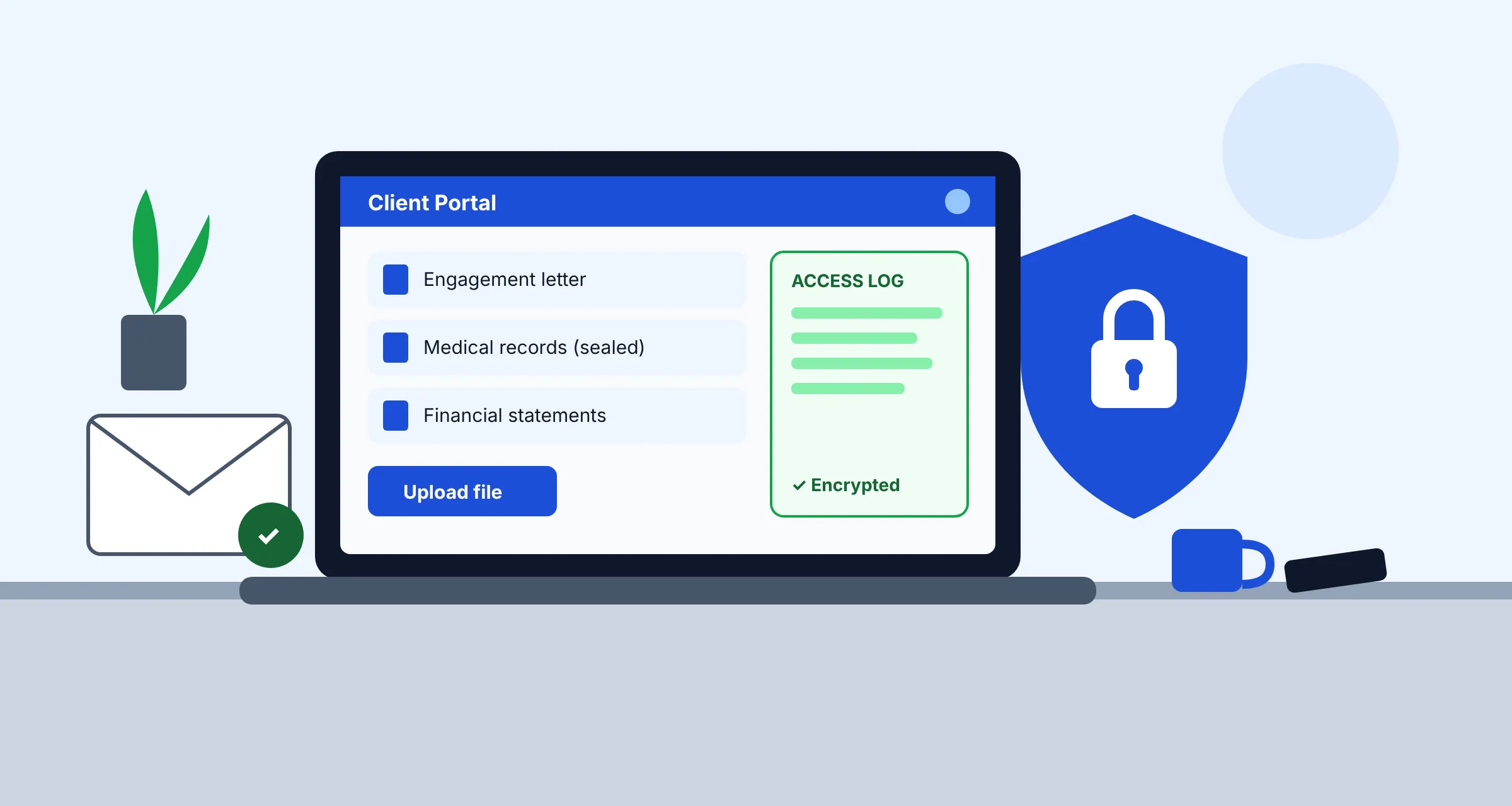
A secure client portal keeps documents in one encrypted place. Clients log in to view or upload files, and nothing travels as an attachment. ABA 477R itself mentions “a well vetted and secure third-party cloud based file storage system” as an alternative to email attachments. Portals help with large files and long-running matters. They also help when a client’s email might be read by someone else, because the portal has its own login. Many practice management tools include one. For new-client intake from your website, see our guide to adding a secure contact form to a law firm website. For signatures, our e-signature comparison for law firms covers secure signing workflows.
Habits that matter as much as encryption
- Turn on MFA for every mailbox. Encryption doesn’t help if an attacker logs in as you.
- Use neutral subject lines. Subjects usually aren’t encrypted.
- Turn off autocomplete for sensitive sends, or double-check recipients. A misaddressed message is the most common email leak, and encryption won’t stop it.
- Label privileged messages “privileged and confidential”, as 477R recommends.
- Send passwords separately. If a tool uses a password (Proton, password-protected files), text or phone it to the client. Never put it in the same email.
- Write it down. A one-page encryption policy, plus a line in your engagement letter about how you’ll communicate, shows reasonable efforts. Pair it with our law firm security checklist.
FAQ
Is Gmail encrypted enough for lawyers?
For routine messages, standard Gmail on a business Workspace account, with TLS and MFA, is generally reasonable under ABA 477R. For highly sensitive information it isn’t enough on its own. Use client-side encryption (Enterprise Plus and similar editions), a third-party encryption service, or a portal.
Is Gmail confidential mode the same as encryption?
No. Confidential mode adds expiration, revocation and copy/forward restrictions. Google warns that recipients can still screenshot the message and that malicious programs may still copy it. Its help page doesn’t describe it as encryption.
Does Microsoft 365 Business Standard include email encryption?
Not by default. Microsoft lists Purview Message Encryption as included in Business Premium and E3/E5. Business Basic and Business Standard need the Azure Information Protection Plan 1 add-on.
Can clients read encrypted email without special software?
Usually, yes. Purview-encrypted mail opens in a web portal for Gmail and Yahoo users, and the portal needs no separate download. Virtru’s Starter plan states no username or password is required for recipients. Gmail CSE recipients may need a Google account or guest account, or S/MIME certificates, depending on setup.
Is a password-protected PDF good enough?
ABA 477R mentions password-protecting attachments as an extra step alongside encrypting the transmission, not as a replacement for it. Use a strong password, send it by another channel, and prefer real message encryption or a portal for highly sensitive files.
Do I need client consent to use regular email?
477R says lawyers and clients should discuss security levels at the start of the relationship. For highly sensitive information, the lawyer should explain the risks and agree on a method. A client can also ask for special measures. Many firms cover this in the engagement letter. Check your state’s rules.
Are encrypted messages still searchable for eDiscovery?
In Microsoft 365, Microsoft says most Purview-encrypted messages are discoverable. The exception is branded portal-only mail received from another organization. Check retention and eDiscovery behavior for any third-party tool before adopting it.
Next steps: choosing your law firm email encryption setup
- Check your current plan. If you’re on Microsoft 365 Business Premium, you already have encryption: verify it and train staff this week.
- On Business Basic/Standard or a Workspace Business plan, decide between upgrading, adding a tool such as Virtru, or using a portal for sensitive matters.
- Adopt the decision table above as a written policy, and add a communication clause to your engagement letter.
- Fix the basics that make encryption work: domain authentication, MFA, and admin hygiene. Our Start Here guide lists them in order, and Tool Comparisons covers the rest of your software stack.
Want this handled for you? ProSiteGuide builds and maintains fast, secure WordPress sites for law firms. Book a free consultation.
Sources
- ABA Formal Opinion 477R, Securing Communication of Protected Client Information (copy hosted by the Tennessee BPR)
- Microsoft Learn: Microsoft Purview Message Encryption
- Microsoft Learn: Message Encryption FAQ
- Microsoft Learn: Set up Microsoft Purview Message Encryption
- Microsoft Learn: Define mail flow rules to encrypt email messages
- Microsoft Support: Send S/MIME or Microsoft Purview encrypted emails in Outlook
- Gmail Help: Learn about Gmail client-side encryption
- Google Workspace Admin Help: About client-side encryption
- Google Workspace Admin Help: Set up client-side encryption (simplified method)
- Google Workspace Admin Help: Send email over a secure TLS connection
- Gmail Help: Send & open confidential emails
- Virtru pricing
- Proton for Business plans
- Hushmail plans
- Paubox pricing