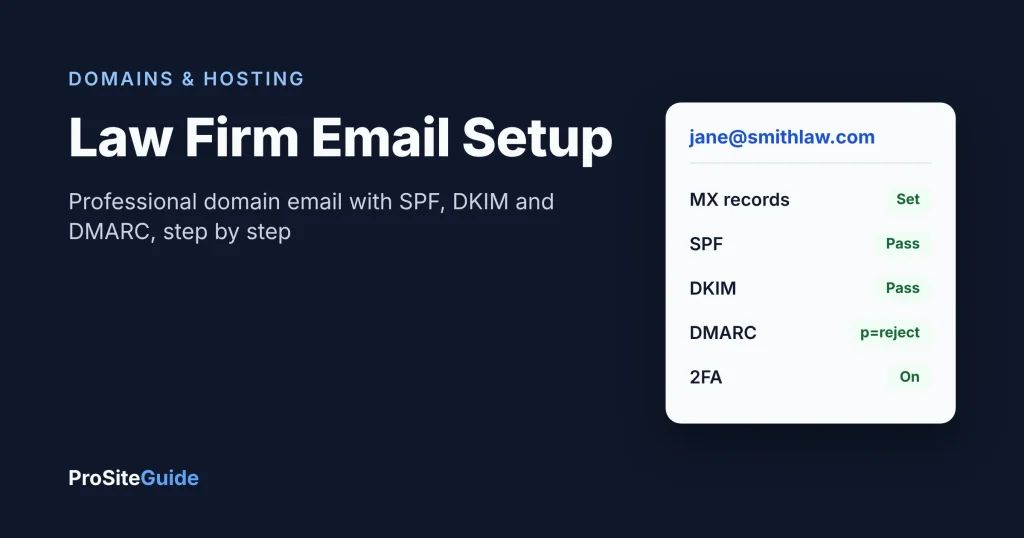
Quick answer: To set up law firm email, sign up for a business email provider (usually Google Workspace or Microsoft 365), verify that you own your domain, create your mailboxes, and point your domain’s MX records to the provider. Then add three DNS records that prove your mail is genuine: SPF, DKIM and DMARC. Start DMARC in monitoring mode (p=none), confirm that every service that sends mail as your firm passes, and only then tighten it to quarantine and reject.
This guide walks through each step in order, with example DNS records you can adapt. It assumes you already own a domain. If you’re still choosing one, read our guide to .law vs .com vs .attorney domains for law firms first.
Why should a law firm use domain email instead of Gmail or Yahoo?
An address like jane@smithlaw.com does more than look professional. It gives the firm control that a free personal account doesn’t:
- The firm owns the mailbox. When someone leaves, an admin can suspend the account, forward it, or keep the mail. A personal Gmail account belongs to the person.
- You can enforce security. Business plans let an admin require two-factor authentication for every user, which matters when the inbox holds client information.
- You can authenticate your mail. SPF, DKIM and DMARC only work on a domain you control. That is what stops someone else sending fake invoices “from” your firm.
- Clients can tell real messages from fakes. If every firm message comes from one domain, an email from
smithlaw.attorney.mail@gmail.comstands out as suspicious.
What law firm email address format should you use?
Pick one format and use it for everyone, so clients and opposing counsel can guess an address correctly. Common options:
| Format | Example | Good for | Watch out for |
|---|---|---|---|
| firstname@ | jane@smithlaw.com | Solos and very small firms | Clashes when you hire a second Jane |
| firstname.lastname@ | jane.smith@smithlaw.com | Firms planning to grow | Longer to type and read aloud |
| first initial + last name@ | jsmith@smithlaw.com | Short and fairly unique | Harder to guess for clients |
| initials@ | jas@smithlaw.com | Firms that already use initials internally | Meaningless to outsiders |
Then add a few shared, role-based addresses so client communication doesn’t depend on one person’s inbox:
- intake@ or info@ for new inquiries and your website contact form.
- billing@ for invoices and payment questions.
- dmarc@ (or similar) to receive DMARC reports. Google and Microsoft both suggest a dedicated mailbox or group for these, because report volume can be high.
Role addresses usually don’t need their own paid license. Most providers let you set them up as aliases, groups or shared mailboxes. If your website form sends to intake@, pair this with our guide to adding a secure contact form to a law firm website.
Which email provider should you choose?
Most small US firms choose between Google Workspace and Microsoft 365. Both handle everything in this guide. The choice usually comes down to whether your team lives in Word and Outlook or in Google Docs, and what your practice management software integrates with. We compare them in detail in Google Workspace vs Microsoft 365 for law firms, so this guide covers setup for both.
One thing to avoid: the free mailboxes bundled with some web hosting plans. Running email and your website on the same server means one problem can take down both. Moving hosts also gets riskier. If you’re planning a move, see how to move a law firm website to a new host without downtime, which covers keeping MX records intact.
How do SPF, DKIM and DMARC work together?
Each record does a different job. Together they let a receiving server decide whether a message claiming to be from your domain is real:
- SPF (Sender Policy Framework) is a list of servers allowed to send mail for your domain. It’s published as a TXT record.
- DKIM (DomainKeys Identified Mail) adds a digital signature to each message. Receivers check it against a public key in your DNS, which shows the message came from an authorized sender and wasn’t altered.
- DMARC ties the two together. It checks that the domain that passed SPF or DKIM matches the domain in the visible “From” address (called alignment). It tells receivers what to do when a message fails, and it sends you reports.
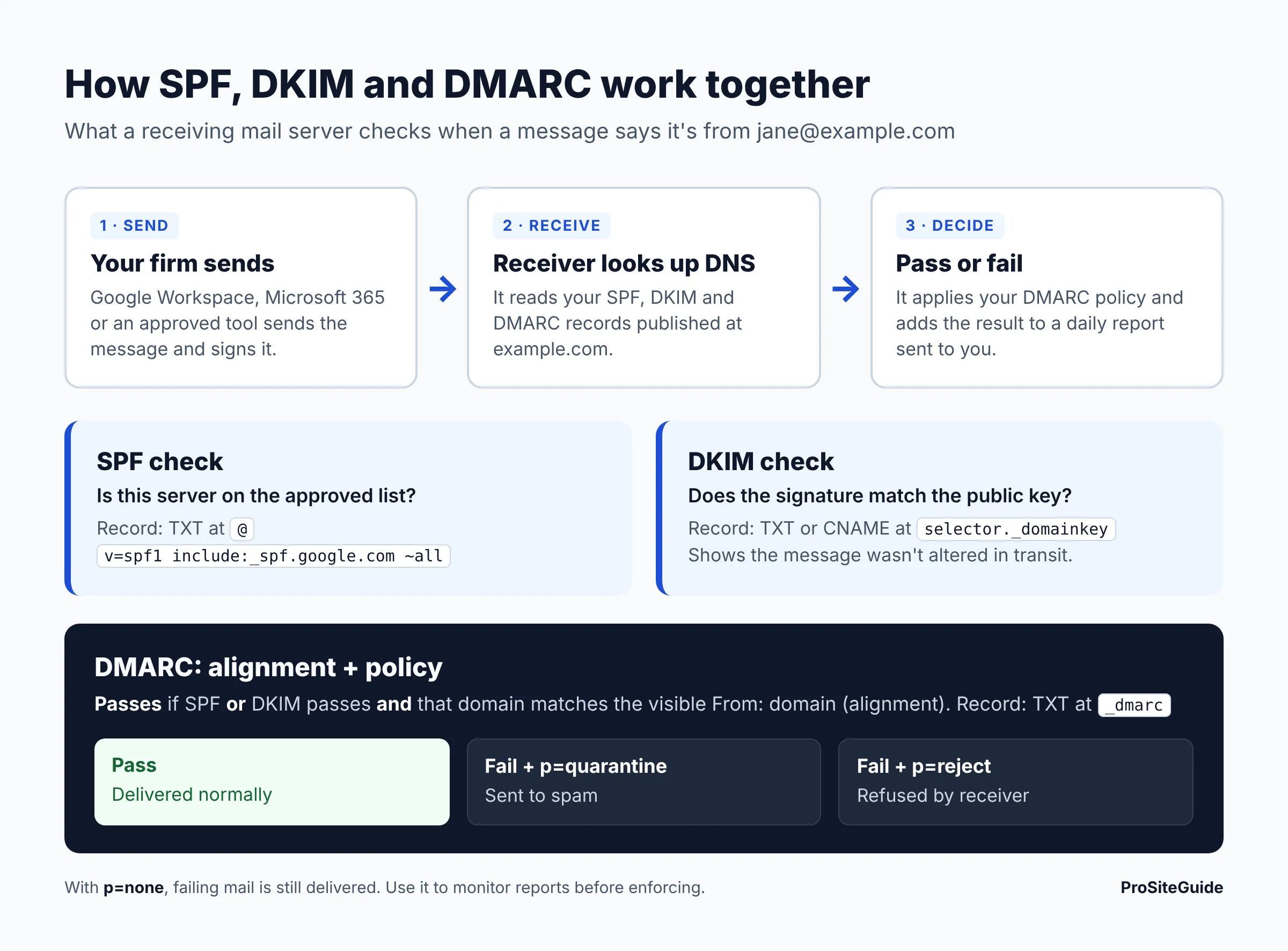
Alignment is the part most guides skip. As Microsoft’s DMARC documentation explains, a message passes DMARC if SPF or DKIM passes and aligns with the From domain. A newsletter tool can pass SPF for its own domain and still fail DMARC for yours.
Before you start: what you need
- Login to wherever your DNS is managed. That’s usually your domain registrar, but it might be your web host or a service like Cloudflare. Check where your domain’s nameservers point.
- An admin account with your chosen email provider.
- A list of every service that sends email as your domain. Think practice management and billing software, e-signature tools, newsletter platforms, your website’s contact form, scheduling tools and payment processors. You’ll need this list before you enforce DMARC.
- If you’re switching providers: a plan to migrate old mail, and a quiet time (a Friday evening, say) to change MX records.
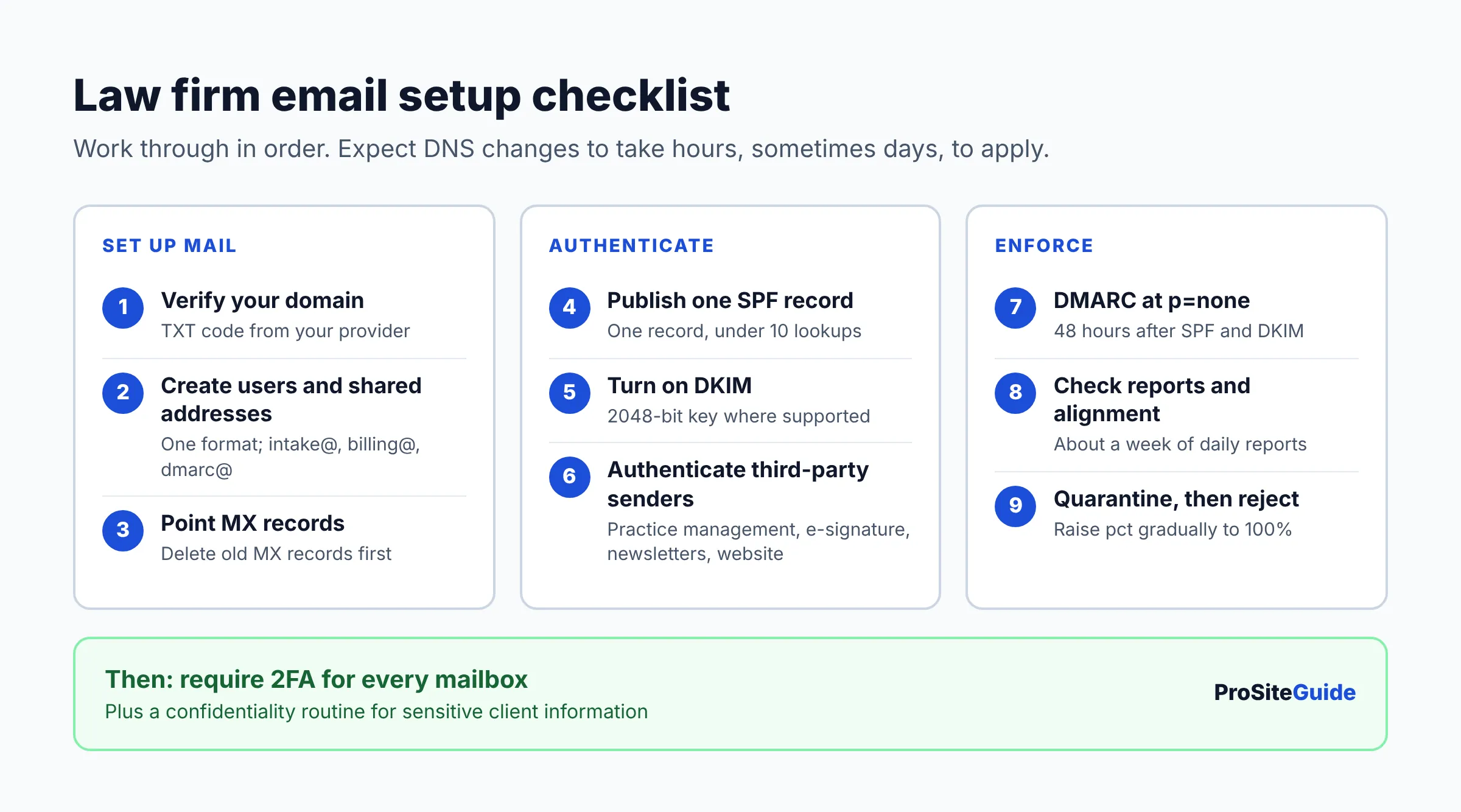
Step-by-step law firm email setup
Step 1: Sign up and verify your domain
During signup, your provider gives you a verification code to add to your DNS, usually as a TXT record. This proves you own the domain.
- Google Workspace: Google says to verify within the first 9 days of a free trial. Once the record is live, confirmation can take up to an hour.
- Microsoft 365: You add the domain in the admin center under Settings > Domains. If your registrar supports Domain Connect, Microsoft can add the records for you. Otherwise you add them by hand, as Microsoft’s DNS guide explains.
Step 2: Create users and shared addresses
Create a mailbox for each lawyer and staff member in your chosen format, then add your role addresses. Do this before changing MX records. Microsoft specifically advises adding users first so mail keeps flowing during the switch.
Step 3: Point your MX records to the provider
MX records tell the internet where to deliver mail for your domain. Delete any old MX records first. Leftover records from a previous host are a common cause of lost mail.
- Google Workspace: add one MX record with priority
1pointing tosmtp.google.com, then click Activate Gmail in the Admin console. Google notes that new MX records can take up to 72 hours to be recognized. Older “aspmx” records are still supported if your mail already works. - Microsoft 365: copy the MX value shown in the admin center (it’s unique to your domain). Set priority to the highest available, typically
0. Microsoft also recommends anautodiscoverCNAME so Outlook configures itself.
Step 4: Publish one SPF record
Add a TXT record at the root of your domain (host @):
- Google Workspace:
v=spf1 include:_spf.google.com ~all. Google recommends~all(soft fail) and says SPF can take up to 48 hours to start working. - Microsoft 365:
v=spf1 include:spf.protection.outlook.com -all. Microsoft recommends-all(hard fail) when DKIM and DMARC are also in place.
Two rules trip people up. First, a domain can have only one SPF record. A second one causes a permanent error, so add each new sender as another include: in the same record. Second, SPF fails if checking it takes more than 10 DNS lookups. Every include: uses at least one lookup, so don’t keep adding vendors without checking.
Step 5: Turn on DKIM signing
Google Workspace: In the Admin console, go to Apps > Google Workspace > Gmail > Authenticate email. Google says to wait 24–72 hours after turning on Gmail before generating a key. Choose 2048-bit if your DNS host supports it. Add the TXT record (host google._domainkey), then return and click Start authentication. Test by emailing a different Gmail or Workspace user, not yourself, and look for dkim=pass in the message headers.
Microsoft 365: DKIM uses two CNAME records, selector1._domainkey and selector2._domainkey. Their values are unique to your tenant. Get them from the Microsoft Defender portal under Email authentication settings > DKIM, add both at your DNS host, then switch signing on. The Microsoft DKIM guide has the full procedure.
Step 6: Authenticate every third-party sender
This is the step that decides whether DMARC enforcement goes smoothly. Go through your list of tools that send as @yourfirm.com: practice management, billing, e-signature, newsletters, scheduling, your website. In each tool’s settings, look for “custom sending domain,” “domain authentication” or “DKIM.” The tool will give you records to add, usually a DKIM record and sometimes an SPF include.
The goal is that each tool signs with your domain, so it aligns for DMARC. If a tool can’t do that, send its mail from a different address (such as a notifications address on the vendor’s domain) or from a subdomain. Microsoft recommends using a subdomain such as news.yourfirm.com for bulk mail services you don’t directly control. That way their reputation problems don’t affect lawyers’ everyday mail.
Don’t forget your website. WordPress contact forms that send through the web server’s built-in mail often fail SPF and DKIM. Route them through an authenticated SMTP service instead. Our law firm website security checklist covers this alongside other WordPress hardening.
Step 7: Publish DMARC in monitoring mode
Google advises waiting 48 hours after setting up SPF and DKIM before adding DMARC. Then add a TXT record with host _dmarc:
v=DMARC1; p=none; rua=mailto:dmarc@example.com
p=none means “take no action, just report.” Your mail is delivered as normal. Receiving servers send daily aggregate reports to the rua address showing which servers sent mail as your domain and whether each passed.
Step 8: Check alignment in your reports
DMARC reports arrive as compressed XML files, which are hard to read by hand. A free or low-cost DMARC report viewer makes them much easier to work through. You’re looking for:
- Your provider: Google or Microsoft servers should show SPF and DKIM aligned and passing.
- Known tools failing: a vendor you recognize that passes SPF for its own domain but fails alignment for yours. Go back to Step 6 for that tool.
- Unknown sources: servers you don’t recognize sending as your domain. These may be spoofing attempts, which is exactly what enforcement will block.
Step 9: Move to quarantine, then reject
Once your legitimate senders all pass, tighten the policy gradually. Google’s recommended DMARC rollout is about a week of daily reports at p=none. Then move to p=quarantine with a small pct value (it suggests around 10% for a small organization) and raise it to 100% over time. Microsoft’s guidance describes the same path, with p=reject as the end goal.
v=DMARC1; p=none; rua=mailto:dmarc@example.com(monitor)v=DMARC1; p=quarantine; pct=10; rua=mailto:dmarc@example.com(failing mail goes to spam for 10% of messages)v=DMARC1; p=quarantine; pct=100; rua=mailto:dmarc@example.comv=DMARC1; p=reject; rua=mailto:dmarc@example.com(failing mail is refused)
Keep reviewing reports after each change. Whenever you add a new tool that sends email, authenticate it before it starts sending.
Example DNS records (example.com)
Here is what a finished setup looks like. Replace example.com with your domain. Always copy tenant-specific values (Microsoft’s MX and DKIM, Google’s DKIM key) from your own admin console. Some DNS hosts add your domain to the host name automatically, so _dmarc becomes _dmarc.example.com.
| Purpose | Type | Host | Google Workspace value | Microsoft 365 value |
|---|---|---|---|---|
| Domain verification | TXT | @ | Code from Google setup | MS=ms… code from admin center |
| Mail delivery | MX | @ | smtp.google.com (priority 1) | Value from admin center (priority 0) |
| Outlook setup | CNAME | autodiscover | Not needed | Value from admin center |
| SPF | TXT | @ | v=spf1 include:_spf.google.com ~all | v=spf1 include:spf.protection.outlook.com -all |
| DKIM | TXT / CNAME | google._domainkey (Google) or selector1._domainkey and selector2._domainkey (Microsoft) | v=DKIM1; k=rsa; p=… from Admin console | Two CNAMEs from Defender portal |
| DMARC (start) | TXT | _dmarc | v=DMARC1; p=none; rua=mailto:dmarc@example.com | |
If you use a third-party sender, its include goes into the same SPF record. For example: v=spf1 include:_spf.google.com include:spf.vendor.example ~all. Here spf.vendor.example is a placeholder; use the exact value from your vendor’s documentation.
Do Google and Yahoo’s bulk sender rules apply to your firm?
Google’s email sender guidelines set requirements for anyone sending to personal Gmail accounts. All senders must set up SPF or DKIM, send over TLS, have valid forward and reverse DNS, and keep the spam rate reported in Postmaster Tools below 0.3%.
Senders of more than 5,000 messages a day to Gmail accounts have extra rules. They need SPF and DKIM, a DMARC record (p=none is allowed), alignment with the From domain, and one-click unsubscribe on marketing messages. According to Google’s sender FAQ, mail from your main domain and its subdomains counts together toward that threshold, and bulk sender status doesn’t expire. The same FAQ says Gmail has been ramping up enforcement, including rejecting messages that don’t comply. Yahoo’s sender requirements are similar and add that unsubscribe requests must be processed within 2 days.
Most small firms send nowhere near 5,000 emails a day. But a firm-wide newsletter to a large list can get there, and the all-sender rules apply to everyone anyway. Following the steps above puts you in line with both tiers.
Turn on two-factor authentication for every account
Authentication records protect your domain from being spoofed. They do nothing if someone steals a lawyer’s password. Require two-factor authentication (2FA) for every mailbox:
- Google Workspace: Google’s 2-Step Verification guide recommends requiring it for anyone handling sensitive data. It rates security keys as the strongest option and discourages text-message codes.
- Microsoft 365: Security defaults are free. They require every user to register for multifactor authentication and block older sign-in protocols that can bypass it. Microsoft turns them on for new tenants by default. Check that nobody has switched them off.
Also create a separate admin account with a strong password and 2FA. Don’t use it as anyone’s daily mailbox.
Email confidentiality and encryption basics
SPF, DKIM and DMARC prove who sent a message. They don’t hide its contents. Confidentiality is a separate question, and the main national guidance is ABA Formal Opinion 477R (2017), “Securing Communication of Protected Client Information.” In summary:
- It applies Model Rule 1.6(c), which requires lawyers to make “reasonable efforts” to prevent unauthorized access to or disclosure of client information.
- A lawyer may generally send client information over the internet, including by email, if they’ve made reasonable efforts to protect it.
- What counts as reasonable is a fact-based judgment that weighs factors like how sensitive the information is and how likely disclosure is without extra safeguards.
- The opinion declined to draw a bright line on encryption. It says special precautions, such as encryption, may be required when the information is highly sensitive or when the client or the law requires them.
In practice, that points to a few habits: keep 2FA on, train staff to spot phishing, and vet the vendors that handle your mail. Use your provider’s encryption feature or a secure client portal for highly sensitive documents. Talk with clients about how they want to communicate, especially if they might use a shared or employer-owned email account. State rules and ethics opinions vary, so check your state bar’s guidance too.
Email signatures and disclaimers
Set a consistent signature for everyone: name, title, firm name, office address, direct phone and website. Many providers let an admin apply a standard signature or footer to every user.
Many firms add a confidentiality notice to their footer. It’s common practice, but it doesn’t replace sending to the right person or using encryption where needed. Its legal effect varies, so don’t rely on it alone. If your emails promote your services, your state’s attorney advertising rules may also apply. Keep disclaimer wording general and check it against your state bar’s rules.
FAQ
How long does law firm email setup take?
The hands-on work takes an hour or two for a small firm. Waiting adds time: Google cites up to 72 hours for MX changes and up to 48 hours for SPF. Then allow 48 hours before DMARC and at least a week of monitoring before enforcing. Plan on two to four weeks to reach p=reject safely.
Will setting up DMARC block my own emails?
Not at p=none, which only reports. Problems happen when firms jump straight to quarantine or reject before their practice management, billing or newsletter tools are authenticated. That’s why the monitoring step comes first.
Can I keep my old email while switching to Google Workspace for lawyers?
Yes. Existing mail stays with your old host until you migrate it. Create users first, migrate old messages with your new provider’s import tool, then change MX records. New mail starts arriving at the new provider once DNS updates.
Do I need SPF, DKIM and DMARC if I only send a few emails a day?
Yes. Google requires SPF or DKIM from every sender to personal Gmail accounts. And DMARC at enforcement is what stops criminals spoofing your domain to send fake wire instructions to clients, whatever your volume.
Should I use my web host’s free email?
For a law firm, a dedicated business email provider is usually the better choice. It separates email from your website, offers admin controls and 2FA enforcement, and makes host changes far less risky. If you’re comparing hosts for the website itself, see our best hosting for law firm websites guide.
Next steps
A solid law firm email setup comes down to a short sequence. Verify your domain, create users, point MX records, add SPF and DKIM, and authenticate every third-party sender. Then publish DMARC at p=none, read the reports, and tighten to reject. Finish with 2FA for every account and a sensible confidentiality routine.
- Choose your provider (see our Workspace vs 365 comparison) and an address format.
- List every tool that sends email as your firm.
- Work through Steps 1–9 above, keeping the example DNS table handy.
- Put a reminder in your calendar to check DMARC reports weekly until you reach
p=reject.
Want this handled for you? ProSiteGuide builds and maintains fast, secure WordPress sites for law firms. Book a free consultation.
Sources
- Google Workspace Admin Help: Verify your domain for Google Workspace
- Google Workspace Admin Help: Set up MX records for Google Workspace
- Google Workspace Admin Help: Set up SPF
- Google Workspace Admin Help: Set up DKIM
- Google Workspace Admin Help: Set up DMARC
- Google Workspace Admin Help: Recommended DMARC rollout
- Google Workspace Admin Help: Protect your business with 2-Step Verification
- Google: Email sender guidelines
- Google: Email sender guidelines FAQ
- Yahoo Sender Hub: Sender best practices
- Microsoft Learn: Connect your domain by adding DNS records
- Microsoft Learn: Set up SPF for your Microsoft 365 domain
- Microsoft Learn: How to use DKIM for email in your custom domain
- Microsoft Learn: Set up DMARC to validate email in Microsoft 365
- Microsoft Learn: Security defaults in Microsoft Entra ID
- ABA Formal Opinion 477R: Securing Communication of Protected Client Information
- Prof. Alberto Bernabe: New ABA ethics opinion on duties (summary of Opinion 477)
- U.S. Court of International Trade: For Your Eyes Only – Securing Lawyer-Client Communications (PDF)