This guide contains affiliate links. If you buy through them, we may earn a commission at no extra cost to you. It never changes our recommendations. Learn more.
Quick answer: to start a WordPress website, you need four things: a domain name, web hosting, the free WordPress software installed on that hosting, and a theme. Most hosts install WordPress in one click, so a basic site can be online in an afternoon. Then you add essential pages, a few plugins and run a launch checklist.
Key takeaways
- WordPress.org (self-hosted) is the free software you install on your own hosting. WordPress.com is a hosted service that bundles hosting into a plan.
- You pay for two things: a domain (yearly) and hosting. Compare the renewal price, not just the first-year offer.
- Pick a block theme, keep plugins to a short list of categories, and set permalinks before you publish anything.
- Backups, security and a tested contact form matter more than fancy features at launch.
What do you need to start a WordPress website?
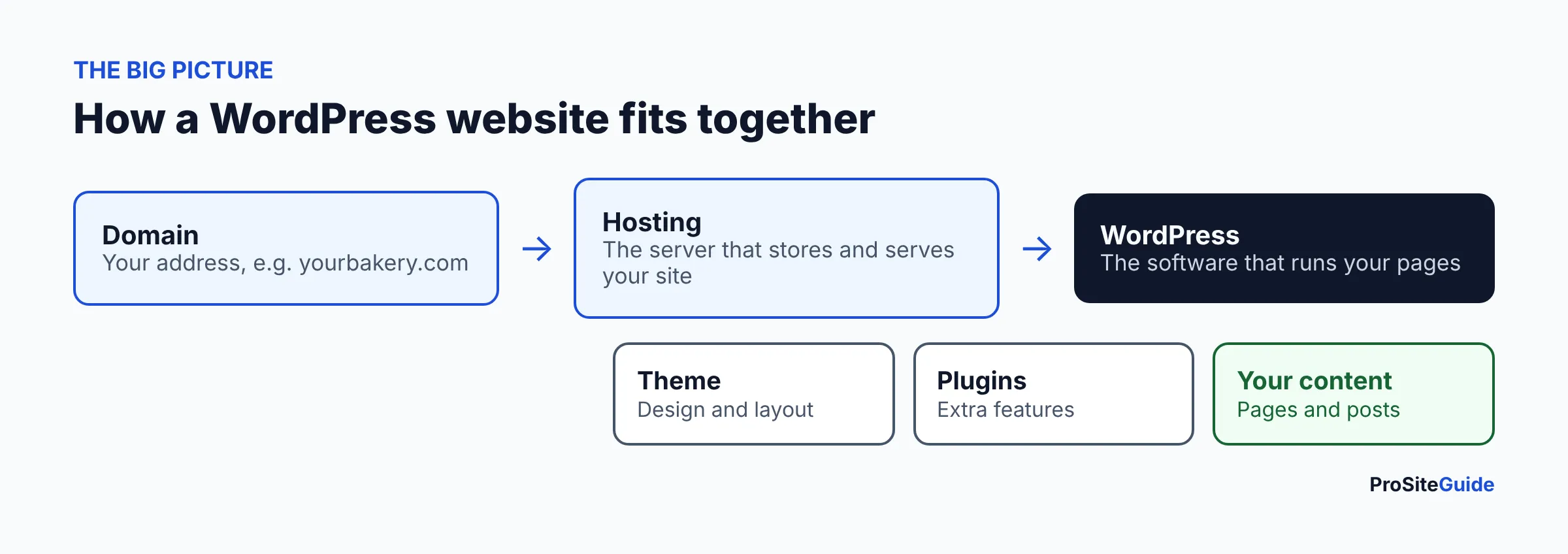
You need a domain name (your address, like yourbakery.com), hosting (the computer that stores your site and serves it to visitors) and WordPress itself. WordPress is software that lets you create and edit pages without writing code. The picture below shows how the pieces connect.
Official requirements are modest. WordPress.org recommends a host that supports PHP 8.3 or greater, MariaDB 10.11+ or MySQL 8.4+, and HTTPS (WordPress requirements). Any reputable host that advertises WordPress support already meets this, so you rarely need to check it yourself.
WordPress.org vs WordPress.com: which should you use?
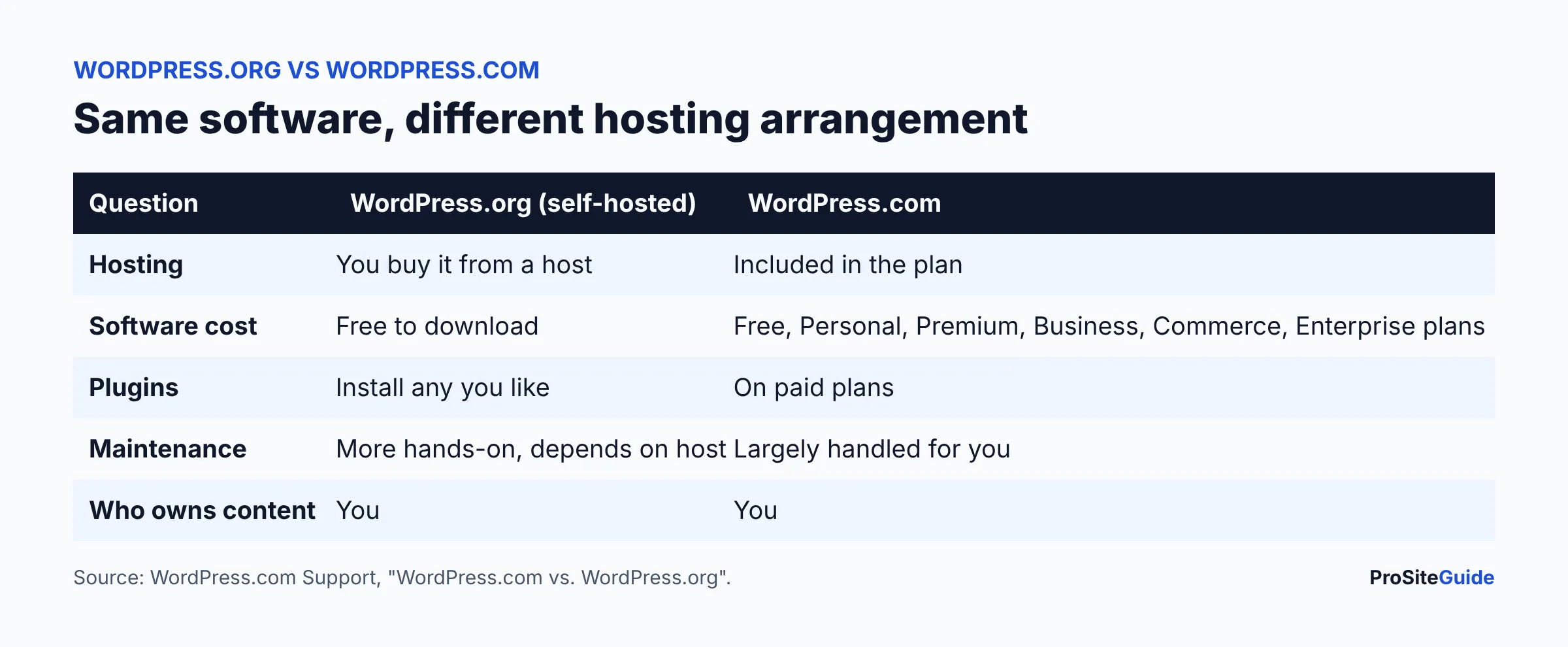
Both run on the same WordPress software. The main difference is hosting: WordPress.com includes managed hosting, while WordPress.org is a free download that you upload to a host you choose and pay for yourself (WordPress.com Support). When people say “WordPress for beginners” they usually mean one of these two paths.
| WordPress.org (self-hosted) | WordPress.com | |
|---|---|---|
| Best for | Owners who want full control and flexibility | Owners who want hosting and upkeep bundled |
| Hosting | You choose and pay a host | Included in the plan |
| Plugins | Install what you like | Available on paid plans |
| Upkeep | More hands-on; depends on your host | Largely handled for you |
| Content ownership | You own it | You own it |
This guide follows the self-hosted WordPress.org route, because it is the most common choice for blogs and small businesses and the one with the most room to grow. If you would rather not manage anything, WordPress.com is a legitimate option; compare its current plans on its own pricing page.
Step 1: How do you choose and register a domain name?
Choose a short, easy-to-spell name that matches your business or brand, then register it with a domain registrar. A domain name is your website’s permanent address, and you rent it by the year.
- Keep it short and easy to say aloud. Avoid hyphens and numbers.
- Prefer .com if it is available; it is the extension people type by default. A local or niche extension can work if it suits your brand.
- Check that the matching social handles are free.
- Turn on auto-renew and keep your contact details current so you never lose the name.
- Check the renewal price. Registrars often advertise a low first-year price that rises later.
You can search for and register a name at Namecheap’s domain search. Our walkthrough on registering a domain on Namecheap covers each screen, and our registrar comparison helps if you want to shop around.
Step 2: How do you choose WordPress hosting?
Compare hosts on renewal price, backups, SSL, support and how easily you can upgrade. Cheap introductory pricing is common, so read what the plan costs when it renews. Hosting is the service that keeps your site online around the clock.
| What to compare | Why it matters |
|---|---|
| Renewal price | The first-term discount often ends. Budget for the regular rate. |
| Backups | Look for automatic daily backups and a simple way to restore. Note whether they cost extra. |
| SSL certificate | HTTPS is part of WordPress’s recommended setup. Free SSL should be included. |
| Support | Is live chat or phone available, and at what hours? Do they help with WordPress specifically? |
| One-click install | Saves you from a manual install and database setup. |
| Resources and upgrades | Storage, visitor limits and how painful it is to move up a plan. |
| Location and speed tools | Server location choices and built-in caching help pages load faster. |
Hosts that offer WordPress plans include Namecheap’s WordPress hosting, among many others. For deeper comparisons, read our review of a popular budget host, our review of a beginner-friendly managed host and our review of a premium managed WordPress host. Weighing two of them head to head? See our two-host comparison. For overall budgeting, what a website costs breaks down the ongoing expenses. We do not quote hosting prices here because they change often; see each provider’s pricing page.
If you bought your domain and hosting separately, you must point the domain to the host. Our guide to connecting a Namecheap domain to hosting shows how.
Step 3: How do you install WordPress?
Most hosts include a one-click installer in their control panel. You choose your domain, create an admin username and a strong password, and the installer does the rest. The exact screens differ by host, so follow your provider’s help page.
- Log in to your hosting account and find the WordPress installer (often under “Websites”, “Apps” or “Auto Installer”).
- Select your domain and enter a site name, admin username and password. Avoid “admin” as the username.
- Confirm HTTPS is enabled, then finish the install.
- Log in at yourdomain.com/wp-admin with the details you just created.
Prefer a manual install? WordPress.org provides the download and an installation guide at wordpress.org/download.
Step 4: What basic WordPress settings should you change first?
Set your site title, timezone and permalinks before you publish anything. These take five minutes and are awkward to change later, especially permalinks.
Site title, tagline and timezone
Go to Settings → General. Enter your site title and a short tagline, confirm the administration email, and choose your timezone so scheduled posts go out on time. WordPress documents each field on its Settings General screen page.
Permalinks
Permalinks are the permanent URLs of your pages and posts. In Settings → Permalinks, choose a readable structure such as “Post name” so a page looks like yoursite.com/about/ instead of ?p=123. WordPress notes that links are meant to be permanent, so set this before you publish (Permalinks screen documentation).
Search visibility
Under Settings → Reading, make sure “Discourage search engines from indexing this site” is unchecked when you are ready to launch. Many owners tick it while building and forget to clear it.
Step 5: Should you use a block theme or a page builder?
For most beginners, start with a block theme. A block theme uses WordPress’s built-in blocks for every part of the site, including header, menus and footer, which you edit in the Site Editor (block themes documentation). A page builder is a plugin or theme layer that gives you its own drag-and-drop editor.
| Block theme | Page builder | |
|---|---|---|
| Learning curve | Gentle; uses built-in WordPress editor | Separate tool to learn |
| Flexibility | Good for most small sites | Very fine layout control |
| Lock-in | Low; content stays as standard blocks | Higher; leaving can break layouts |
| Cost | Many free options in the theme directory | Often a paid tier for advanced features |
| Best for | Blogs, brochure sites, small business | Custom designs with complex layouts |
Browse free themes in the official theme directory and filter by “Block themes”. Choose one that is regularly updated and fits your content, and keep the design simple. If you want curated picks, see our guide to WordPress themes.
Step 6: Which pages does a new website need?
Start with five pages: Home, About, Services (or Blog), Contact and Privacy Policy. You can add more later; these cover what visitors and search engines expect from a new site.
- Home: say who you help and what to do next, in the first screen. A bakery might lead with “Fresh sourdough, baked daily” and an order button.
- About: who you are and why people should trust you. Real details beat vague claims.
- Services or Blog: what you offer, or your latest posts if you are a blogger. A consultant would list services and how an engagement works.
- Contact: a form plus any email, phone or address you want public.
- Privacy Policy: explains what data you collect, such as form entries and analytics. WordPress creates a draft under Settings → Privacy that you must review and edit; have a professional check it if you collect sensitive data.
Then build your menu under Appearance → Editor → Navigation (block themes) and set your Home page under Settings → Reading.
Step 7: What are the essential WordPress plugins?
Install a few plugins by category, and no more. A plugin adds a feature to WordPress, and every extra one adds something to maintain and update. These examples all have free versions in the official WordPress.org plugin directory as of November 2026; pricing for any paid tiers is on each vendor’s site.
| Category | Free examples | What it does |
|---|---|---|
| SEO | Yoast SEO, Rank Math | Titles, meta descriptions and XML sitemaps |
| Backups | UpdraftPlus | Scheduled backups and restores |
| Security | Wordfence Security | Firewall, malware scan and login protection |
| Forms | WPForms (Lite), Contact Form 7 | Contact forms for enquiries |
| Caching | WP Super Cache, LiteSpeed Cache (best on LiteSpeed hosting) | Stores ready-made pages so they load faster |
Check whether your host already provides backups or caching before adding a plugin for the same job. Some hosts also run their own caching tools. For more detail, see our rundown of essential WordPress plugins, our WordPress security checklist and our tips for speeding up your website.
Step 8: What should you check before launching?
Run through a launch checklist: test every form, confirm HTTPS, check on a phone and make sure search engines are allowed in. Print the graphic below or copy it into your notes.
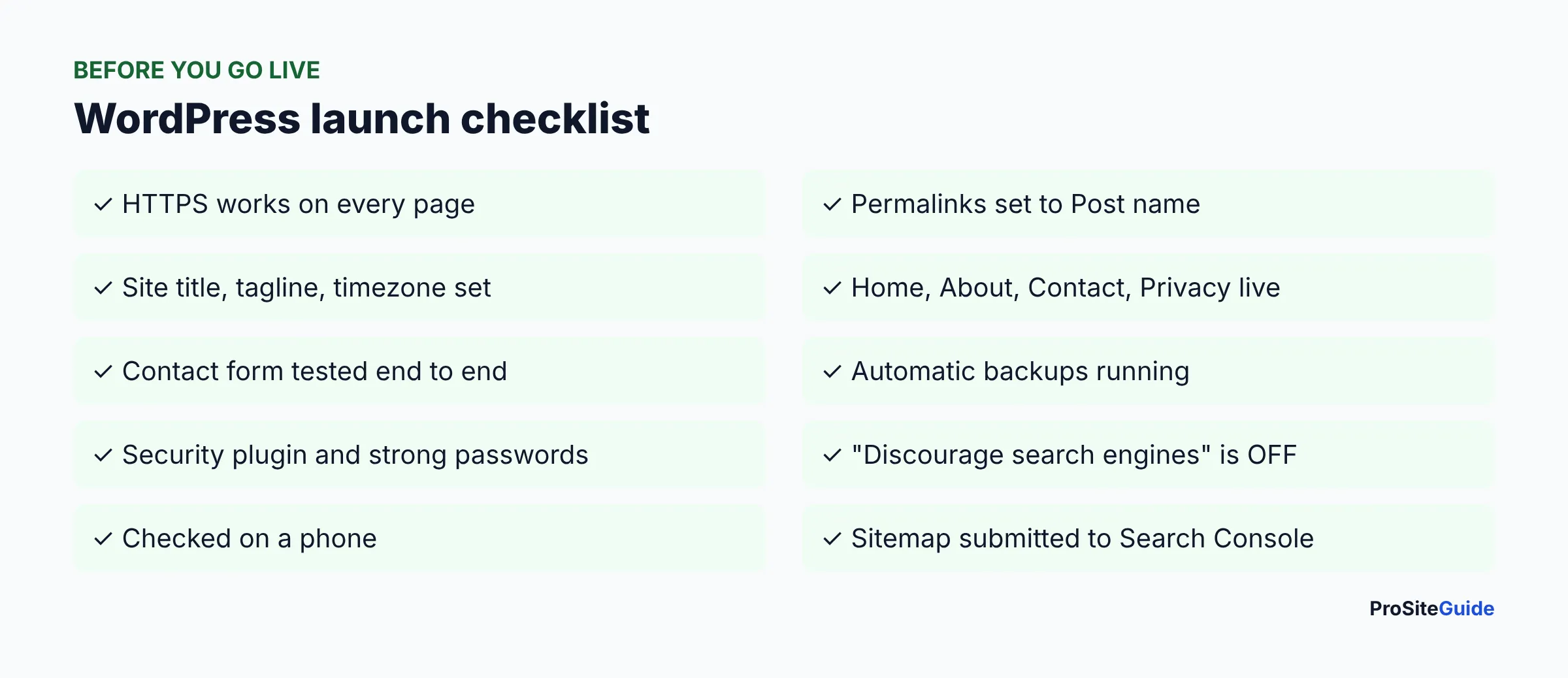
- Browse every page on your phone and on a desktop. Fix broken links and missing images.
- Submit a test message through your contact form and confirm it reaches your inbox (also check spam).
- Confirm automatic backups are scheduled and you know how to restore one.
- Delete unused themes and plugins, and update everything that needs it.
- Use a strong, unique password and consider two-factor login for admin accounts.
- Add your site to Google Search Console and submit your sitemap.
FAQ
How do I make a WordPress website for free?
You can download WordPress.org software for free, but a live site needs a domain and hosting, which cost money. WordPress.com offers a free plan, though it has limits; check its pricing page for what is included.
How long does it take to start a WordPress website?
A basic site can be installed in under an hour with a one-click installer. Writing your pages, choosing a theme and testing usually takes days, depending on how much content you have ready.
Do I need to know how to code to use WordPress?
No. The block editor and block themes let you build pages visually. Code only becomes useful for custom features.
Is WordPress good for beginners?
Yes, with realistic expectations. Installing and editing content is approachable, but you are also responsible for updates, backups and security when you self-host. A managed host or WordPress.com reduces that upkeep.
How much does it cost to start a WordPress website?
Expect to pay for a domain and hosting each year, plus optional premium themes or plugins. Prices vary and promotional rates rise at renewal; see what a website costs and each provider’s pricing page.
Can I switch from WordPress.com to WordPress.org later?
Yes. WordPress.com states that you own your content and are free to move it. Plan the move carefully so your URLs and search rankings are preserved.
Conclusion: your next steps
Register your domain, choose a host with fair renewal pricing and backups, install WordPress, set permalinks and your site title, then add a block theme and five core pages. Finish with a short plugin list and the launch checklist. For a guided overview of our other beginner resources, visit Start Here or compare options on our tool comparisons page.
Want this handled for you? ProSiteGuide builds and maintains fast, secure WordPress sites. Book a free consultation.
Sources
- WordPress.org: Requirements
- WordPress.com Support: WordPress.com vs. WordPress.org
- WordPress.org: Download
- WordPress Documentation: Settings General screen
- WordPress Documentation: Permalinks screen
- WordPress Documentation: Block themes
- WordPress.org plugin directory (Yoast SEO, Rank Math, UpdraftPlus, Wordfence, WPForms, Contact Form 7, WP Super Cache, LiteSpeed Cache listings)