Quick answer: To set up Microsoft 365 for a law firm, pick a plan (Business Premium for most firms that handle confidential client files), buy it from Microsoft or a partner, add your domain, and create users and shared mailboxes. Then turn on MFA, lock down external sharing, set retention policies, and migrate old email last, before you switch your MX record. Allow one focused day for a solo or small firm, plus migration time.
Key takeaways
- Plan: Microsoft 365 Business Premium costs $22 per user per month (paid yearly, as of November 2026). It is the only Business plan that includes Conditional Access, Intune, Defender for Office 365 Plan 1, message encryption and org-wide retention policies.
- Security first: security defaults (free MFA for everyone) are fine on Basic and Standard. On Premium you can swap them for Conditional Access policies.
- Sharing: change SharePoint/OneDrive external sharing away from “Anyone” links. Make “Specific people” the default link type.
- Order matters: create every mailbox before you point your MX record at Microsoft 365, so no client email goes missing.
- Ethics: ABA Formal Opinion 477R asks for “reasonable efforts” to protect client information. These settings support that, but check your state bar’s guidance.
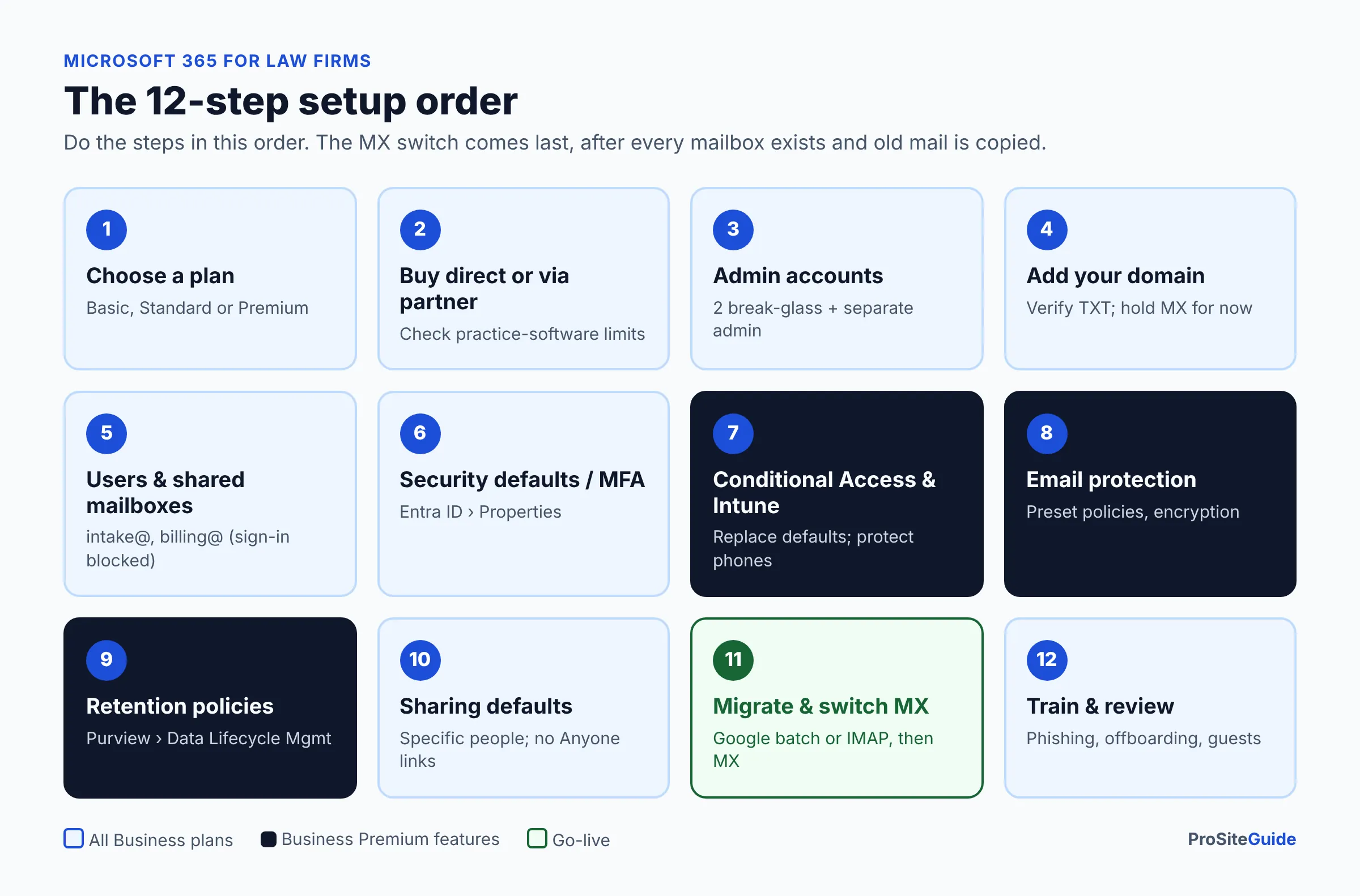
This guide covers setting up the Microsoft 365 account itself: licenses, admin accounts, security, retention, sharing and migration. Email authentication records (SPF, DKIM and DMARC) have their own guide, our law firm email setup guide covering SPF, DKIM and DMARC. If you haven’t decided between Google and Microsoft yet, read Google Workspace vs Microsoft 365 for law firms first.
What do you need before you start?
You need four things: access to your domain registrar, a list of everyone who needs a mailbox, a list of shared addresses (like intake@ or billing@), and admin access to your current email provider. Gather them first so the setup runs in one session.
- Registrar login for the domain your firm uses for email (where you bought it, or wherever its DNS is hosted, for example Cloudflare). Not sure which registrar fits? See our guide to the best domain registrars for law firms.
- User list: full names, the email address each person should have, and whether each needs desktop Office apps.
- Shared addresses: intake, reception, billing, and any old addresses that must keep receiving mail.
- Old system access: admin rights to Google Workspace, or the IMAP server details for your current host.
- Software that plugs into email: your practice management tool, scanner/copier, and any client portal. Some of them limit how you can buy or set up Microsoft 365 (see Step 2).
Step 1: Which Microsoft 365 plan should a law firm choose?
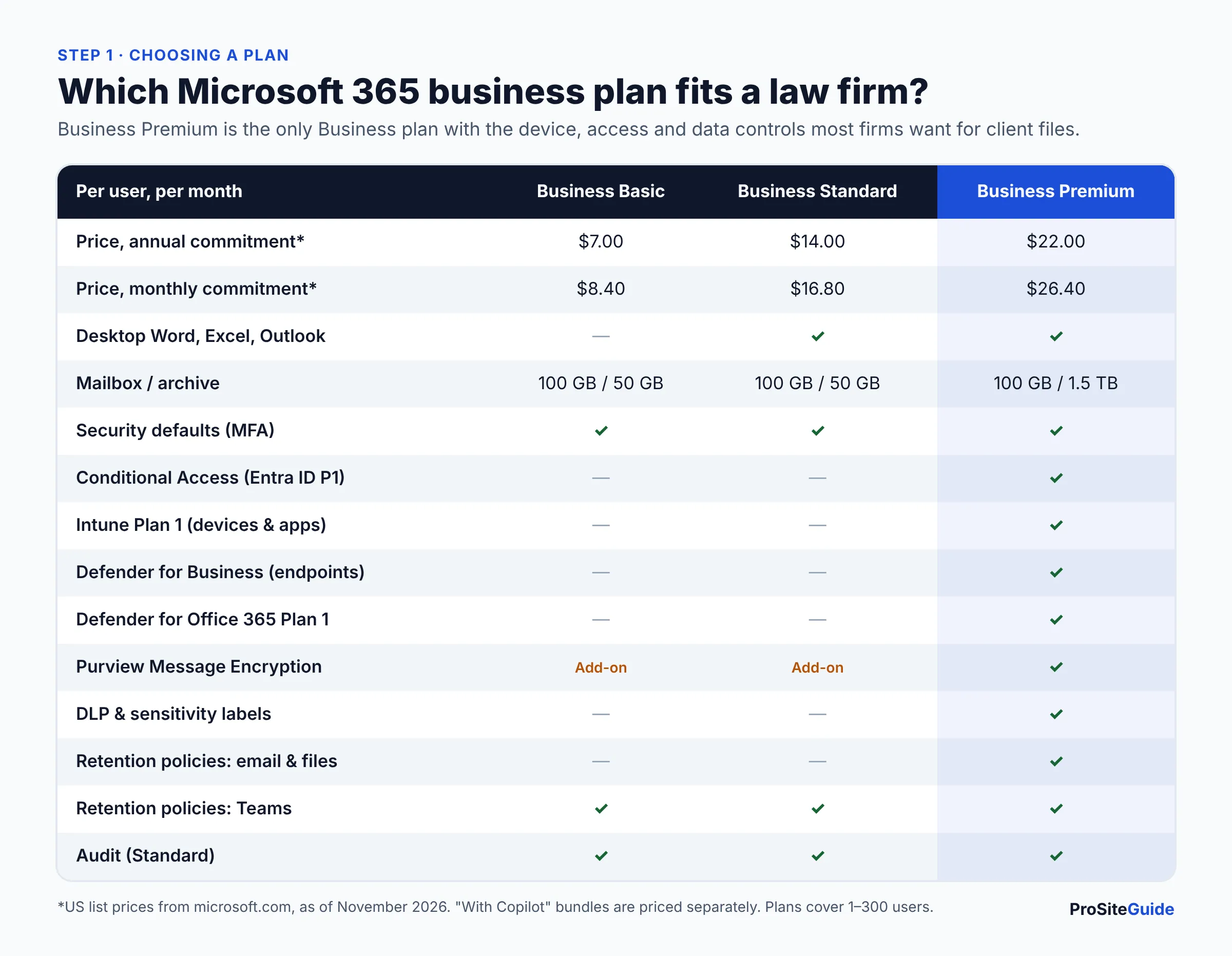
Most small firms should choose Microsoft 365 Business Premium, because it is the only Business plan with device management, Conditional Access, built-in email encryption and org-wide retention policies. Business Standard works for a very small firm that will rely on security defaults and doesn’t need those controls. Business Basic gives you web and mobile apps only, with no desktop Word or Outlook.
All three plans cover 1 to 300 users. Prices below are from Microsoft’s business plan comparison page and the individual plan pages, as of November 2026 (US, per user per month).
| Plan | Annual commitment | Monthly commitment | Desktop apps | Mailbox / archive | Key security for law firms |
|---|---|---|---|---|---|
| Business Basic | $7.00 | $8.40 | No (web and mobile only) | 100 GB / 50 GB | Security defaults (MFA), anti-spam and anti-malware, Basic Mobility and Security |
| Business Standard | $14.00 | $16.80 | Yes | 100 GB / 50 GB | Same as Basic |
| Business Premium | $22.00 | $26.40 | Yes | 100 GB / 1.5 TB | Adds Conditional Access, Intune Plan 1, Defender for Business, Defender for Office 365 Plan 1, Purview Message Encryption, DLP, sensitivity labels, retention policies and labels |
Microsoft also sells “with Copilot” bundles of Business Standard ($23.50) and Business Premium ($32.00), both paid yearly as of November 2026, and both note usage-based billing for some advanced AI features. Copilot is optional. You can buy the plain plans and add AI later after you’ve settled your firm’s AI-use policy. The security split in the table follows Microsoft Learn’s Microsoft 365 for business security best practices page, which shows feature by feature which plan includes what.
Step 2: Should you buy direct from Microsoft or through a reseller?
Buy direct from Microsoft unless an IT partner will actively manage your tenant. A tenant is your firm’s private Microsoft 365 environment: its users, settings and data. Buying direct keeps billing and the Global Administrator account under the firm’s control.
- Direct: you sign up on microsoft.com, pay Microsoft, and get support from Microsoft. This works well for solos and firms with a tech-comfortable partner or office manager.
- Through a Microsoft partner (Cloud Solution Provider): the partner bills you and usually handles setup and support. This is worth it if they’ll actually configure the security settings below and not just sell licenses. Make sure a firm-owned account keeps Global Administrator rights.
- Bundled with a web host or registrar: be careful. Some legal software treats these accounts differently. MyCase’s Outlook add-in guide says the add-in is not compatible with third-party Microsoft 365 accounts. It says firms with Microsoft 365 “from another provider like GoDaddy” must migrate directly to Microsoft. The same guide says the add-in is available on MyCase’s Pro and Advanced tiers and doesn’t currently work with shared mailboxes.
If you use a different practice management system, check its Outlook integration requirements before you buy.
Step 3: How do you set up admin accounts safely?
Keep admin rights to as few accounts as possible, and keep them separate from everyday mailboxes. The account that creates the tenant automatically becomes Global Administrator, the role that can change everything.
- Sign up and create the tenant with a firm-owned admin identity, not a lawyer’s personal address.
- Create two emergency access (“break glass”) accounts with the Global Administrator role. Microsoft’s security defaults documentation recommends two cloud-only emergency accounts for when other admins are locked out. Store their credentials securely offline.
- Give the attorney or office manager who manages the tenant a separate admin account for admin work only. Microsoft recommends separate accounts for administration and everyday productivity.
- Don’t assign admin roles to staff who only need a mailbox.
Step 4: How do you add your law firm’s domain to Microsoft 365?
Add the domain in the Microsoft 365 admin center under Settings > Domains > + Add domain, verify you own it, then let Microsoft add the DNS records or add them yourself. Microsoft’s add a custom domain guide describes two routes:
- Domain Connect (automatic): if your DNS is at a supported provider (Microsoft lists GoDaddy, IONOS, Cloudflare, WordPress.com and others), you sign in to the registrar in a pop-up and approve the records.
- Manual: add a TXT record to prove ownership. Microsoft says verification can take up to 10 minutes, or up to 48 hours at some registrars. Then add the service records the wizard shows you.
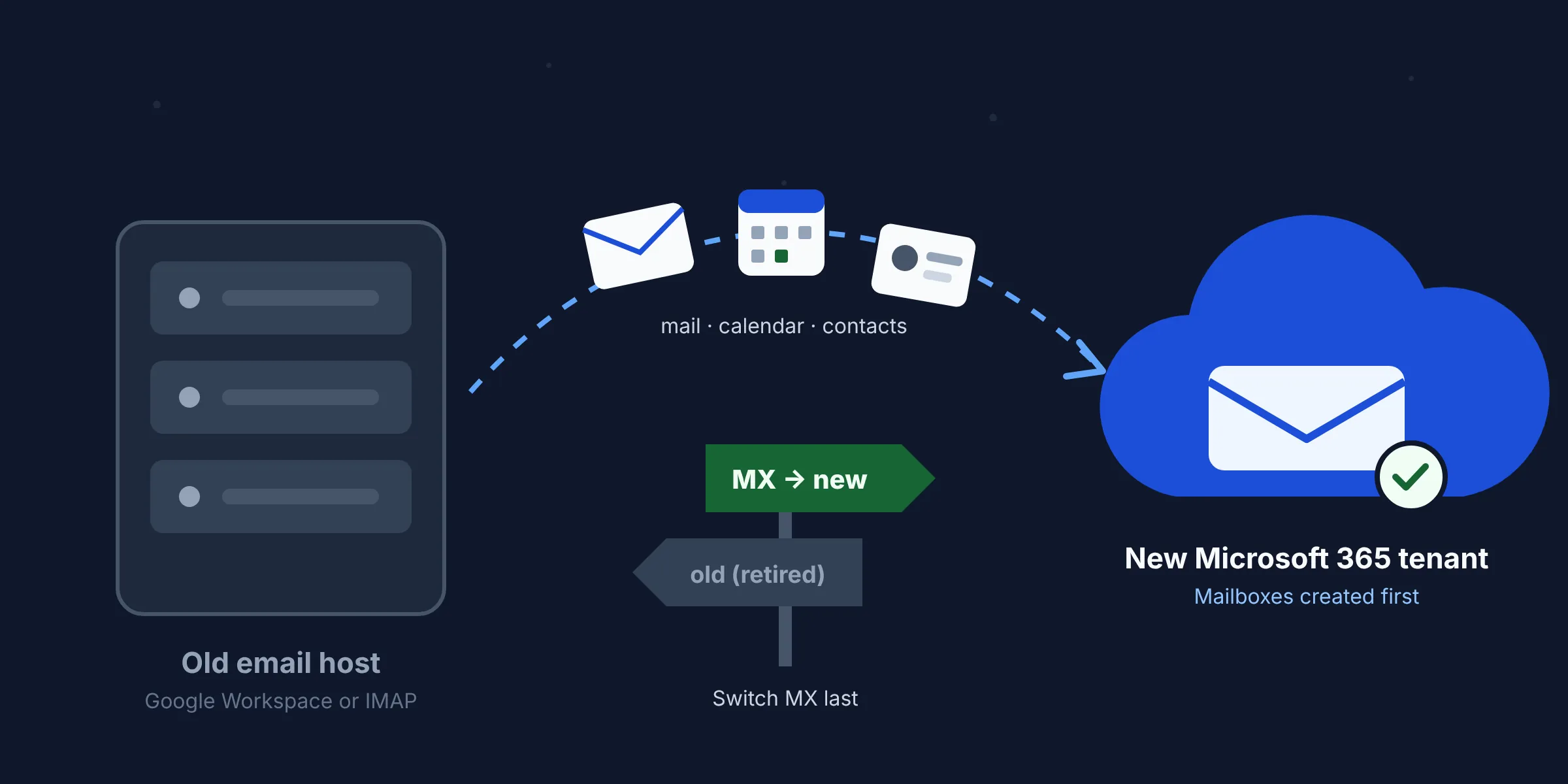
Important: Microsoft says to add users and set up mailboxes after adding the domain but before adding the MX record. The MX record controls where email is delivered. Switch it too early and messages land in Microsoft 365 before anyone has a mailbox. If your current email still needs to work during setup, use the manual route and hold back the MX change until Step 11 is done. Your website is not affected by these changes. For SPF, DKIM and DMARC, follow our domain email authentication guide.
Step 5: How should you set up users and shared mailboxes?
Give each person their own licensed user account, and use shared mailboxes for role addresses like intake@ and billing@. Never share one login among staff. Shared logins break MFA and make audit logs useless.
- In the admin center, go to Users > Active users > Add a user for each person and assign a license.
- Create shared mailboxes under Teams & groups > Shared mailboxes and add members.
- Leave sign-in blocked on each shared mailbox’s account. Microsoft says to “always block sign-in for the shared mailbox account and keep it blocked.”
Shared mailbox facts from Microsoft’s shared mailbox documentation that matter to law firms:
- A shared mailbox holds up to 50 GB without a license. Members need their own licensed mailbox to open it.
- Putting a shared mailbox on litigation hold needs an Exchange Online Plan 2 license, or Plan 1 plus Exchange Online Archiving. Plan for this if intake@ ever holds evidence-relevant mail.
- Only people inside your organization can be members. Outside co-counsel can’t be added.
- Email sent from a shared mailbox can’t be encrypted, so send sensitive documents from a personal mailbox.
- Up to 25 users is the supported maximum per shared mailbox.
Step 6: How do you turn on MFA with security defaults?
Security defaults are Microsoft’s free, one-switch baseline. It makes every user register for multifactor authentication (MFA) and blocks legacy sign-in methods. Microsoft says it may already be on in tenants created on or after October 22, 2019. Check anyway.
- Sign in to the Microsoft Entra admin center (entra.microsoft.com) as an admin.
- Go to Entra ID > Overview > Properties.
- Select Manage security defaults, set it to Enabled, and save.
- Ask every user to install Microsoft Authenticator and register at myprofile.microsoft.com (Security info).
According to Microsoft’s security defaults page, this setting requires all users to register for MFA and requires admins to use MFA. It also blocks legacy authentication (older IMAP, SMTP and POP3 clients) and blocks device code flow. Since July 2024, users no longer get a 14-day grace period to register.
Watch out for scanners and copiers. Older multifunction devices that “scan to email” with a username and password often use legacy SMTP, which security defaults block. Test scan-to-email right after you enable it. Microsoft documents alternatives in how to set up a multifunction device to send email.
Step 7: How do Conditional Access and Intune work on Business Premium?
Conditional Access is a set of if-then sign-in rules, for example “require MFA and a compliant device to open SharePoint.” It requires Microsoft Entra ID P1, which Business Premium includes. Microsoft says organizations with P1 licenses probably shouldn’t stay on security defaults, but you must disable security defaults before your Conditional Access policies can replace them.
- Review the Microsoft-managed Conditional Access policies. Microsoft says these keep the same protections as security defaults: block legacy authentication, require MFA for admins, MFA for all users, and MFA for Azure management.
- Turn those on (start in report-only mode if available), and exclude your two break-glass accounts.
- Only then switch security defaults off. Microsoft’s guidance is to enable Conditional Access policies immediately after disabling defaults, so there’s no unprotected gap.
- Add stricter rules only when you need them, such as requiring a compliant device for document access.
Microsoft Intune Plan 1 (also in Business Premium) covers mobile device management (MDM) and mobile app management (MAM). MDM manages a whole firm-owned laptop or phone. MAM protects just the work apps on a personal phone. For a lawyer reading client email on a personal iPhone, an app protection policy can, for example, stop copying firm data into personal apps without taking over the phone. Business Premium also includes Microsoft Defender for Business for endpoint protection on Windows and Mac. Microsoft’s Business Premium setup hub walks through these in order.
Step 8: How do you protect email and send encrypted messages?
Every Business plan includes anti-spam, anti-malware and anti-spoofing protection. Business Premium adds Defender for Office 365 Plan 1: impersonation protection, Safe Links and Safe Attachments, which matter for a profession targeted by wire-fraud phishing.
- Turn on the preset security policies (Standard or Strict) in the Microsoft Defender portal and don’t hand-build every rule. Microsoft’s best-practice table recommends them for all business plans.
- Use Microsoft Purview Message Encryption for sensitive email. It’s included in Business Premium. Microsoft’s Purview service description says Basic and Standard need an Azure Information Protection Plan 1 add-on for it. Recipients don’t need a Microsoft subscription to read encrypted mail.
- Optionally, create a mail flow rule that encrypts messages automatically, for example when the subject contains a keyword your staff agree on.
Step 9: Which licenses include retention policies and Purview features?
Org-wide retention policies for email, SharePoint and OneDrive are licensed in Business Premium, not in Basic or Standard. A retention policy keeps (or deletes) content for a set period, even if a user deletes it. You configure it in the Microsoft Purview portal under Data Lifecycle Management. Licensing per Microsoft’s Purview service description:
| Purview feature | Basic | Standard | Premium |
|---|---|---|---|
| Retention policies for Exchange, SharePoint, OneDrive (org-wide or location-wide) | No* | No* | Yes |
| Retention policies for Teams chats and channels | Yes | Yes | Yes |
| Create and publish retention labels | No | No | Yes |
| Audit (Standard), searching the activity log | Yes | Yes | Yes |
| Message Encryption | Add-on | Add-on | Yes |
| Event-based retention, disposition review, records | Needs E5-level or Purview add-on licensing | ||
*Exchange Online Plan 2 or Exchange Online Archiving add-ons also grant rights for mailbox retention policies, and SharePoint Plan 2 grants them for SharePoint/OneDrive.
A practical starting point is one retention policy that keeps email and documents for the period your state’s file-retention rules and your engagement letters require. Set it to “retain only” at first, not “retain then delete,” until you’ve decided on deletion. Retention is not a backup and is not a substitute for a records policy, so write down what you chose and why. Microsoft’s overview, Learn about retention policies and retention labels, explains how the two work together.
Step 10: What sharing settings should a law firm use in Teams, SharePoint and OneDrive?
Allow sharing only with people who sign in or verify their identity, and make “Specific people” the default link type. Change this in the SharePoint admin center > Policies > Sharing. Microsoft’s SharePoint and OneDrive sharing settings guide lists four external sharing levels:
- Anyone: links work with no sign-in at all. Avoid this for client files.
- New and existing guests: recipients sign in or enter a verification code. This is a sensible default for firms that share with clients and co-counsel.
- Existing guests: only guests already in your directory. Stricter, but more admin work.
- Only people in your organization: external sharing is off.
Then, under More external sharing settings and File and folder links:
- Set the default link type to Specific people, the most restrictive option.
- Turn on guest access expiration (for example, guests lose access after a set number of days).
- Consider limiting external sharing by domain if you mainly work with a few known organizations.
- If you do allow Anyone links on some sites, make them expire and restrict them to view-only.
OneDrive can be more restrictive than SharePoint but never more permissive. Teams files live in SharePoint, so these settings also govern files shared in Teams. Review guest access in Teams admin settings to match.
Step 11: How do you migrate email from Google Workspace or another host?
Use Microsoft’s Google Workspace batch migration if you’re leaving Google, and IMAP migration for most other hosts. Both run in the Exchange admin center. Change your MX record only once the copy is complete.
- From Google Workspace: Microsoft’s automated Google Workspace migration moves mail, rules, calendars and contacts. It doesn’t move vacation/auto-reply settings, room bookings, shared calendars, event colors or Gmail tags, and contacts carry at most three email addresses. Prerequisites include two routing subdomains and provisioning mail users first.
- From other hosts (IMAP): per Microsoft’s migration options overview, IMAP migration moves email only. Contacts, calendars and tasks must be moved by hand. It also doesn’t create mailboxes, so you must create users first (Step 5).
- PST files: archived mail stored as PST files can be brought in with Microsoft’s PST Import service.
Microsoft strongly recommends disabling retention and archival policies during a data migration, so apply Step 9’s policies after the migration completes. If you’re moving to Google instead, see our Google Workspace setup guide for law firms.
Step 12: How do you train staff and keep the tenant secure?
Show every user how to approve MFA prompts, spot phishing, send an encrypted message and share a file with “Specific people.” Then put a recurring task on the calendar to review the tenant: new users, departed staff, guest accounts, and alerts in the Defender portal. When someone leaves, block their sign-in right away. Convert their mailbox to a shared mailbox so client correspondence stays with the firm.
Microsoft 365 law firm settings checklist
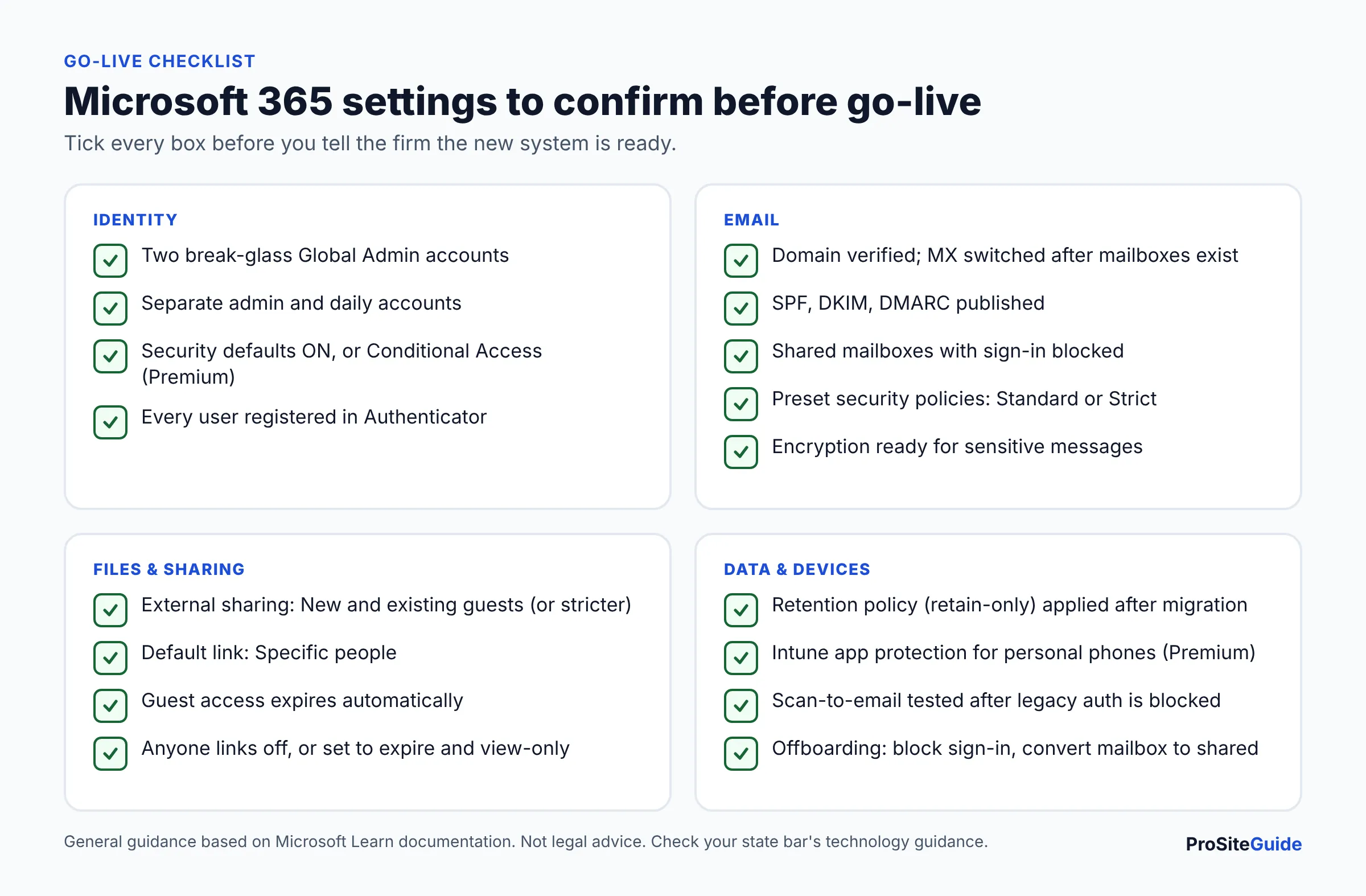
Use this table to confirm each setting before you call the setup finished.
| Setting | Where | Plans | Recommended |
|---|---|---|---|
| Two break-glass admin accounts | Admin center > Users | All | Created, credentials stored offline |
| Separate daily and admin accounts | Admin center > Users | All | Yes |
| Custom domain verified | Settings > Domains | All | Verified; MX switched after mailboxes exist |
| SPF, DKIM, DMARC | DNS + Defender portal | All | See email authentication guide |
| Shared mailboxes | Teams & groups > Shared mailboxes | All | Sign-in blocked; members assigned |
| Security defaults (MFA) | Entra ID > Overview > Properties | All | Enabled (Basic/Standard) |
| Conditional Access | Entra admin center | Premium | Managed policies on, then defaults off |
| Intune app protection for personal phones | Intune admin center | Premium | On for iOS and Android |
| Preset email security policies | Defender portal | All (more in Premium) | Standard or Strict |
| Message encryption | Outlook / mail flow rules | Premium (add-on otherwise) | Staff trained to use it |
| Retention policy | Purview > Data Lifecycle Management | Premium (Teams: all) | Retain-only, applied after migration |
| External sharing level | SharePoint admin > Policies > Sharing | All | New and existing guests (or stricter) |
| Default link type | Same page | All | Specific people |
| Guest access expiration | Same page | All | On |
| Scan-to-email tested | Copier settings | All | Works with modern auth or a supported method |
What does ABA Formal Opinion 477R mean for your Microsoft 365 setup?
ABA Formal Opinion 477R (2017) says a lawyer generally may send client information over the internet if the lawyer has made reasonable efforts to prevent unauthorized access. Special precautions may be needed when the client agreement, the law, or the sensitivity of the information requires it. You can read the text in the copy of ABA Formal Opinion 477 hosted by the Tennessee Board of Professional Responsibility.
In practice, MFA, restricted sharing, encryption for sensitive messages, managed devices and vetting your vendors are the kinds of measures that show “reasonable efforts.” The opinion doesn’t name products or required settings, and it’s a model opinion, not your state’s rule. Check your state bar’s ethics opinions on cloud computing and email, and talk with clients about how they want sensitive matters communicated. The same thinking applies to your website. See our law firm website security checklist.
FAQ
Is Microsoft 365 Business Standard enough for a law firm?
Business Standard can work for a very small firm, as long as security defaults stay on and the firm doesn’t need encryption or retention policies (both possible only with add-ons). It lacks Conditional Access, Intune, Defender for Office 365 and built-in message encryption, which is why most firms handling confidential files choose Business Premium.
How much does Microsoft 365 Business Premium cost for a law firm?
Business Premium is $22.00 per user per month with an annual commitment, or $26.40 per user per month on a monthly subscription (US pricing, as of November 2026). The bundle with Copilot is $32.00 per user per month, paid yearly. Confirm current pricing on Microsoft’s site before you buy.
Are Microsoft 365 security defaults enough?
Security defaults are a strong free baseline: MFA for everyone and legacy sign-in blocked. They’re all-or-nothing, though. If you need device requirements, location rules or exceptions, you need Conditional Access, which requires Entra ID P1 (included in Business Premium).
Can I use Microsoft 365 bought through GoDaddy or my web host?
Usually the email itself works, but some integrations don’t. For example, MyCase states its Outlook add-in isn’t compatible with third-party Microsoft 365 accounts such as GoDaddy’s. Check your practice management software’s requirements first, and buy directly from Microsoft if in doubt.
Do shared mailboxes like intake@ need a license?
No. A shared mailbox stores up to 50 GB without a license, but every member needs their own licensed mailbox. You’ll need an extra license for more storage, an archive, or litigation hold on that mailbox.
Do I need Copilot to set up Microsoft 365?
No. Microsoft still sells Business Basic, Standard and Premium without Copilot. Set up the core tenant first, adopt an AI-use policy, and add Copilot later if the firm decides it’s appropriate.
Will setting up Microsoft 365 affect my law firm website?
No. Microsoft says adding a domain and its email records doesn’t affect your website. Only edit the email-related DNS records, and leave your site’s A/CNAME records alone.
Next steps
Start with the plan decision (Business Premium for most firms), then work through the twelve steps in order: admin accounts, domain, users, MFA, Premium controls, email protection, retention, sharing, migration, and training. Finish with the checklist table above. Next, set up SPF, DKIM and DMARC with our law firm email setup guide, and confirm your state bar’s technology guidance.
Want this handled for you? ProSiteGuide builds and maintains fast, secure WordPress sites for law firms. Book a free consultation.
Sources
- Microsoft: Compare all Microsoft 365 business plans
- Microsoft 365 Business Premium plan page
- Microsoft 365 Business Standard plan page
- Microsoft 365 Business Basic plan page
- Microsoft Learn: Microsoft 365 for business security best practices
- Microsoft Learn: Security defaults in Microsoft Entra ID
- Microsoft Learn: Microsoft 365 Business Premium resources
- Microsoft Learn: Add a custom domain to Microsoft 365
- Microsoft Learn: About shared mailboxes
- Microsoft Learn: Microsoft Purview service description
- Microsoft Learn: Learn about retention policies and retention labels
- Microsoft Learn: Manage sharing settings for SharePoint and OneDrive
- Microsoft Learn: Ways to migrate multiple email accounts to Microsoft 365
- Microsoft Learn: Google Workspace automated batch mail migration overview
- MyCase: Outlook add-in installation and usage guide
- ABA Formal Opinion 477, Securing Communication of Protected Client Information (copy hosted by the Tennessee Board of Professional Responsibility)