Quick answer: To move your law firm website to a new host without downtime, build and test a full copy on the new host first, lower your DNS TTL a few days ahead, get SSL working on the new server, and only then point your domain at it. Keep the old host running until all traffic has moved over. The site stays online the whole time because visitors keep reaching the old copy until DNS sends them to the new one.
Generic migration guides stop there. A law firm has more to protect: the intake form that brings in new matters, email that must not bounce, client data sitting in form entries, and scheduling or portal widgets that quietly break. This guide covers the standard WordPress move plus those firm-specific checks, a rollback plan, and what to do in Search Console and Google Business Profile afterward.
Why is moving a law firm website different?
The technical move is the same as any WordPress site. The stakes are not. A few hours of broken forms can mean lost consultations you never hear about, because a failed form submission rarely tells the visitor anything useful. Watch for these risks in particular:
- Intake and contact forms. Forms depend on email delivery, spam protection keys and sometimes a CRM connection. Any of these can fail silently on a new server.
- Email. Your email often has nothing to do with your web host, but a careless DNS change can still break it.
- Confidential form entries. If your form plugin stores submissions in the WordPress database, every backup and copy you make contains prospective client information.
- Third-party embeds. Scheduling tools, chat widgets, payment links and client portal logins can be tied to your domain or to settings that do not copy cleanly.
- Local search visibility. Your Google Business Profile links to your site. If the address changes or breaks, you lose calls from people who never see the problem.
What is DNS TTL, in plain English?
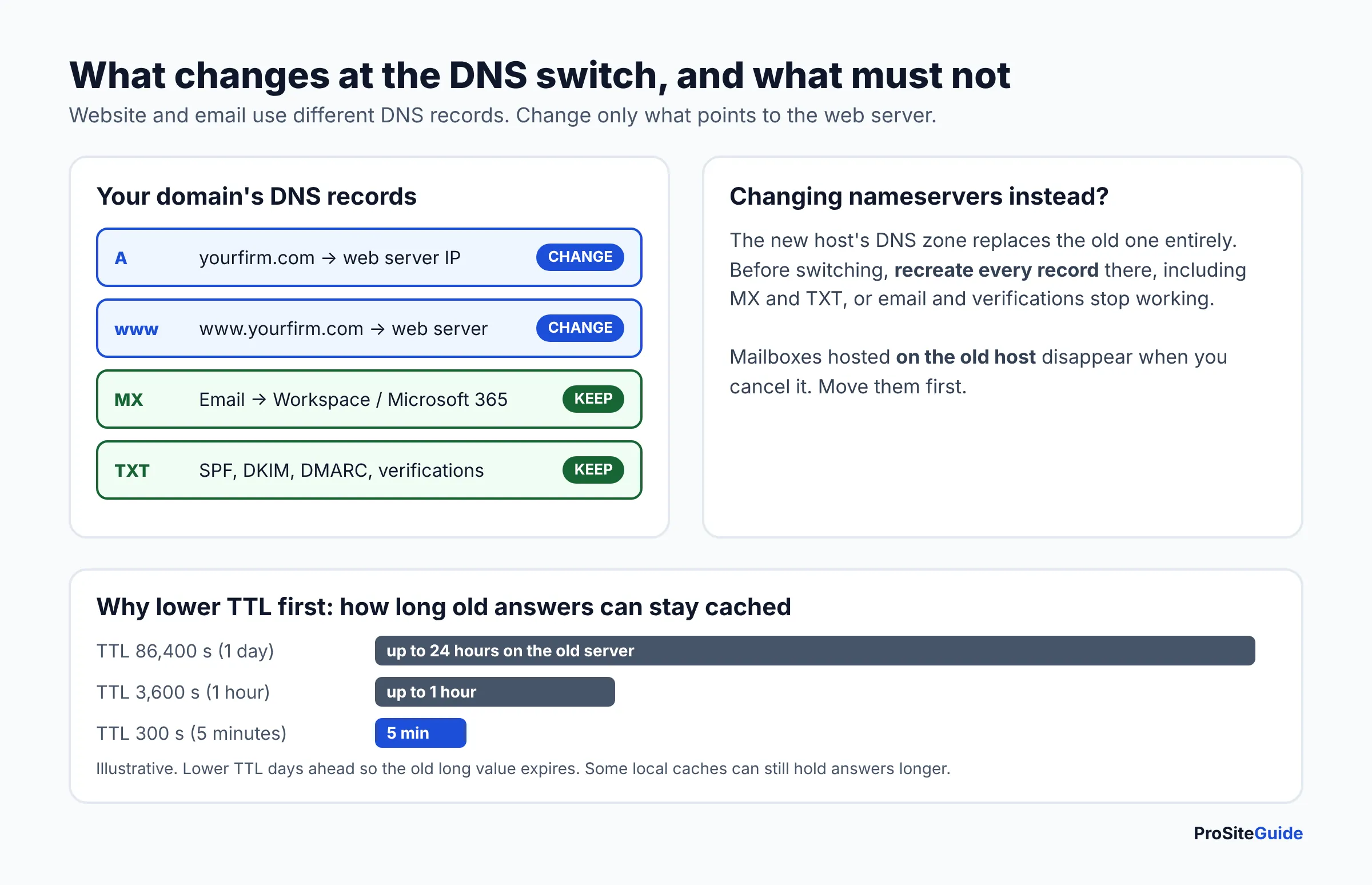
DNS is the internet’s address book. When someone types your domain, their computer or internet provider looks up which server it lives on. To save time, it remembers that answer for a while. TTL (time to live) is the number, in seconds, that tells everyone how long they may remember it.
If your TTL is 86,400 seconds (one day), some visitors may keep going to the old server for up to a day after you switch. If you lower it to 300 seconds (five minutes) before the move, most caches pick up the change within minutes. Cloudflare’s TTL documentation explains the trade-off: longer TTLs mean faster lookups, but changes take longer to reach people. It also notes that local caches can still delay changes beyond the TTL. Google’s guide to moving hosts recommends lowering TTL at least a week before the move.
The key detail: you must lower the TTL early. The old, longer value is already cached. Lowering it only helps once that old value has expired.
Pre-migration checklist
Gather all of this before you touch anything. Missing logins are a common reason moves stall halfway.
- Logins: old host, new host, WordPress admin, domain registrar, and DNS provider (this may be the registrar, the old host or a service like Cloudflare).
- Where DNS is managed: check your domain’s nameservers. This tells you where you will make the final switch.
- A copy of every current DNS record: A, CNAME, MX, TXT (SPF, DKIM, DMARC, verification records). Screenshot or export them.
- Where email lives: Google Workspace, Microsoft 365, or the old host’s mail server. This decides how risky the DNS step is.
- Form inventory: every form on the site, where each one sends notifications, and any CRM or intake tool it feeds.
- Integrations: scheduling widgets, chat, payment links, client portal links, analytics and tracking tags, spam protection (reCAPTCHA, Turnstile) keys.
- Site size and PHP version: so you can match the new environment.
- A content freeze window: no new posts or page edits from the time you copy until the switch is done.
- A switch time: evenings or weekends, when intake volume is lowest and someone can test right away.
Do Kinsta, SiteGround and Hostinger migrate sites for free?
Yes, all three offer a free way to move a WordPress site in, though they work differently. Here is what each official page says as of November 2026. Terms change, so confirm before you buy. For a broader comparison of these hosts, see our guide to the best hosting for law firm websites.
| Host | Free option | Who does the work | Notes from the official page |
|---|---|---|---|
| Kinsta | Free, unlimited migrations by its team | Kinsta’s migrations team | Supports standard WordPress installs from other hosts. Usually done within one business day if you don’t pick a date. Sites with frequent new data should go into maintenance mode during the copy. You update DNS afterward. |
| SiteGround | Free WordPress Migrator plugin | You, using a token from Site Tools | Copies the live site into a new SiteGround site without affecting the current one and gives a temporary URL active for 48 hours for checking. Not for full Multisite installs. Manual transfer by staff is a paid service. |
| Hostinger | Free migrations with a hosting plan | Hostinger’s team, after you submit a request form | One request per site. Simple WordPress moves are typically under two hours. Cannot migrate sites from closed builders like Wix or Squarespace. Says not to cancel old hosting until the move is complete. |
Free migration covers copying files and the database. It does not cover testing your intake forms, checking email records, or fixing integrations. Those steps are still yours. If your current site is on Squarespace or Wix, there is no WordPress copy to move; that is a rebuild, covered in Squarespace vs WordPress vs Wix for law firms.
How to move a law firm website to a new host: step by step
This order keeps the old site serving visitors until the very last step. The WordPress handbook’s Migrating WordPress page confirms the basic idea: when the domain stays the same, moving to a new server mostly means copying your files and database.
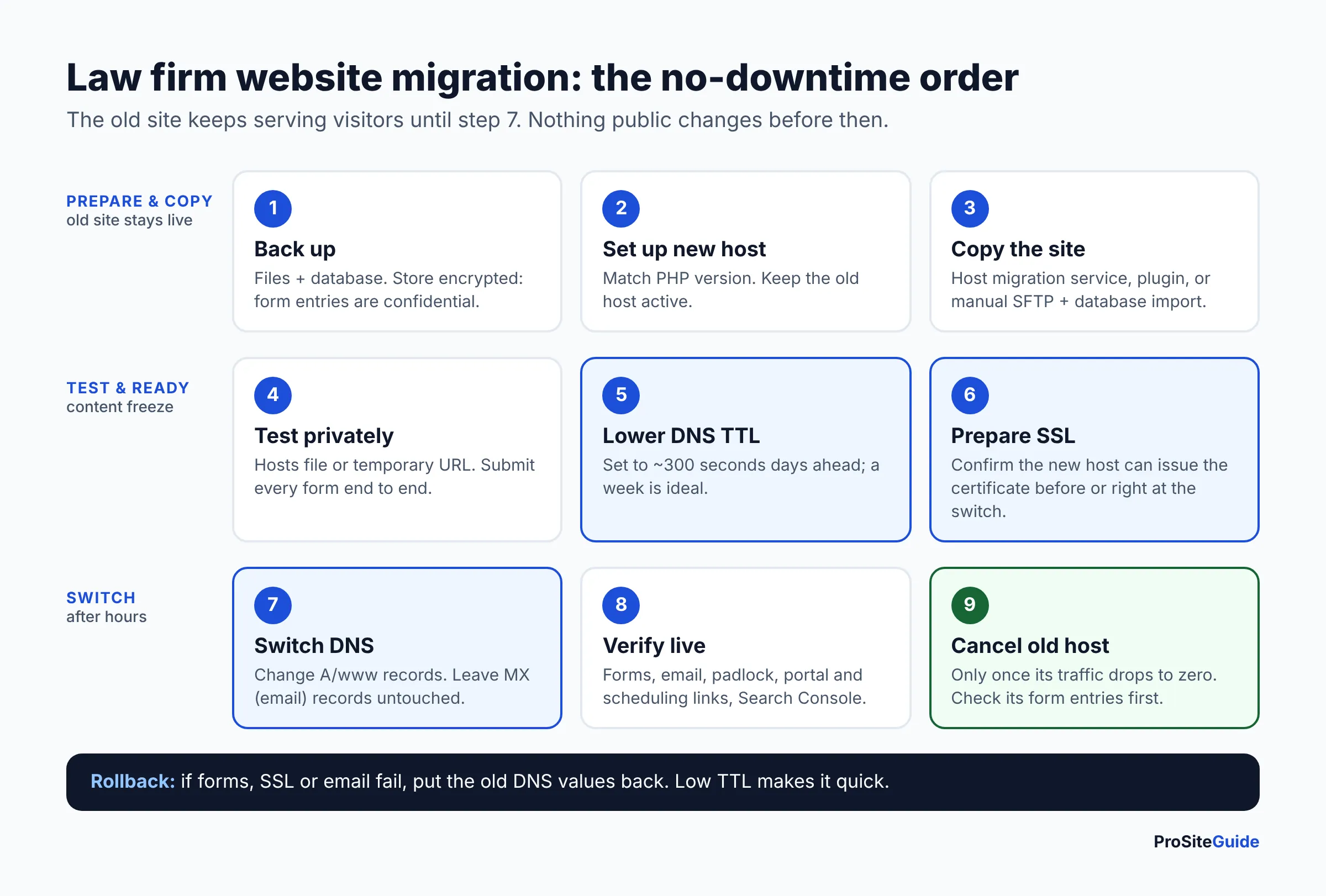
1. Take a full backup and store it safely
Back up both the files (themes, plugins, uploads) and the database. Use your old host’s backup tool or a backup plugin, and download a copy you control. This is your safety net if anything goes wrong.
Treat that backup as confidential. If form submissions are stored in the database, the file contains names, phone numbers and case details from prospective clients. Keep it on encrypted storage, never email it, transfer it only over SFTP or the host’s own tools, and delete local copies once the move is confirmed. If your firm has a retention policy for web form entries, consider deleting entries you no longer need before you copy anything. Our secure contact form guide covers how to limit what your forms store in the first place.
2. Set up the new hosting account
Create the site on the new host and match the PHP version your site currently runs. Do not cancel or notify the old host. You need it running until the end.
3. Copy the site with the host’s tool, a plugin, or manually
Pick one method:
- Host migration service: request it and let their team copy the site (see the table above).
- Migration plugin: a host’s own plugin (like SiteGround’s Migrator) or a general one such as Duplicator or All-in-One WP Migration packages the site for restoring on the new server.
- Manual: copy files over SFTP, export the database, import it on the new host, and update
wp-config.phpwith the new database name, user and password.
Start your content freeze when the copy begins. Any blog post or page edit made on the old site after this point will not exist on the new one.
4. Test the new copy before anyone else sees it
You need to view the new server while your domain still points to the old one. There are two ways:
- Temporary URL: many hosts give you a preview address. Easy, but some links may still point at your real domain.
- Hosts file: add a line to your computer’s hosts file mapping your domain to the new server’s IP address. Only your computer sees the new site, using the real domain, so it is the most accurate test. Remove the line when you are done.
Click through every page, check images, menus and mobile layout, and log into wp-admin. Then do the law firm checks in the next section, especially a real form submission. If the new host gives you a temporary hostname that is publicly reachable, Google suggests keeping it out of search with noindex while you test.
5. Lower the DNS TTL (ideally days ahead)
At your DNS provider, change the TTL on the records you will edit (usually the A record for the root domain and the www record) to a low value such as 300 seconds. Do this several days before the switch, or a week ahead as Google suggests, so the old long TTL has time to expire everywhere. If you will change nameservers rather than individual records, ask your provider how nameserver TTL is handled, because it can be set separately.
6. Get SSL working on the new host before the switch
If the new server has no valid certificate when DNS flips, visitors see a browser security warning on a law firm’s website. That is worse than a few minutes of downtime.
There is a catch. Free Let’s Encrypt certificates are often issued with the HTTP-01 check, which loads a file from your domain. Per Let’s Encrypt’s challenge types page, that file must be reachable at your domain, so it generally works only after the domain points to the new server. The DNS-01 check uses a TXT record instead and can work before the switch. Ask your new host which method it uses and whether it can issue the certificate ahead of time, for example by verifying the domain with a TXT record. If it can only issue after DNS changes, schedule the switch for a quiet hour and be ready to trigger issuance immediately.
7. Switch DNS outside business hours
Pick an evening or weekend when calls and form traffic are low and you can test right away. Then do one of the following:
- Change the A (and www) records to the new server’s IP. This is the safest option because MX and other records stay untouched.
- Change nameservers to the new host’s. Before you do, recreate every existing record (MX, SPF, DKIM, DMARC, verification TXT records) in the new host’s DNS zone. Otherwise email breaks.
8. Verify everything on the live domain
Remove your hosts file entry, then check the live site in a private browser window and on a phone using mobile data. Repeat a test form submission, send and receive an email, and check the padlock icon. Public DNS lookup tools show whether different regions see the new IP yet. During propagation some visitors still reach the old server, which is exactly why it must stay online.
9. Cancel the old host only after traffic stops
Google’s advice is to keep the old infrastructure running until its traffic reaches zero. In practice, wait at least several days after the switch, check the old server’s access logs, take one last backup from it, and then cancel. If your domain is registered with the old host, cancel the hosting only, not the domain registration.
Law firm checks to run before and after the switch
Test intake and contact forms end to end
“The form loads” is not a test. Submit a real entry on every form and confirm each link in the chain:
- The visitor sees the correct confirmation message or thank-you page.
- The notification email arrives in the right inbox, not spam.
- The auto-reply to the visitor (if you use one) arrives.
- The entry reaches your CRM or intake tool, if connected.
- Spam protection still works. reCAPTCHA and similar keys are often tied to a domain list.
- File uploads, if enabled, save and attach correctly.
New servers often send mail differently. If notifications vanish, set up authenticated sending (an SMTP plugin connected to your email provider) rather than relying on the server’s default mail function.
Keep email separate from hosting
Your website and your email are controlled by different DNS records. The A record points the domain to your web server. MX records, as Google Workspace’s DNS basics page puts it, “direct a domain’s email to the servers hosting the domain’s user accounts.” If your firm uses Google Workspace or Microsoft 365, changing only the A record leaves email alone.
Email is at risk in two cases: you change nameservers without copying the MX and TXT records, or your mailboxes live on the old host itself. In the second case, cancelling the old host deletes them. Migrate the mailboxes first, or use the move as the moment to switch to a dedicated provider (see Google Workspace vs Microsoft 365 for law firms). After the switch, confirm SPF, DKIM and DMARC still pass; our law firm email setup guide explains those records.
Check client portal, scheduling and chat widgets
Most portals and scheduling tools are hosted by the vendor and embedded or linked from your site, so they keep working. But check anything with an allowed-domains list, a webhook URL, or an embed code pasted into a theme file. Book a test appointment, open the portal login link, and start a chat. If a vendor whitelisted your old server’s IP address for an integration, update it.
Post-move SEO checks
- URLs: a host change should not change any URLs. If you also changed structure (or moved from http to https or www to non-www), add 301 redirects. Google says 301 redirects don’t cause a loss in PageRank and recommends pointing old URLs straight to their final destination.
- Search Console: confirm your verification method came across (HTML file, meta tag or DNS record), use the URL Inspection tool on key pages, and watch indexing reports. Google notes crawl rate may dip briefly after a move.
- Robots and noindex: make sure no test-time
noindexsetting or robots.txt block made it to the live site. - Google Business Profile: open your profile and confirm the website link loads the correct page over https. Google’s Business Profile editing help asks for the full URL with the https prefix. Check appointment links too.
- Analytics and tags: confirm tracking still fires so call and form conversions are recorded.
Once you are settled, run through our law firm website security checklist on the new host. Backups, logins and firewall settings rarely carry over exactly.
Your rollback plan
Write this down before switch day. Because you kept the old host running and lowered the TTL, rolling back is quick:
- Set a go/no-go test. If forms, SSL or email fail and you cannot fix them within, say, 30 minutes, roll back.
- Keep the old DNS values handy. The old A record IP (or old nameservers) from your pre-migration screenshot.
- Revert DNS. Put the old values back. With a 300-second TTL, most visitors return to the old server quickly.
- Catch stray submissions. Check the new server’s form entries and email logs for anything submitted while it was live, and follow up on those inquiries.
- Fix and retry. Solve the problem on the new host using the hosts file method, then schedule another quiet-hour switch.
The same applies in reverse during the overlap: for a few days after a successful switch, check the old site’s form entries too. Visitors with cached DNS may still submit there.
FAQ
Can you really change web host without downtime?
For a typical brochure-style firm site, yes in practice. Both servers serve the same site during propagation, so visitors land on a working copy either way. The weak points are SSL timing and any data submitted to the old server during the overlap, which is why this guide covers both.
How long does DNS propagation take?
It depends mostly on the TTL that was cached before the change. With a TTL lowered to five minutes well in advance, most visitors switch quickly, though some local caches hold on longer. Nameserver changes can take longer than record changes. Some hosts still quote up to 48 hours to be safe.
Will moving hosts hurt my Google rankings?
A host move with no URL changes is the simplest kind of site move in Google’s documentation. Expect a short crawl-rate dip at most. Problems usually come from mistakes: a leftover noindex tag, a slow new server, or broken pages.
Do I need to transfer my domain too?
No. Hosting and domain registration are separate. You can leave the domain where it is and only change its DNS records. Moving the registration is optional and best done separately, not on switch day.
What happens to form entries submitted during the move?
Entries submitted to the old server after you copied the database exist only there. Notification emails should still arrive if email works, but check the old site’s stored entries for a few days and handle them before cancelling the old host.
Next steps
Start with the checklist: collect logins, export your DNS records and find out where your email lives. Lower your TTL this week. Then choose a host, use its free migration option if it fits, and test the copy with a hosts file before you touch DNS. Plan the switch for an evening, test every form end to end, and keep the old host for a few days. Once you’re live, put the new site on a regular maintenance schedule so backups and updates keep running.
Want this handled for you? ProSiteGuide builds and maintains fast, secure WordPress sites for law firms. Book a free consultation.
Sources
- WordPress Advanced Administration Handbook: Migrating WordPress (Moving to a New Server)
- Google Search Central: Changing your web hosting and SEO
- Google Search Central: Site moves and migrations
- Cloudflare Docs: Time to Live (TTL)
- Let’s Encrypt: Challenge Types
- Google Workspace Help: DNS basics
- Google Business Profile Help: Edit your Business Profile
- Kinsta: Free WordPress migrations
- SiteGround KB: How can I transfer my website?
- SiteGround Tutorials: WordPress Automatic Migrator
- Hostinger: Website migration