Quick answer: A law firm website redesign won’t wreck your rankings if you handle it as a site migration first and a design project second. List every URL that brings in traffic or links, keep the pages that work, and 301-redirect each changed URL to its closest new page. Before launch, test forms, tracking and the noindex and robots.txt settings on staging. After launch, watch Search Console for a few weeks while Google re-crawls. A short ranking wobble is normal. A lasting drop usually comes from a missed redirect, deleted content or a leftover block on search engines.
Key takeaways
- Most ranking losses after a relaunch come from URLs that changed with no redirect, or from pages that were deleted. The new design itself is rarely the problem.
- Keep URLs that already rank. If a URL must change, use a server-side 301 (permanent) redirect to the closest new page, not to the home page.
- Use Search Console’s Change of Address tool only when the domain changes. You don’t need it for a new design, a new host or HTTP to HTTPS.
- The most common launch-day mistake is leaving staging’s noindex tag or robots.txt block on the live site. Check it within minutes of going live.
- Google says rankings can fluctuate for a while and most pages on a small site move over in a few weeks. Keep your redirects for at least a year.
Does a law firm website redesign hurt SEO?
Not if your URLs, content and crawl settings carry over. Google ranks pages, not designs. Your practice area pages, attorney bios and the posts that earned links are the reason you rank. A new theme, colors or layout doesn’t change that, as long as those pages keep their content and can still be found at the same address, or at a new one through a redirect.
Rankings drop when a redesign quietly removes the signals Google relied on. Common examples:
- A new URL structure (for example
/car-accidents/becomes/practice-areas/auto/) with no redirects. Old links and old search results now lead to 404 pages. - Long practice area pages cut down to a headline and a contact form to “clean up” the design.
- Blog posts deleted in bulk, including the few that brought in most of your links.
- Staging settings carried over to the live site: a sitewide
noindextag or aDisallow: /line in robots.txt. - Title tags, headings and internal links lost because a page builder rebuilt the pages from scratch.
Everything in the checklist below exists to prevent one of these.
Signs your firm needs a website redesign
Redesign because the site is failing at its job, not because it looks a few years old. Good reasons include:
- Leads have dropped off. Calls and form submissions from the site are falling while traffic holds steady. That points to the page experience, not visibility.
- It’s hard to use on a phone. Tiny tap targets, no click-to-call button, menus that don’t open properly.
- It’s slow. Heavy sliders, page builders stacked on page builders, unoptimized images. Our law firm website speed guide covers how to measure this.
- Your practice has changed. New practice areas, new attorneys or a new office, and the site’s structure can’t show them cleanly.
- You can’t edit it. Only the original developer can change a phone number, or the platform is locked to a vendor you’re leaving.
- There are accessibility or security problems. For example, an outdated theme that no longer gets updates, or forms that fail basic keyboard and screen reader checks.
If the only problem is speed or hosting, a full redesign may be overkill. Moving to a better host with the same URLs is a much smaller, lower-risk project. See how to move a law firm website to a new host without downtime.
What kind of change is your redesign? (It decides the SEO steps)
Google treats site changes differently depending on whether visitors see new URLs. Work out which case you’re in before planning anything else. Google’s own guidance also says to make changes one after the other, not everything at the same time, so avoid combining a new domain, a new host and new URLs in one launch if you can.
| Type of change | Example | Redirects needed? | Change of Address tool? | Google guide to follow |
|---|---|---|---|---|
| New design, same URLs | New theme; every page stays at its current address | No (only for pages you remove or merge) | No | No move guide needed. Use the QA checklist below |
| New host or CDN, same URLs | Moving from shared hosting to managed WordPress hosting | No | No | Site move without URL changes |
| Same domain, new URL structure | /auto-accident/ becomes /practice-areas/car-accidents/ | Yes, 301 for every changed URL | No | Site move with URL changes |
| HTTP to HTTPS, or www to non-www | http:// becomes https:// | Yes, sitewide 301 | No | Site move with URL changes |
| New domain | smithlawoffice.com becomes smith.law | Yes, 301 for every URL | Yes, after redirects are live | Site move with URL changes, then Change of Address |
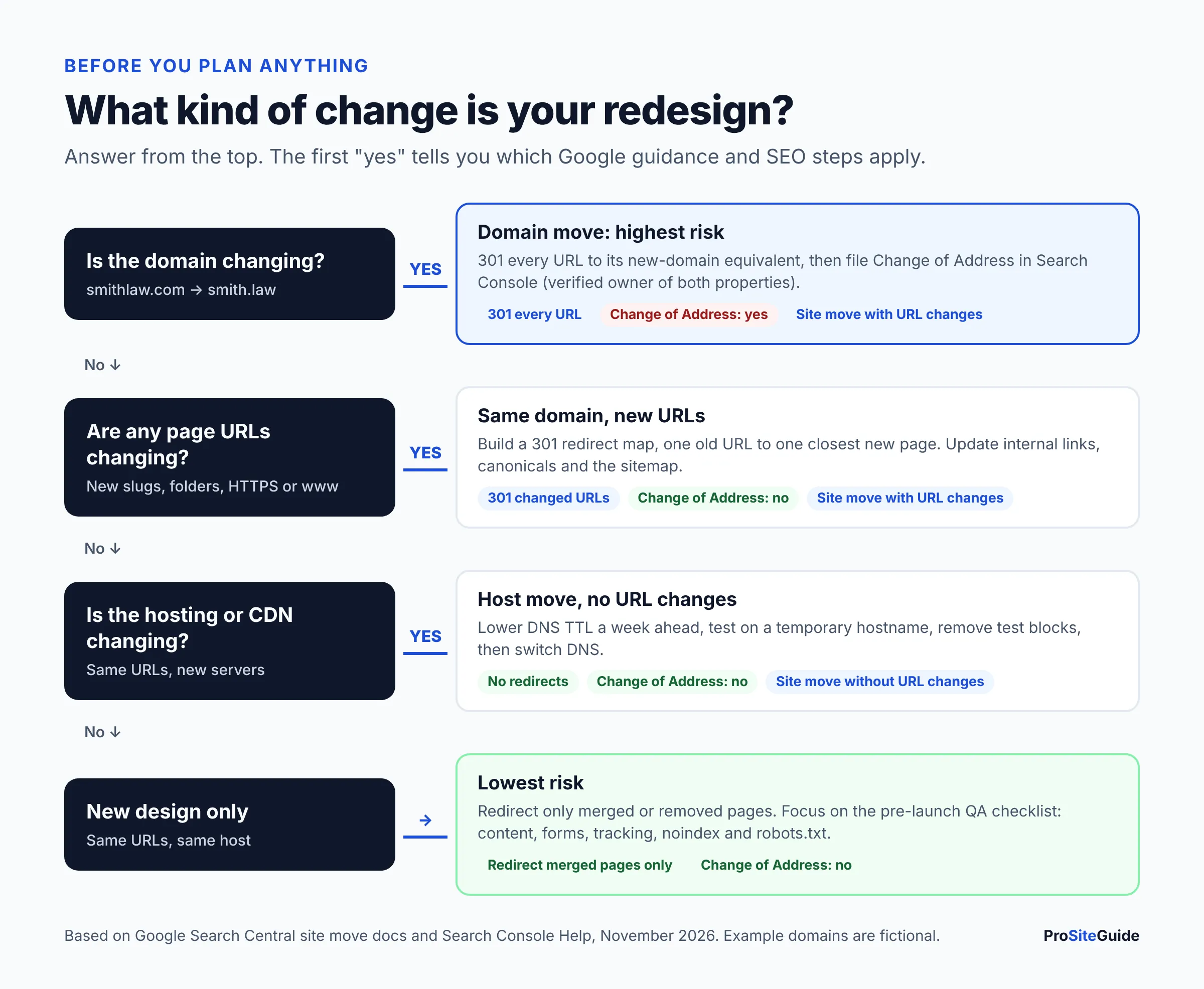
If you’re tempted to switch domains as part of the redesign, think twice. A domain change adds the most risk of any option in the table above, and it’s usually worth doing as a separate project once the new design is stable.
Set goals and record a baseline first
Write down two or three measurable goals, such as “more consultation requests from the family law pages” or “a mobile site that loads fast on a phone connection.” Then take a snapshot of how the current site performs. Without that snapshot, you won’t be able to tell after launch whether you lost anything.
- Search Console: clicks, impressions and average position for the last 12 months, grouped by page and by query.
- GA4: sessions by landing page, plus key events such as form submissions and phone-link clicks.
- Leads: how many calls and forms per month came from the website, from your intake records or call tracking.
- Speed: Core Web Vitals for your top templates (home, practice area, bio, blog post).
- Rankings: positions for 20 to 50 money keywords, such as “[city] divorce lawyer.”
If analytics isn’t set up properly yet, fix that before the redesign starts. See GA4 and Search Console setup for law firms.
Step 1: Build a complete content and URL inventory
A URL inventory is a spreadsheet with one row for every address on your current site and the data showing what each one is worth. Combine three sources, because each one misses URLs the others catch.
- Crawl the live site. A desktop crawler such as Screaming Frog SEO Spider lists every URL it can reach by following links, with the status code, title, H1, canonical and word count for each. The free version crawls up to 500 URLs per crawl, which is enough for most small-firm sites.
- Export top pages from Search Console. In the Performance report, open the Pages tab for the last 12 months and export it. Search Console’s tables show a maximum of 1,000 rows, so a site with more URLs than that needs the API or a connector to get the full list.
- Export landing pages from GA4. This catches pages that get traffic from ads, email or referrals, which Search Console doesn’t show.
- Add pages with backlinks. Use any backlink tool you have access to, or Search Console’s Links report, and flag every URL that other sites link to. Bar association directories, local news and old guest posts often point to pages nobody remembers.
- Add the URLs nobody links to. Include PDFs, landing pages from old ad campaigns, and anything listed in your current XML sitemap.
Save a copy of the old site’s sitemap and the full crawl before anything changes. You’ll use both after launch to check that every old URL now redirects or returns the right status code.
Step 2: Decide what to keep, merge or remove
Give every URL in the inventory one of four labels. The default should be to keep the page. Pages with traffic, links or leads need a reason to change.
| Decision | When to use it | Law firm example | What happens to the URL |
|---|---|---|---|
| Keep | The page gets clicks, links or leads, and its content is accurate | Your main “[City] DUI Lawyer” page | Same URL; refresh the design and update details |
| Rewrite | The topic is right, but the content is thin or out of date | A 150-word practice area page; a bio missing new admissions | Same URL with expanded content |
| Merge | Two or more pages compete for the same search | “Car Accident Lawyer” and “Auto Accident Attorney” pages | Combine the best content into one page; 301 the others to it |
| Remove | No traffic, no links, no business value, and no close replacement | A 2014 event announcement; a practice area you no longer handle | Return 404 or 410 (or 301 if a genuinely related page exists) |
Look carefully at practice area pages. They usually bring in the most valuable traffic, and redesigns tend to shorten them. If they need work, our guide on how to write practice area pages explains what to add rather than cut. Old blog posts that discuss superseded law may need an update note or a rewrite. Results pages and testimonials should be reviewed against your state bar’s advertising rules before they go on the new site.
Step 3: Create your 301 redirect map
A 301 redirect map is a two-column list that pairs each old URL with the single new URL it should permanently point to. It is the most important document in the whole project. Google’s site move guide calls it the URL mapping and recommends starting with your most important URLs.
| Old URL | New URL | Status | Reason |
|---|---|---|---|
/auto-accident/ | /practice-areas/car-accidents/ | 301 | New URL structure |
/auto-accident-attorney-springfield/ | /practice-areas/car-accidents/ | 301 | Merged duplicate page |
/attorneys/jane-doe.html | /attorneys/jane-doe/ | 301 | Old file extension dropped |
/blog/2019/05/new-dui-law/ | /blog/new-dui-law/ | 301 | Dates removed from blog URLs |
/practice-areas/bankruptcy/ | (none) | 410 | Practice area discontinued; no related page |
/contact-us/ | /contact-us/ | 200 | Unchanged. Keep it |
Example URLs are fictional.
Rules for a clean map, based on Google’s site move guidance:
- One to one where possible. Send each old page to the new page that answers the same question.
- Don’t dump everything on the home page. Google says redirecting many old URLs to one irrelevant destination, such as the home page, may be treated as a soft 404. In practice the redirect then passes little or no value.
- No chains. Point straight to the final URL. If an old redirect already sends
/a/to/b/, and/b/now moves to/c/, update the first rule to go directly to/c/. - Server-side redirects. Use your server config, your host’s redirect tool or a well-maintained WordPress redirect plugin. Avoid JavaScript redirects. Google calls them a last resort because rendering can fail.
- Cover the variants. HTTP and HTTPS, www and non-www, with and without trailing slashes, and old PDFs.
- Update internal links on the new site to the final URLs, so visitors and crawlers don’t hit redirects at all.
301 vs 302: which redirect should a relaunch use?
Use 301 (or 308) for anything that has moved for good. Google’s redirects documentation explains that a permanent redirect is a strong signal that the target should be the canonical URL shown in search. A temporary redirect (302, 303 or 307) is followed, but the original URL can stay in results. That’s fine for a maintenance page that’s up for one evening, and wrong for a redesign. Google also states that 301 and other permanent redirects don’t cause a loss in PageRank.
How long should you keep 301 redirects?
Keep them for at least a year, and ideally indefinitely. Google’s site move guide recommends “generally at least 1 year”. The Change of Address documentation says at least 180 days, and longer while old URLs still get search traffic. People also keep finding old links in emails, PDFs and directory listings for years, so the safest choice is to leave redirects in place.
Step 4: Build on staging, and keep it out of Google
A staging site is a private copy of your website where the new design is built and tested before the public sees it. Most managed WordPress hosts include one. Two settings need care.
- Block staging from search. Password protection (HTTP authentication) is the most reliable option. Many teams also turn on WordPress’s “Discourage search engines from indexing this site” setting, which adds a
noindex, nofollowrobots meta tag to every page. - Write down every block you add. Each one has to come off at launch. WordPress’s own documentation notes the setting is only a request to search engines, and it can follow the site to production if you copy staging to live.
Build the new pages at their final URLs on staging. Then import your redirect map and test it there with a crawler: upload the list of old URLs and confirm each one returns a single 301 to the right destination.
Pre-launch QA: the website relaunch checklist
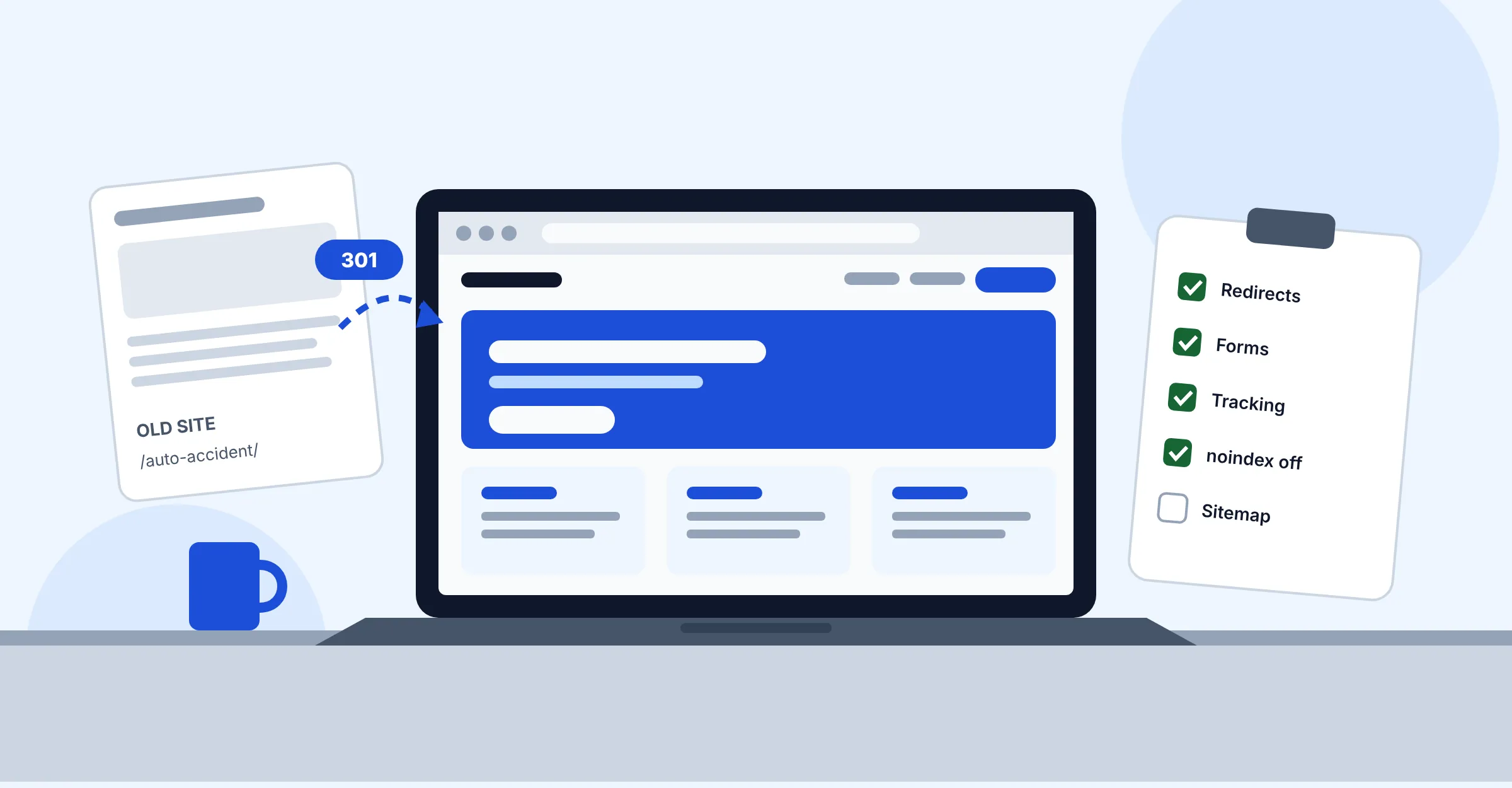
Run this checklist on staging, then run the starred items again on the live site right after launch.
| Area | What to check | How to check it |
|---|---|---|
| Redirects* | Every old URL returns one 301 to the mapped page, with no chains or loops | Crawl the old URL list in “list mode” |
| Forms* | Every contact and intake form submits, sends notifications to the right inbox and shows a confirmation | Submit a test on each form; see our secure contact form guide |
| Phone links* | Click-to-call uses the right number, including any call-tracking numbers | Tap on a real phone |
| Tracking* | GA4 tag fires on every template; key events (form submit, phone click) still record | GA4 DebugView or Realtime |
| Noindex removal* | No noindex in the robots meta tag or the X-Robots-Tag header on pages that should rank | View source; check response headers; URL Inspection in Search Console |
| robots.txt* | No leftover Disallow: /; includes a Sitemap: line | Open yourdomain.com/robots.txt |
| Canonical tags | Each page has a self-referencing canonical on the live domain, not the staging domain | Crawler canonical report |
| Titles, H1s, meta descriptions | Carried over or improved for every kept page; none blank or duplicated | Compare old and new crawls |
| Internal links | No links to staging URLs or to redirected URLs | Crawler “inlinks” and redirect reports |
| Schema markup | LegalService/Attorney, LocalBusiness and FAQ markup still present and valid | Rich Results Test; see schema markup for law firms |
| XML sitemap | Lists only live, indexable, canonical URLs at their new addresses | Open the sitemap; spot-check URLs |
| Speed | Core Web Vitals no worse than your baseline on key templates | PageSpeed Insights on home, practice, bio pages |
| Accessibility | Keyboard navigation, focus states, alt text, form labels, color contrast | Manual checks against WCAG 2.2; see our accessibility guide |
| Mobile | Menus, buttons and forms work on small screens | Real iPhone and Android devices |
| Compliance | Disclaimers, results language and attorney advertising notices reviewed | Partner sign-off against your state bar’s rules |
| Rollback plan | Full backup of the old site and a way to switch back fast | Confirm with your developer or host |
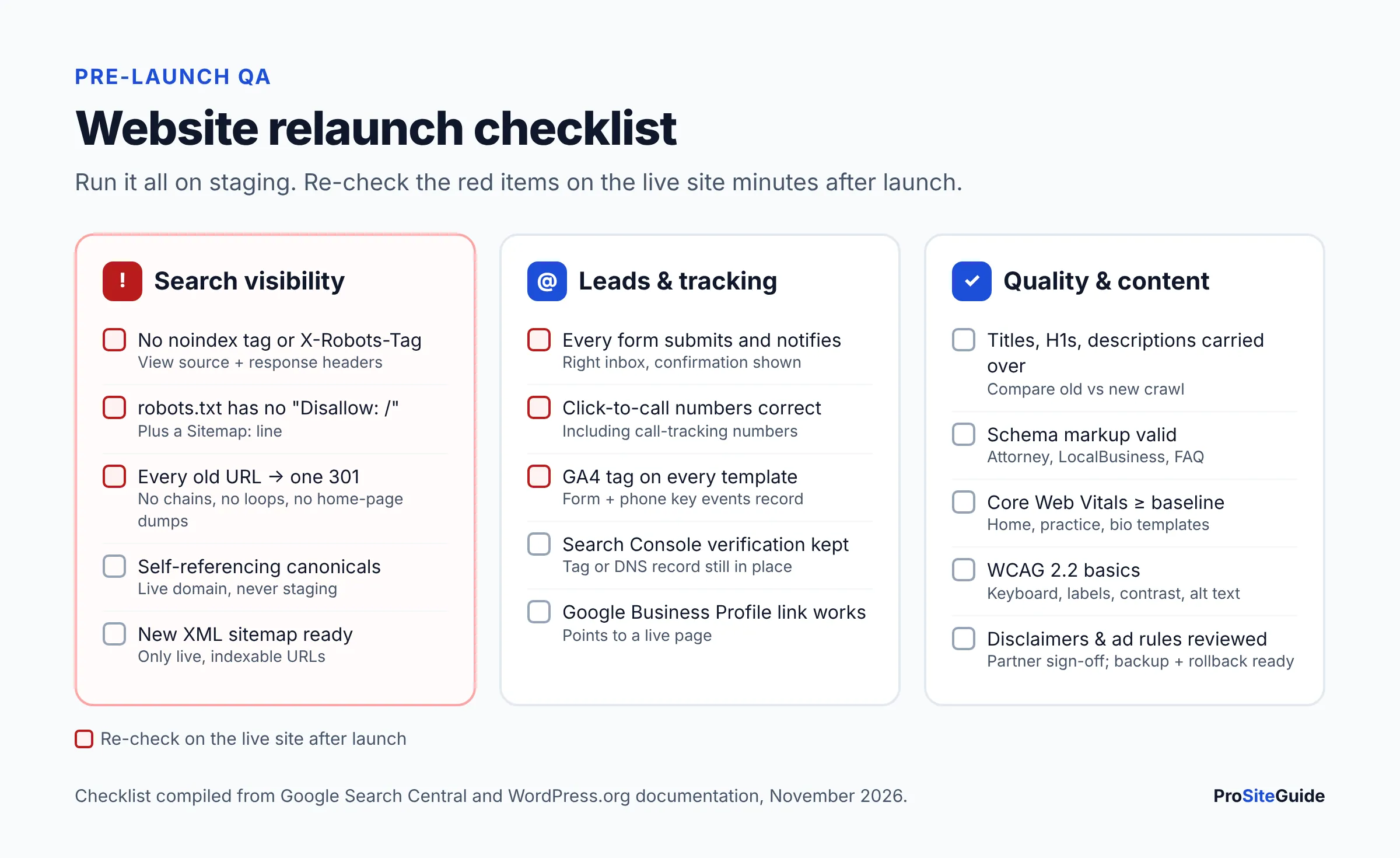
One detail catches many people out. Google can only see a noindex tag on a page it is allowed to crawl. Google’s noindex documentation explains that if robots.txt blocks a page, the crawler never reads the tag. So check both settings, and don’t use robots.txt to “fix” indexing.
Launch day: step by step
Launch early in a quiet week, on a weekday morning when your developer is available. Avoid Friday afternoons and the day before a holiday.
- Take a final backup of the old site and its database.
- Freeze content edits on the old site, so no new posts get lost in the switch.
- Deploy the new site to production, or point DNS to it if the host is also changing. If you’re moving hosts at the same time, lower your DNS TTL at least a week ahead, as Google’s no-URL-change move guide advises.
- Remove every staging block: password protection, the “Discourage search engines” setting, any
noindexheader and anyDisallow: /. - Turn on the redirects and crawl the old URL list against the live domain.
- Re-run the starred QA items on the live site: forms, phone links, tracking, noindex, robots.txt.
- Submit the new XML sitemap in Search Console’s Sitemaps report. Google’s sitemap documentation notes that submitting is a hint, not a guarantee. If URLs changed, Google’s move guide also suggests temporarily submitting the old sitemap so its redirects get crawled.
- Inspect your top 10 URLs with Search Console’s URL Inspection tool and request indexing for the most important ones.
- Domain change only: once the redirects are live, file a Change of Address request from the old domain’s Search Console property. You need to be verified as owner of both properties with the same Google account.
- Update off-site links you control: Google Business Profile, bar association and directory profiles, social profiles, email signatures and ad campaigns.
After launch: what to monitor, and what’s normal
Expect some movement. Google’s site move guide says a temporary fluctuation in site ranking is expected during a move and that rankings settle over time. It also says a small to medium-sized site can take a few weeks for most pages to move, because Googlebot has to visit every old and new URL at least once. A redesign with no URL changes usually causes less disruption than that.
- Days 1 to 3: check forms and calls every day. Watch GA4 Realtime to confirm tracking. Re-crawl the live site for 404s, redirect chains and stray
noindextags. - Weeks 1 to 4: check Search Console’s Page indexing report for spikes in “Not found (404),” “Excluded by noindex tag” or “Soft 404.” Each one usually traces back to a single missing redirect or setting. Compare clicks per page against your baseline.
- Months 1 to 3: compare rankings, clicks and leads against the same period before launch. Old URLs should drop out of the index as new ones replace them.
- Ongoing: keep the redirects. Add new ones whenever you rename pages later.
When should you worry? If a specific page loses most of its clicks and doesn’t recover within a few weeks, check three things in this order. First, does its old URL redirect to the right place? Second, is the new page indexable? Third, did it lose content, headings or internal links in the rebuild? A sitewide collapse in the first days usually means a crawl block, so check robots.txt and noindex first.
Law firm website redesign timeline
For a typical small-firm site of 30 to 150 pages, plan on about 8 to 12 weeks from audit to launch, plus 90 days of monitoring. Scope, content writing and approvals drive the real timeline more than design does.
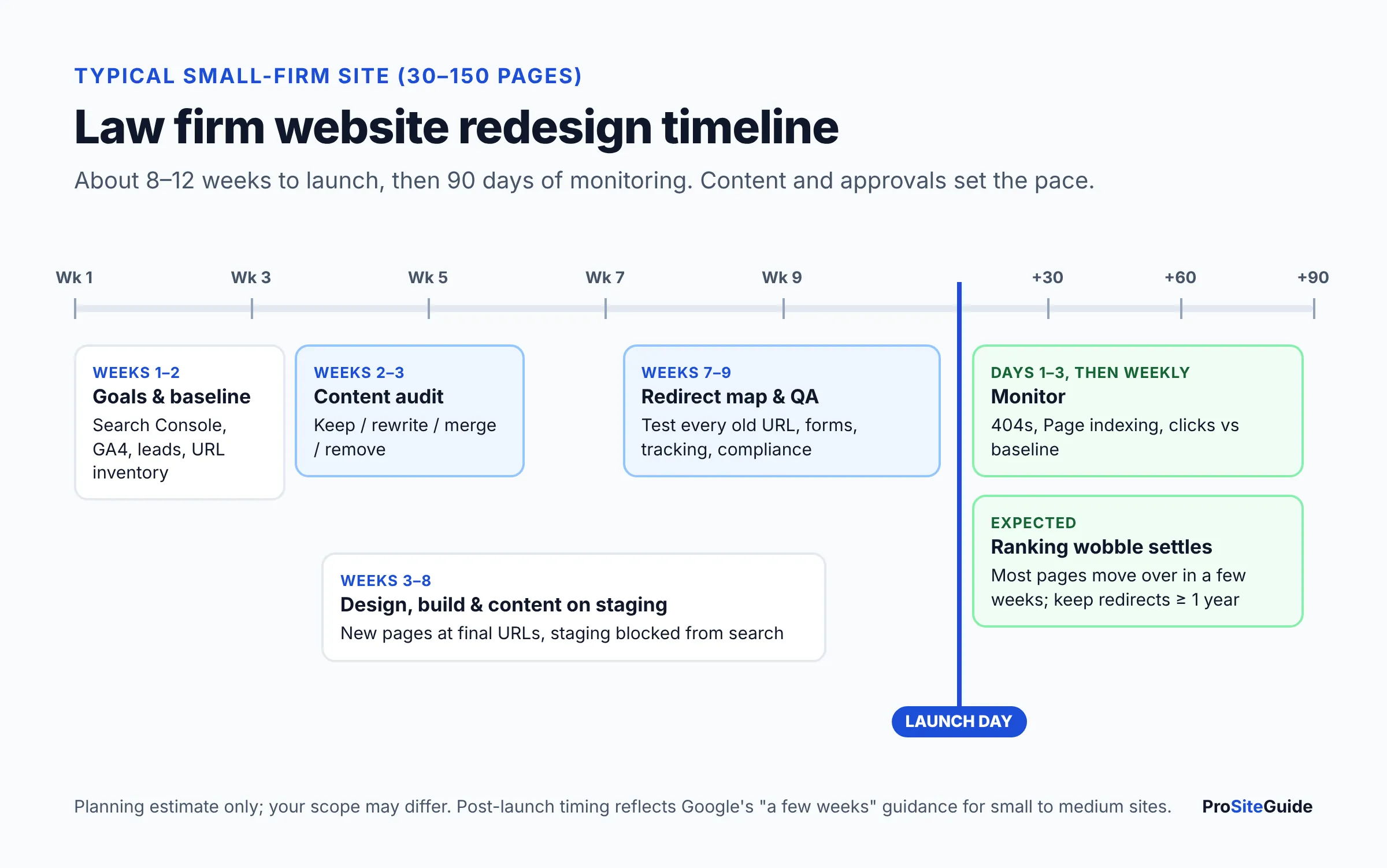
| When | Phase | Main outputs |
|---|---|---|
| Weeks 1–2 | Goals, baseline, inventory | Baseline report, full URL inventory |
| Weeks 2–3 | Content audit and sitemap planning | Keep/rewrite/merge/remove labels, new page structure |
| Weeks 3–8 | Design, build and content on staging | Staging site at final URLs, rewritten pages |
| Weeks 7–9 | Redirect map and QA | Tested redirect map, completed QA checklist, compliance sign-off |
| Launch day | Go live | Blocks removed, redirects live, sitemap submitted |
| Days 1–90 | Monitoring | Weekly Search Console and lead checks against baseline |
Budget depends heavily on scope. Rewriting content and migrating many pages costs more than applying a new theme. Our breakdown of how much a law firm website costs in 2026 covers the ranges and what drives them.
Common redesign mistakes that cost rankings
- Changing URLs “for neatness” when the old ones were already ranking.
- Redirecting every removed page to the home page.
- Launching with the staging noindex or robots.txt block still on.
- Changing domain, host, platform and URLs in one weekend, so nobody can tell which change caused a drop.
- Cutting practice area content to fit a minimal design.
- Forgetting the GA4 tag or the form notification email, so leads go missing without anyone noticing.
- Removing redirects after a few months to “clean up” the server config.
FAQ
How long does it take to recover rankings after a website redesign?
If the redirects and content are right, most small sites settle within a few weeks. Google says a small to medium-sized site can take a few weeks for most pages to move, and that rankings settle over time. Drops that last beyond that usually point to a specific error worth investigating.
Can I redesign my website without changing URLs?
Yes, and it’s the lowest-risk option. WordPress lets you rebuild the theme and page layouts while keeping every permalink. You then only need redirects for pages you merge or remove.
Do I need to use Google’s Change of Address tool for a redesign?
Only if you’re moving to a new domain or subdomain. Google says the tool isn’t for HTTP to HTTPS moves, www changes, moving pages within the same site, or switching hosts. For those, redirects and an updated sitemap are enough.
Should I redesign and change hosting at the same time?
It’s better to do them separately. Google recommends making site changes one after the other. Move to the new host first with the same URLs, confirm everything is stable, then launch the redesign. Our host migration guide covers the first step.
Is a 302 redirect ever OK during a relaunch?
Only for a genuinely temporary situation, such as a short maintenance page. Pages that have moved permanently should use 301 or 308, so Google treats the new URL as canonical.
What should happen to pages I delete?
If a closely related page exists, 301 the old URL there. If not, let it return a 404 or 410. Google’s move guide says content you aren’t moving should return one of those codes, rather than redirecting to an irrelevant page.
Next steps
Start with the inventory, because everything else depends on it. Crawl your current site, export your top pages from Search Console and GA4, and put them in one spreadsheet this week. Label each URL keep, rewrite, merge or remove, then build the redirect map before the designer finalizes the new menu. Keep the QA table above open on launch day. If you’re still mapping out the bigger picture for your firm’s site, our Start Here guide shows which projects to tackle first.
Want this handled for you? ProSiteGuide builds and maintains fast, secure WordPress sites for law firms. Book a free consultation.
Sources
- Google Search Central: Site moves with URL changes
- Google Search Central: Site moves without URL changes
- Google Search Central: Redirects and Google Search
- Search Console Help: Change of Address tool
- Google Search Central: Build and submit a sitemap
- Google Search Central: Block indexing with noindex
- Search Console Help: Performance report data
- WordPress.org: Settings Reading screen
- Screaming Frog SEO Spider
- W3C: Web Content Accessibility Guidelines (WCAG) 2.2