Quick answer: A law firm website security checklist starts with the items that stop most break-ins: two-factor authentication on every admin account, prompt updates to WordPress and its plugins, and tested off-site backups. Next come HTTPS, a firewall with malware scanning, and contact forms that don’t keep more client data than they need. The last pieces are monitoring and a written incident response plan, because ABA ethics opinions expect lawyers to make reasonable efforts to watch for breaches and to respond when one happens.
Below is the full checklist in priority order. Each item has a short “why” and a “how”. After that you’ll find who should own each task (host, firm or developer), a monthly and quarterly schedule, and what the main WordPress security plugins actually include.
Why does a law firm website need its own security checklist?
Most small firm websites don’t hold case files. But they do hold admin logins, intake form submissions, and your firm’s name and reputation. A hacked site can send spam, redirect visitors to scam pages, or leak what prospective clients typed into a form.
The ethics side matters too. In ABA Formal Opinion 483 (October 2018), the ABA’s ethics committee concluded that lawyers “must employ reasonable efforts to monitor the technology and office resources connected to the internet, external data sources, and external vendors providing services relating to data.” The opinion also says that when a breach happens, a lawyer must act “reasonably and promptly to stop the breach and mitigate damage,” and it recommends having an incident response plan ready in advance. Its companion, Formal Opinion 477R (2017), says the right level of security depends on factors such as how sensitive the information is.
Both opinions apply a “reasonable efforts” standard, not a demand for perfect security. Your own state’s rules and opinions control, so check with your state bar. Website security is one practical, written-down way to show you’re making those efforts.
How to use this checklist
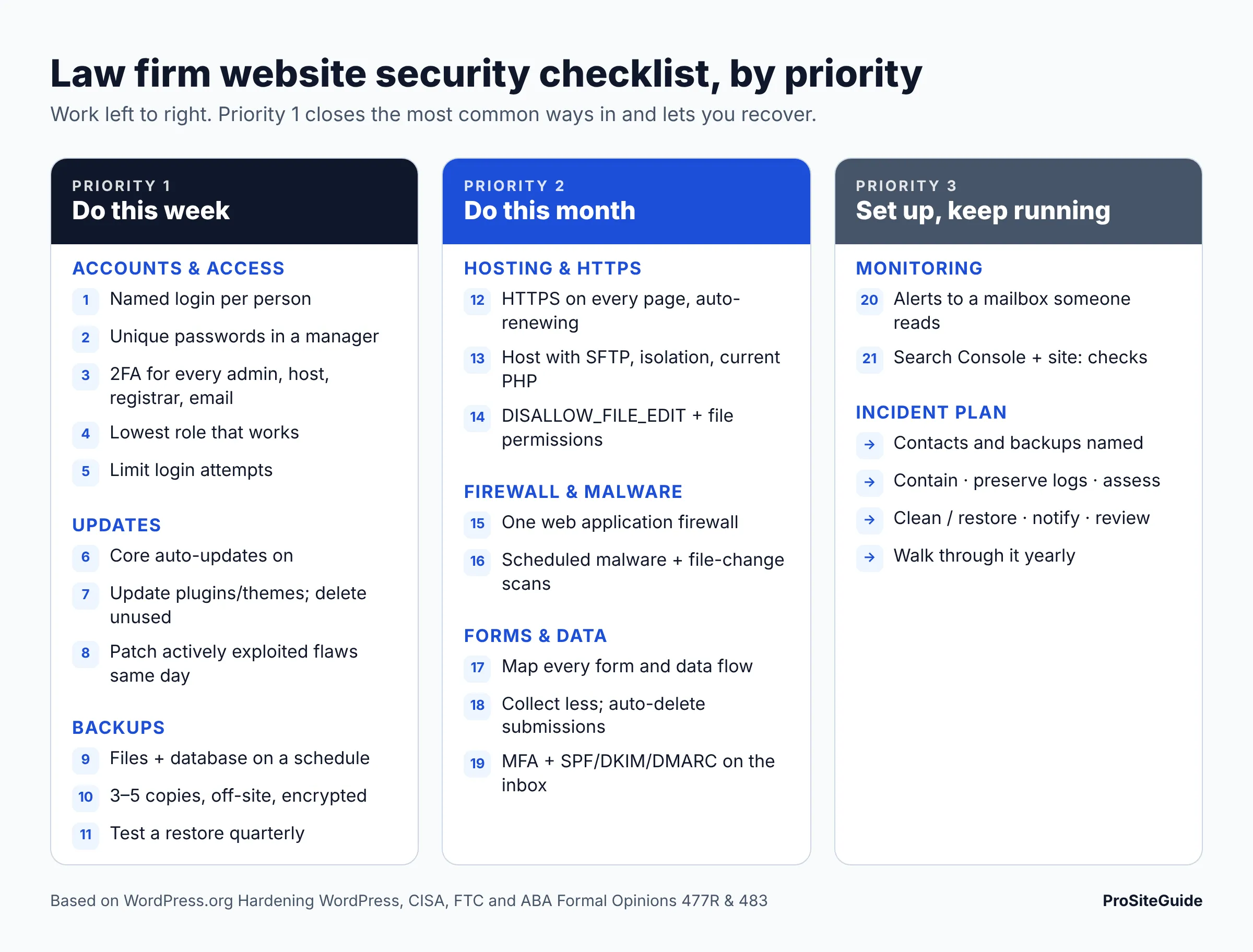
The items are grouped into three priority tiers:
- Priority 1: do this week. Accounts and access, updates, backups. These close the most common ways in (weak logins, outdated code) and give you a way back.
- Priority 2: do this month. Hosting and HTTPS, firewall and malware scanning, forms and data.
- Priority 3: set up, then keep running. Monitoring and an incident response plan.
Priority 1: Accounts and access
Stolen or guessed passwords are the easiest way into a WordPress dashboard, so start here.
1. Give every person their own login. No shared “admin” account.
Why: With a shared login you can’t tell who changed what, and you can’t cut off one person without locking everyone out. How: Under Users, create a named account for each person who needs access. Then delete or downgrade any generic account, and reassign its content when WordPress asks.
2. Use long, unique passwords stored in a password manager
Why: WordPress’s own Hardening WordPress guide warns against passwords built from your name, username, firm name or dictionary words. The FTC’s small business guidance adds: never reuse passwords. How: Generate passwords in a password manager and use the WordPress strength meter whenever you change one.
3. Turn on two-factor authentication for every administrator
Why: Two-factor authentication (2FA) means a stolen password alone won’t get anyone in. CISA’s Cyber Guidance for Small Businesses says to enable multifactor authentication on all system administrator accounts and notes that “any form of MFA is better than no MFA.” How: WordPress core doesn’t ship with 2FA, so add it with a plugin (see the WordPress handbook page on two-step authentication). The free versions of Wordfence and Kadence Security (formerly Solid Security) both include 2FA. Do the same for your hosting account, domain registrar and firm email. Those logins can take over the website just as easily.
4. Give each person the lowest role that works
Why: Fewer administrators means fewer accounts that can install plugins or change settings. This is the “least privilege” idea CISA recommends for small business systems. How: Staff who only write blog posts should be Editors or Authors, not Administrators. When someone leaves the firm, remove their account the same day.
5. Limit login attempts
Why: Bots try thousands of password guesses against /wp-login.php. The FTC also recommends limiting failed login attempts. How: Turn on brute force protection in your security plugin (Wordfence and Kadence Security both include it free), or ask your host whether it already blocks these attacks at the server.
Priority 1: Updates
6. Keep WordPress core current, with automatic updates on
Why: The WordPress hardening guide notes that older versions stop getting security updates. CISA and the FTC both recommend turning on automatic updates where possible. How: Leave core auto-updates on and check the Dashboard for update notices. Download WordPress only from wordpress.org.
7. Update plugins and themes, and delete the ones you don’t use
Why: Every plugin and theme is extra code that can contain a flaw. Deactivated plugins still sit on the server, and their code can still be attacked. How: Review updates at least weekly. Use per-plugin auto-updates for simple, well-maintained plugins. Test big updates (page builders, form plugins, anything tied to payments) on a staging copy first. Delete anything inactive, and never install “nulled” (pirated) premium plugins.
8. Patch known, actively exploited flaws first
Why: CISA advises prioritizing vulnerabilities in its Known Exploited Vulnerabilities (KEV) Catalog, meaning flaws attackers are already using. How: If your security plugin or host flags a plugin vulnerability as actively exploited, update or remove that plugin the same day. Don’t wait for your normal update window.
Priority 1: Backups
9. Back up both the files and the database, on a schedule
Why: A clean backup is often the fastest way back from a hack or a bad update. The WordPress backup guide points out that a file backup doesn’t include the database, and a full restore needs both. How: The same guide suggests weekly backups for small sites, daily backups for busy ones, and a backup before every upgrade.
10. Keep copies somewhere your host can’t lose
Why: If your only backups sit on the same server as the site, one incident can take out both. How: WordPress recommends keeping 3 to 5 recent backups in different places (for example, your host plus cloud storage). The hardening guide also suggests encrypting backups and keeping several dated copies, so you can roll back to a point before the compromise.
11. Test a restore
Why: CISA recommends testing both partial and full restores, and warns that restores can take much longer than expected. How: Once a quarter, restore a backup to a staging site and click through it. Write down how long the restore took.
Priority 2: Hosting and HTTPS
12. Serve the whole site over HTTPS
Why: The FTC advises using a web host that supports the latest version of TLS, so your address starts with https:// and data sent to the site is encrypted on the way. How: Most hosts include a free certificate. Confirm that every page, including form pages, redirects from http to https, and that the certificate renews automatically.
13. Choose a host that handles server-level security
Why: Some things only the host can do: patch the server, keep each site isolated from the others, offer current PHP versions, and run network-level protection. How: Ask hosts whether they include SFTP (the hardening guide prefers it over plain FTP), automatic daily backups, malware scanning and a firewall. If yours falls short, our guide to the best hosting for law firm websites compares options, and this walkthrough explains how to move a law firm website to a new host without downtime.
14. Harden wp-config.php and turn off the built-in file editor
Why: If someone gets into an admin account, the Dashboard’s theme and plugin editor lets them change PHP code right away. How: Add define( 'DISALLOW_FILE_EDIT', true ); to wp-config.php. The hardening guide explains that this removes the edit-files capabilities from all users. It also notes the setting won’t stop someone from uploading malicious files, so it’s one layer, not a fix on its own. The same guide recommends restricting wp-config.php to 400 or 440 permissions, and 755 for folders and 644 for files across the install.
Priority 2: Firewall and malware scanning
15. Put a web application firewall in front of the site
Why: A web application firewall (WAF) filters malicious requests before they reach vulnerable code. How: There are two kinds. An endpoint firewall runs inside WordPress as a plugin (Wordfence works this way). A cloud firewall sits in front of your server and filters traffic before it arrives (Sucuri’s firewall works this way). Many managed hosts also run their own. One well-configured firewall is enough. Stacking several often causes conflicts.
16. Scan for malware and file changes
Why: Some infections stay quiet. They add spam pages for search engines or redirect only mobile visitors, so you may never notice them yourself. How: Turn on scheduled scans and email alerts in your security plugin, or use your host’s scanner. WordPress’s hardening guide also recommends watching for added or modified files.
What do the main WordPress security plugins include?
This table lists features stated on each vendor’s official page or WordPress.org listing, as of November 2026. It isn’t a ranking. Pick one main tool, not all three.
| Tool | Type | Included in free version | Paid extras (examples) |
|---|---|---|---|
| Wordfence | Plugin (endpoint firewall) | Firewall, malware scanner, brute force protection, 2FA (authenticator app), passkeys, login CAPTCHA, blocking admin logins that use known compromised passwords. Free firewall rules and malware signatures arrive with a 30-day delay. | Real-time firewall rules and signatures, real-time IP blocklist, country blocking |
| Kadence Security (formerly Solid Security / iThemes Security) | Plugin (login and hardening) | 2FA (authenticator apps, email, backup codes), local and network brute force protection, vulnerability scans four times a day, file change detection, password requirements | Hourly scans, passwordless logins |
| Sucuri | Cloud firewall and cleanup service | No free tier on the platform page | Cloud WAF and CDN, malware and blocklist monitoring, malware removal. Platform plans listed from $229/year (Basic) to $549/year (Business) for one site. Firewall-only plans from $9.99/month (as of November 2026). |
The WordPress.org listing for Solid Security now carries the Kadence Security name, so you may see either name in your Plugins screen.
Priority 2: Forms and data
17. Map every place the site collects or sends data
Why: You can’t protect data you don’t know you’re collecting. Contact forms, consultation booking, chat widgets, newsletter signups and analytics all collect something. How: List each one, what it collects, where it stores the data (the WordPress database, an email inbox, a CRM), and who can see it.
18. Keep only what you need, for as long as you need it
Why: Form plugins often keep every submission in the database forever. That’s an unnecessary pile of prospective-client details if the site is ever breached. Opinion 477R ties the level of protection to how sensitive the information is. How: Ask only for what you need to run a conflict check and call back, add a “don’t send confidential details” note, and set submissions to auto-delete. Field-by-field setup, spam protection and encryption options are covered in our guide on adding a secure contact form to a law firm website.
19. Protect the email that form notifications go to
Why: Form alerts usually land in an inbox. The FTC recommends SPF, DKIM and DMARC to make it harder for scammers to spoof your domain. How: Turn on MFA for the mailbox and set up email authentication. See law firm email setup: SPF, DKIM and DMARC.
Priority 3: Monitoring
20. Set up alerts that a person actually reads
Why: Opinion 483 treats monitoring as part of a lawyer’s reasonable efforts. An alert nobody opens doesn’t count for much. How: Send uptime, malware-scan and login alerts to a shared mailbox that someone checks. The WordPress hardening guide also recommends keeping server access and error logs, and filtering out noise so the real alerts stand out.
21. Watch for outside warning signs
Why: Sometimes the first sign of a hack is a browser warning, or strange pages showing up in Google results for your firm. How: Verify the site in Google Search Console so you get security notices, and search site:yourfirm.com now and then for pages you didn’t create.
Priority 3: Incident response plan
Opinion 483 recommends deciding on a plan “before a lawyer is swept up in an actual breach.” It says plans should name the team members and their backups, explain how to reach them, and set out the steps at each stage. CISA likewise recommends a written, approved and regularly reviewed plan, practiced with tabletop exercises (walking through a pretend incident around a table). For a small firm website, one page is enough:
- Contacts: who leads (usually a partner), plus phone numbers for your developer, host support, cyber insurer and IT provider.
- Contain: put the site in maintenance mode or take it offline, and change all admin, hosting and database passwords.
- Preserve: ask the host to save logs before anything gets cleaned up.
- Assess: work out what was accessed, especially form submissions or other client information.
- Clean and restore: remove the malware or restore a known-clean backup, then update everything.
- Notify: Opinion 483 says lawyers have a duty to notify clients when a breach involves, or has a substantial likelihood of involving, material client information. State breach-notification laws can add their own requirements. Talk to your state bar’s ethics hotline and your insurer.
- Review: write down what happened and what you’re changing so it doesn’t happen again.
The FTC also suggests reporting incidents to the FBI’s IC3 and to ReportFraud.ftc.gov.
Who does what: host, firm or developer?
Security gaps tend to show up where each party assumes someone else is handling it. Put the split in writing. Opinion 477R lists the vendor’s security policies and the vendor agreement among the things to check when choosing technology vendors.
| Area | Host | Developer / maintenance provider | Firm |
|---|---|---|---|
| Server patches, PHP, network firewall | Owns | Checks PHP version compatibility | Picks a capable host |
| SSL certificate | Usually issues and renews | Fixes mixed-content and redirect problems | Reports browser warnings |
| WordPress, plugin and theme updates | Some managed hosts auto-update | Owns, tests on staging | Approves major changes |
| Backups | Daily server backups (varies by plan) | Adds off-site copies, tests restores | Knows where backups live |
| User accounts and 2FA | Hosting-panel 2FA | Sets up 2FA and roles | Owns: approves access, removes departing staff |
| Forms and data retention | — | Configures storage and deletion | Decides what to collect and keep |
| Monitoring and alerts | Infrastructure monitoring | Uptime, scans, file-change alerts | Makes sure someone reads them |
| Incident response | Logs, restores, isolation | Cleanup and hardening | Owns the plan, client communication and ethics decisions |
The firm’s column never goes away. Even if you outsource the technical work, decisions about client information and notification remain with the lawyers.
Monthly, quarterly and yearly security cadence
| How often | Task |
|---|---|
| Automatic / continuous | Core auto-updates, firewall, scheduled malware scans, uptime monitoring, daily or weekly backups |
| Weekly | Review and apply plugin and theme updates (sooner for actively exploited flaws) |
| Monthly | Check the user list and remove stale accounts; read scan and login alerts; confirm backups ran and an off-site copy exists; check SSL renewal; clear old form submissions if not automated |
| Quarterly | Test-restore a backup to staging; delete unused plugins and themes; confirm 2FA is on for every admin; review hosting, registrar and email access; re-check the data map |
| Yearly | Update and walk through the incident response plan; review host and vendor agreements; check your PHP version and hosting plan; confirm your cyber insurance coverage |
| Any time | Same-day account removal when staff leave; a backup before every major update |
If running this schedule in-house isn’t realistic, it’s the core of a maintenance plan. See law firm website maintenance: what it involves and costs.
FAQ
Is WordPress secure enough for a law firm website?
WordPress can be run securely when core, plugins and themes are kept updated, admin accounts use 2FA, and the host is capable. The usual weak points are outdated plugins and weak logins, not the core software. If no one will maintain the site, weigh that before choosing a platform. Our Squarespace vs WordPress vs Wix comparison covers the trade-offs.
Do I need a security plugin if my host has a firewall?
Maybe not for the firewall itself. But WordPress core doesn’t include 2FA or login-attempt limits, so you’ll usually still want a plugin for those. Ask your host what it already covers, and avoid running two overlapping firewalls.
Should client documents be uploaded through the website?
Generally, a marketing website is the wrong place to collect or store confidential documents. Use your practice management software’s client portal or another purpose-built secure tool, and keep website forms to basic contact and intake details.
What should I do first if my site gets hacked?
Follow your incident plan. Contain the problem (take the site offline or into maintenance mode), change every password, ask your host to keep the logs, and call your developer and insurer. Then work out whether any client information was exposed before you decide on notification. Your state bar’s ethics hotline can help with that decision.
How often should a law firm website be backed up?
WordPress’s own guidance suggests weekly for small sites, daily for busy ones, and always before an upgrade. If your site takes form submissions every day, daily backups make sense. Keep copies in more than one place, and test a restore each quarter.
Next steps
Start with Priority 1 this week: named accounts, 2FA for every admin, updates, and off-site backups you’ve actually restored. Next month, confirm HTTPS, hosting, firewall and form settings. Then write down who owns each task, put the cadence on a calendar, and draft a one-page incident plan. Together, those records show the “reasonable efforts” the ABA opinions describe. Check your state bar’s guidance for any local requirements.
Want this handled for you? ProSiteGuide builds and maintains fast, secure WordPress sites for law firms. Book a free consultation.
Sources
- Hardening WordPress – WordPress Advanced Administration Handbook
- WordPress Backups – WordPress Advanced Administration Handbook
- Two Step Authentication – WordPress Advanced Administration Handbook
- CISA – Cyber Guidance for Small Businesses
- FTC – Cybersecurity for Small Business
- ABA Formal Opinion 483 – Lawyers’ Obligations After an Electronic Data Breach or Cyberattack (Oct. 17, 2018)
- ABA Formal Opinion 477R – Securing Communication of Protected Client Information (2017)
- Wordfence Security – WordPress.org plugin listing
- Kadence Security (formerly Solid Security) – WordPress.org plugin listing
- Sucuri – Website Security Platform