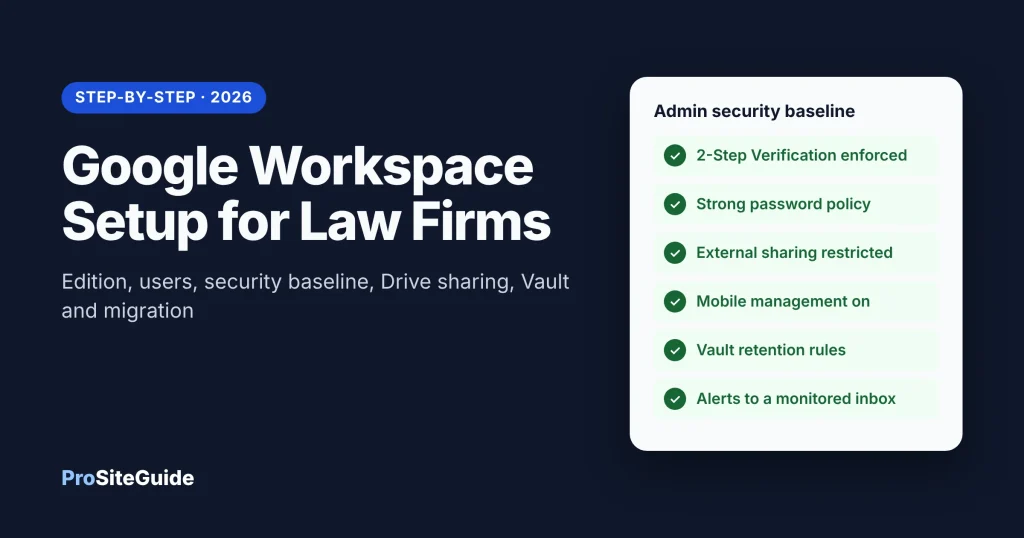
Quick answer: To set up Google Workspace for a law firm, pick an edition (Business Plus if you want Google Vault for retention and legal holds), verify your domain, create users and a shared intake@ group, then lock down the Admin console: enforce 2-Step Verification, require strong passwords, restrict external Drive sharing, turn on mobile management, and set Vault retention rules before you migrate old email. Most of the work is in the security settings, not the sign-up.
This guide walks through each step in order, with the exact Admin console menu paths from Google’s own documentation, a settings checklist you can work through, and the ethics context lawyers should keep in mind. Email DNS records (MX, SPF, DKIM and DMARC) are covered separately in our law firm email setup guide, so this article does not repeat them.
Key takeaways
- Edition matters: Google Vault and advanced endpoint (mobile) management are included in Business Plus, not Business Starter or Business Standard, according to Google’s Business edition comparison.
- Security is not on by default: 2-Step Verification enforcement, password strength and external sharing limits are settings you have to choose.
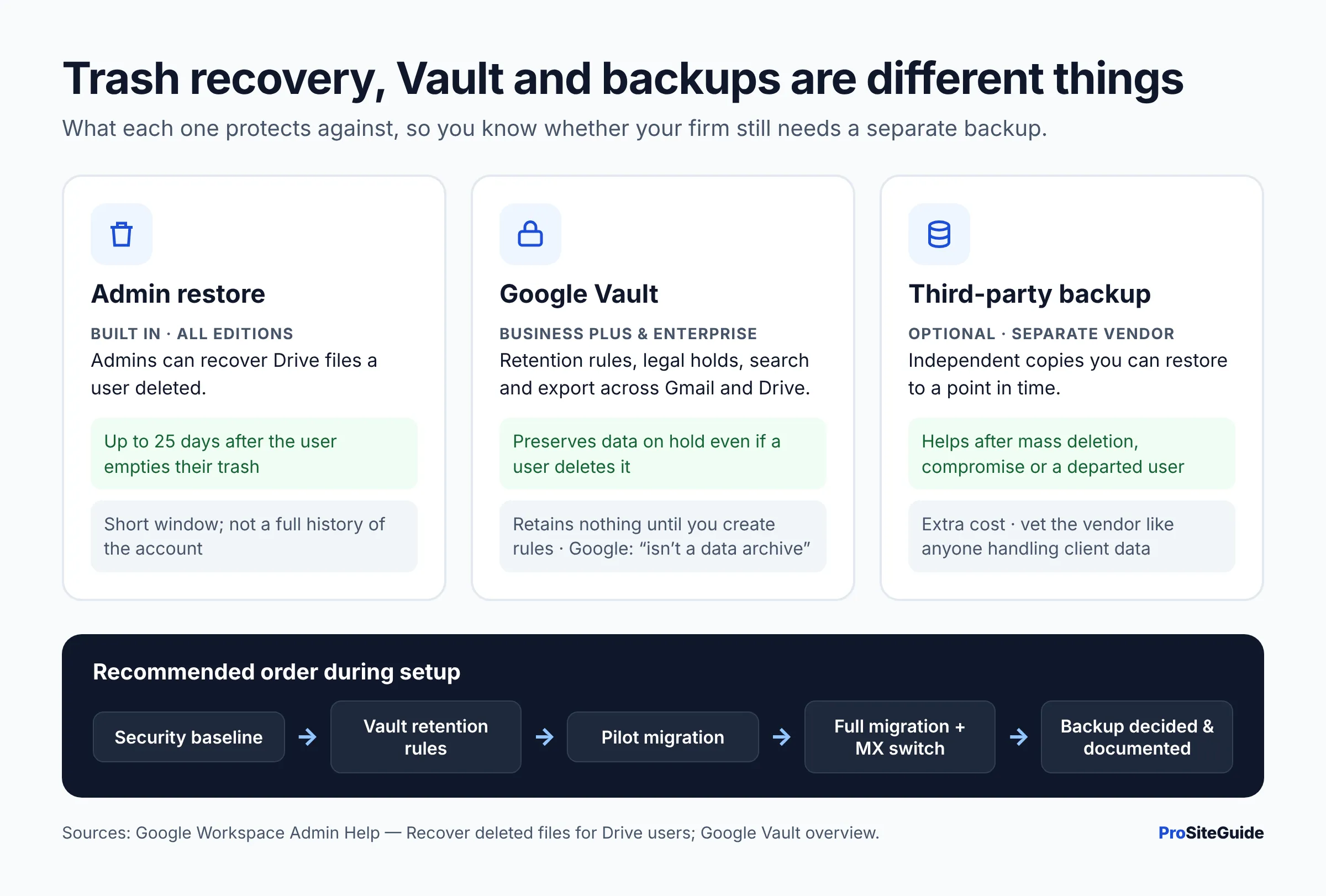
- Vault is not a backup: Google says Vault “isn’t a data archive” and retains nothing until you create retention rules.
- Migrate last: set retention and security first, then copy old mail in with Google’s data migration service.
- Ethics: ABA Formal Opinion 477R asks for “reasonable efforts” to protect client information, which includes vetting vendors and training staff.
What do you need before you start?
- Your domain and its login. You will add a verification record at your domain registrar or DNS host. If you have not chosen a domain yet, see .law vs .com vs .attorney domains and our best domain registrars for law firms.
- A list of people and roles. Lawyers, paralegals, staff, and any shared addresses such as intake@ or billing@.
- An inventory of current data. Where email, calendars and files live today (personal Gmail, Microsoft 365, an IMAP host), and roughly how much there is.
- Any active litigation holds or retention duties. These shape your Vault rules and should be settled before migration.
Which Google Workspace edition should a law firm choose?
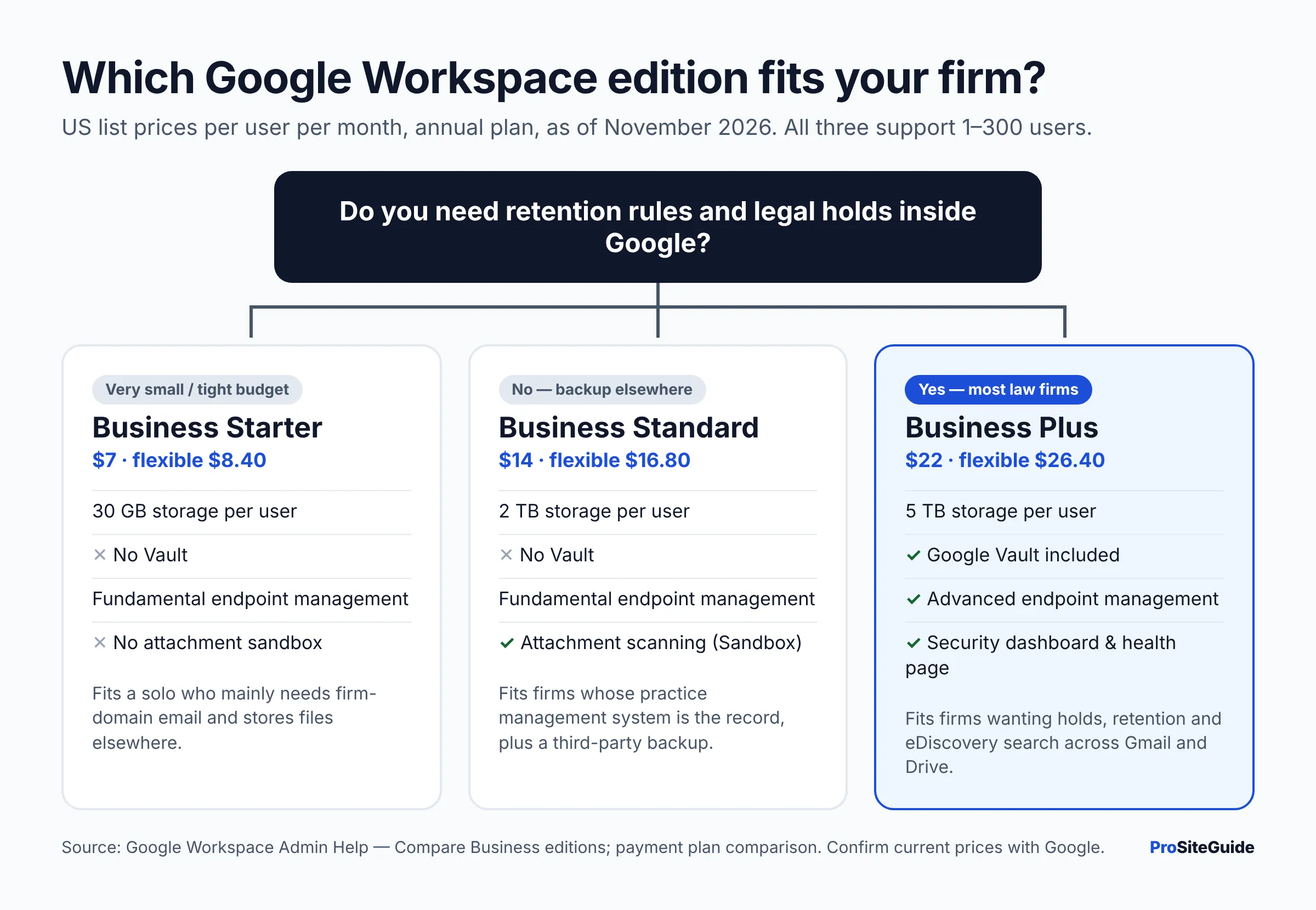
For most small firms that want built-in retention and legal holds, Business Plus is the edition to choose, because it is the lowest Business tier that includes Google Vault. All three Business editions support 1 to 300 users. Prices below are Google’s published US list prices per user as of November 2026, from Google’s payment plan comparison.
| Feature | Business Starter | Business Standard | Business Plus |
|---|---|---|---|
| Annual plan (per user/month) | $7 | $14 | $22 |
| Flexible plan (per user/month) | $8.40 | $16.80 | $26.40 |
| Pooled storage per user | 30 GB | 2 TB | 5 TB |
| Google Vault (retention, holds, eDiscovery) | No | No | Included |
| Endpoint management | Fundamental | Fundamental | Fundamental + Advanced |
| Attachment scanning (Security Sandbox) | No | Included | Included |
| Security dashboard and Security health page | No | No | Included |
| Meet participants | 100 | 150 | 500 |
Feature rows come from Google’s Compare Business editions page. The annual plan locks in your license count until renewal; the flexible plan lets you add or remove users month to month. Prices exclude tax and can change, so confirm on Google’s pricing page before you buy.
How to decide: Business Standard can work for a firm that keeps its system of record in a practice management platform and adds a third-party backup. Business Plus makes more sense if you want retention rules, litigation holds and search across mail and Drive inside Google itself, or advanced control over phones. If you are still choosing between ecosystems, read Google Workspace vs Microsoft 365 for law firms first, and see our Microsoft 365 setup guide if you go the other way.
How do you set up Google Workspace for a law firm? (12 steps)
Work through these steps in order. Doing security and retention before migration means old client data lands in an account that is already protected.
Step 1: Sign up and verify your domain
Sign up at workspace.google.com using your firm’s domain, then prove you own it. Google prefers a DNS TXT record added at your registrar or DNS host. According to Google’s domain verification guide, you must verify within the first 9 days of a free trial or when you start a paid contract, and an unverified account is deleted within 21 days of sign-up unless billing is active. Google says confirmation can take up to an hour.
Once verified, set up mail routing and email authentication using our MX, SPF, DKIM and DMARC walkthrough. If you are moving from another mail provider, you can hold the MX change until Step 11.
Step 2: Protect the super admin account
The first account you create is a super administrator, meaning it can change every setting and read or delete any user’s data. Treat it like the keys to the office. Google now enforces 2-Step Verification for administrator accounts, per its 2SV overview, and recommends security keys as the strongest method. A common practice is to keep a separate admin login that is not used for day-to-day email, and to have a second trusted person (a partner or your IT provider) with admin access so one lost phone does not lock the firm out.
Step 3: Create organizational units, users and groups
An organizational unit (OU) is a folder of users that can get different settings. Small firms often need only two or three: Attorneys, Staff, and perhaps Contractors with tighter sharing. Then add each user under Directory > Users.
For shared addresses such as intake@, use a Google Group rather than paying for a separate user license. Turning the group into a Collaborative Inbox lets members take, assign and close conversations. Google’s Collaborative Inbox guide lists the steps:
- Create the group (for example, intake@yourfirm.com) and add the people who answer new inquiries.
- Turn on conversation history for the group (Collaborative Inbox requires it).
- In Google Groups, open Group settings and, under Enable additional Google Groups features, select Collaborative Inbox.
- Give members the permissions to take and assign conversations.
Point your website’s contact form at this group so new leads are not stuck in one person’s inbox. Our guide to a secure contact form for a law firm website covers the form side.
Step 4: Enforce 2-Step Verification for everyone
2-Step Verification (2SV) means signing in needs a second proof, such as a phone prompt or security key, in addition to the password. Google’s Deploy 2-Step Verification page recommends telling users first and letting them enroll before you enforce. The setting lives at Security > Authentication > 2-step verification (super admin only):
- Check Allow users to turn on 2-Step Verification and ask everyone to enroll.
- Under Enforcement, choose On or Turn on enforcement from date. Google notes date-based enforcement can take 24 to 48 hours to start.
- Set a short New user enrollment period (Google allows 1 day to 6 months). During it, new accounts can sign in with only a password.
- Under Methods, prefer Any except verification codes via text, phone call or Only security key. Google discourages text messages because they can be intercepted.
- Leave Frequency (trusted devices) off unless people often switch devices, as Google advises.
Step 5: Set a password policy
Go to Security > Authentication > Password management. Google’s password requirements page lets you check Enforce strong password, set a minimum length between 8 and 100 characters, and tick Enforce password policy at next sign-in so existing weak passwords must change. Many firms choose a longer minimum (for example 12 or more) and pair it with a password manager. With 2SV enforced, forced periodic expiration is usually less important than length.
Step 6: Deal with “less secure apps” and old devices
You no longer have a “less secure apps” switch to turn off. Google’s transition page says less secure app access was turned off for all accounts, so IMAP, SMTP, POP, CalDAV and CardDAV no longer work with plain passwords. Apps must use OAuth (a sign-in method that grants access without sharing your password). The practical task for a firm is the office scanner or copier that emails PDFs: Google’s options are to switch the device to OAuth, use another way to scan, or create an app password for it.
Step 7: Restrict external Drive sharing
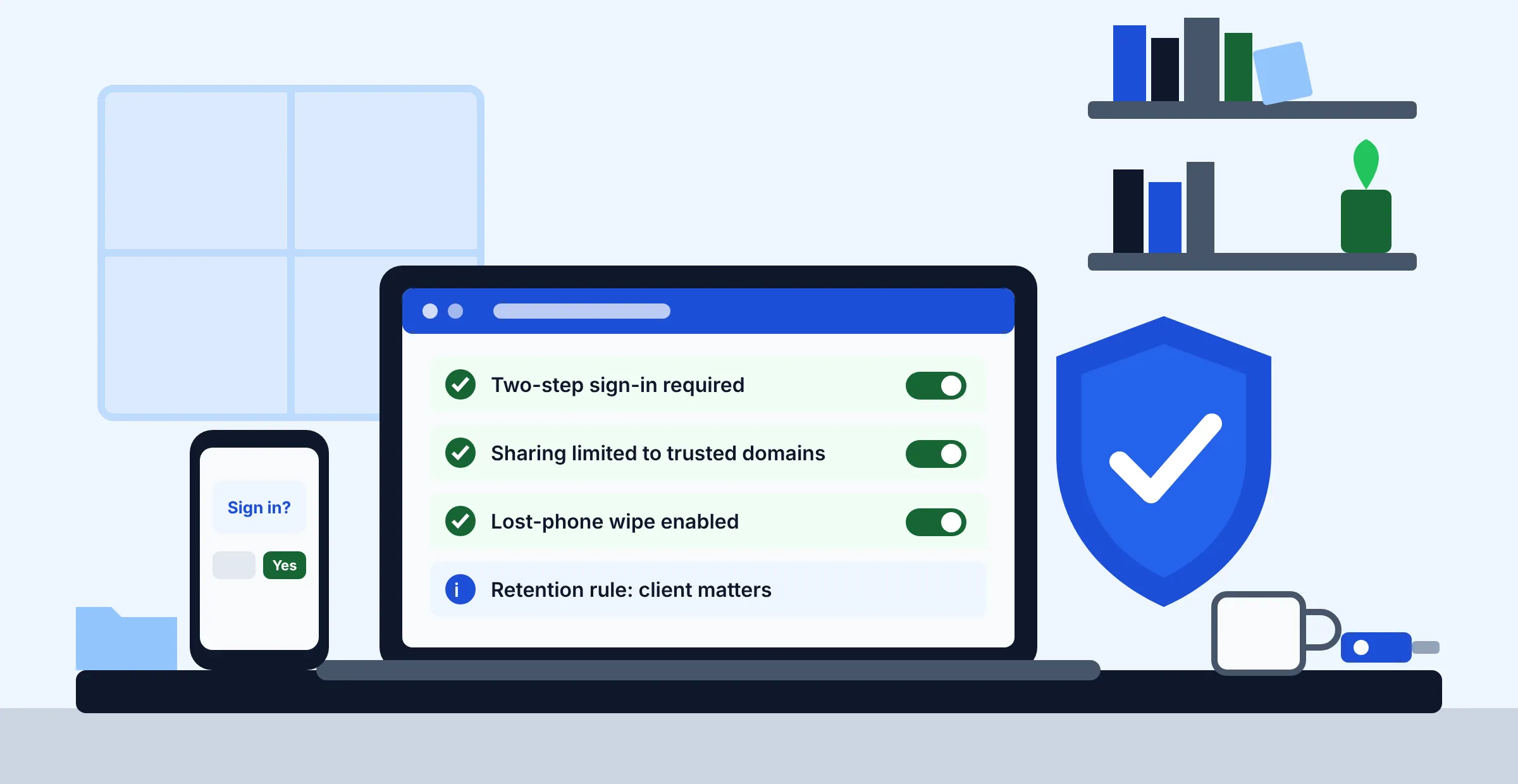
Drive sharing is where client files most often leak, usually through an “anyone with the link” setting. Go to Apps > Google Workspace > Drive and Docs > Sharing settings > Sharing options. Google’s external sharing guide describes these controls:
- External sharing On or Off: turn it off entirely, or leave it on with limits.
- Allowlisted domains: limit sharing to trusted domains, such as co-counsel or a key client.
- Highlight external files: shows users a warning marker on files from outside the firm.
- Different rules per OU or group: for example, attorneys can share externally but contractors cannot. Group settings override OU settings.
- Visitor sharing (people without Google accounts) is a separate setting.
Google notes changes can take up to 24 hours to apply. Also consider shared drives for matter files, so documents belong to the firm instead of an individual who might leave.
Step 8: Turn on mobile device management
Phones are where most lawyers read client email, so manage them. Basic mobile management is on by default in every Business edition, according to Google’s basic mobile management page. It works on Android, iPhone and iPad, lets you set password requirements for devices, and lets you wipe a user’s work account from a lost or stolen phone. Find it at Devices > Mobile & endpoints > Settings > Universal > General > Mobile management.
Advanced mobile management (Business Plus) adds device approvals, broader app control on Android and iOS, and full-device wipe. Google’s endpoint feature comparison lists what each level covers.
Step 9: Configure Vault retention and holds (Business Plus)
Google Vault is Google’s tool to retain, hold, search and export Workspace data. Per Google’s Vault overview, retention rules decide how long data is kept, holds preserve a user’s data for a legal matter even if they delete it, and exports stay available for 15 days. Two points trip up firms:
- Nothing is retained until you create a rule. Set a default retention rule for Gmail and Drive before migrating data.
- Retention rules can also delete. A rule that expires data after a set period will remove it. Match periods to your file-retention policy and any state bar rules on client files, and check with your state bar if unsure.
On Business Starter or Standard, Vault is not included. Google’s Vault licensing page directs other editions to Google Sales for add-on options, so the practical path for most small firms is upgrading to Business Plus.
Step 10: Set up security alerts
The alert center (Security > Alert center) shows notifications about possible problems, such as suspicious sign-ins or phishing. Google’s alert center page explains you can add email notifications by configuring a rule. Send them to an address someone actually reads, such as your IT provider plus the managing partner.
Step 11: Migrate email from Gmail or Microsoft 365
Google’s data migration service copies email into Workspace from Microsoft Exchange Online, IMAP providers, another Workspace account, or a personal Gmail account. It runs from Data > Data import & export and needs a super admin. Key limits from Google’s documentation:
- Exchange Online: up to 1,000 users per import; you connect by signing in as a Microsoft 365 Global Administrator, and Google’s Exchange Online guide says it copies rather than deletes the source data. Users must already exist in both systems.
- IMAP: up to 100 users per import.
- Personal Gmail: useful for a solo who started on a free account. If you do not set a start date, it imports from January 1, 2000.
- Stopping does not roll back: items already copied stay.
A sensible order: migrate a pilot user, check message counts, migrate everyone, switch MX records, then run a final pass to catch mail that arrived during the cutover. Keep the old system read-only for a while rather than cancelling it the same day.
Step 12: Decide how you will back up
Google keeps your data available, but recovery from mistakes is limited. Admins can restore Drive files for 25 days after a user empties their trash, according to Google’s Drive recovery page. Vault holds help preserve data but Google says Vault is not an archive. If you need point-in-time restores beyond those windows, or protection if an account is compromised and data is deleted, consider a third-party Workspace backup service and vet it like any vendor that touches client data.
Google Workspace security settings checklist for law firms
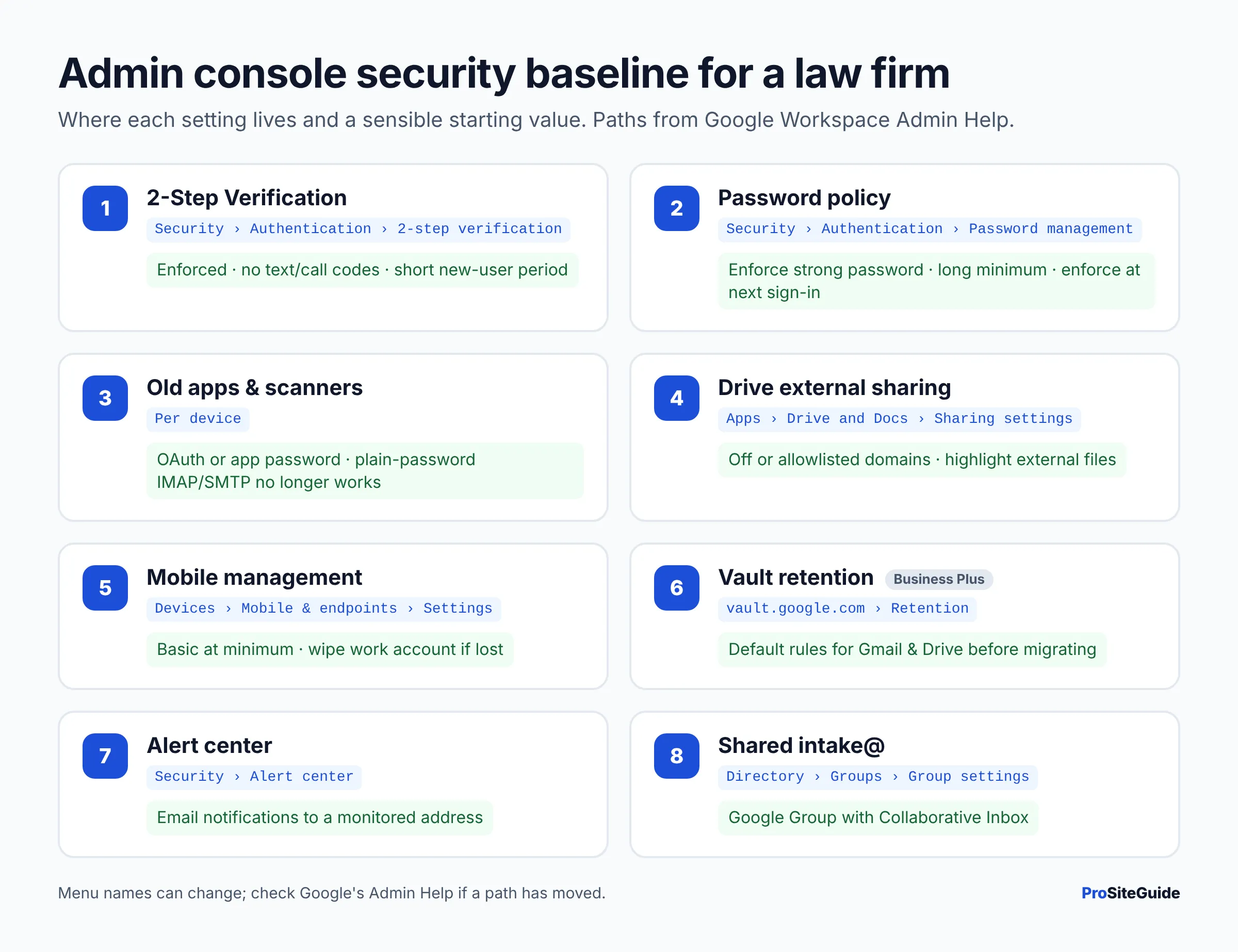
Use this table as a one-page audit after setup and once a year after that. Menu paths are from Google’s Admin Help pages linked above and can be renamed over time.
| Setting | Where in the Admin console | Suggested value for a small firm | Edition |
|---|---|---|---|
| Domain verified | Account > Domains > Manage domains | Status shows verified | All |
| 2-Step Verification | Security > Authentication > 2-step verification | Enforced; no text/call codes; short new-user period | All |
| Password policy | Security > Authentication > Password management | Enforce strong password; long minimum length; enforce at next sign-in | All |
| Old devices / apps | Per device | OAuth or app password for scanners; no plain-password IMAP | All |
| Shared intake address | Directory > Groups, then Group settings | Group with Collaborative Inbox | All |
| External Drive sharing | Apps > Google Workspace > Drive and Docs > Sharing settings | Restricted or allowlisted domains; highlight external files on | All |
| Mobile management | Devices > Mobile & endpoints > Settings > Universal | At least Basic; Advanced if available | Basic: all; Advanced: Plus |
| Vault retention | Vault (vault.google.com) | Default rules for Gmail and Drive before migration | Business Plus |
| Alerts | Security > Alert center | Email notifications to a monitored address | All |
| Backups | Third-party service (optional) | Decided and documented | All |
What do legal ethics rules say about cloud email and files?
The ABA’s Formal Opinion 477R, “Securing Communication of Protected Client Information” (2017), interprets Model Rule 1.6(c) as requiring reasonable efforts to prevent unauthorized access to client information, judged case by case. A U.S. Court of International Trade article on the opinion notes that unencrypted email remains acceptable for routine, low-sensitivity matters, while more sensitive messages warrant more security. Summaries of the opinion, such as LawPay’s, list steps including understanding how client information is transmitted and stored, using reasonable electronic security measures, training lawyers and staff, and doing due diligence on technology vendors.
The settings above map onto those steps: 2SV and password rules are security measures, sharing limits control where data goes, and Vault and backups address storage. ABA opinions are guidance, not binding rules in every state, so check your own state bar’s ethics opinions on cloud computing. For your website side, see our law firm website security checklist.
FAQ
Is Google Workspace secure enough for lawyers?
It can be, if it is configured well. The platform provides 2-Step Verification, sharing controls, mobile management and (in Business Plus) Vault, but most of those protections depend on admin settings. Ethics guidance such as ABA Formal Opinion 477R focuses on whether your efforts are reasonable, so document what you set up.
Does Google Workspace Business Standard include Vault?
No. Google’s Business edition comparison shows Vault only in Business Plus among the Business editions. Enterprise editions also include it.
Can a lawyer use a free Gmail account for client work?
It is generally a poor fit. A free account has no Admin console, so you cannot enforce 2SV across staff, control sharing, wipe a lost phone’s work data, or apply retention rules, and your address will not use your firm’s domain. If you started on Gmail, the data migration service can copy that mail into Workspace.
Is Google Vault a backup?
No. Google states Vault “isn’t a data archive.” It preserves data under retention rules and holds and lets you search and export it, but it does not give you point-in-time restores of a whole account. Use a separate backup service if you need that.
Can I move my firm from Microsoft 365 to Google Workspace?
Yes. Google’s data migration service copies email, and optionally calendar and contacts, from Exchange Online for up to 1,000 users per import. You need Microsoft 365 Global Administrator access and matching user accounts in Workspace first.
How long does Google Workspace setup take for a small firm?
It varies with the number of users and the amount of data to migrate. Domain verification is usually quick (Google says up to an hour once the record is in place), and the security settings take an afternoon if you know where they are. Migration of large mailboxes is usually the longest part.
Next steps
Pick your edition, verify the domain, and finish the security baseline (2SV, passwords, sharing, mobile, alerts) before anyone starts sending client email. If you chose Business Plus, create Vault retention rules next, then migrate. Finally, complete your DNS records with the law firm email setup guide and revisit the checklist table once a year.
Want this handled for you? ProSiteGuide builds and maintains fast, secure WordPress sites for law firms. Book a free consultation.
Sources
- Google Workspace Admin Help: Compare Flexible and Annual/Fixed-Term payment plans
- Google Workspace Admin Help: Compare Business editions
- Google Workspace pricing
- Verify your domain for Google Workspace
- Protect your business with 2-Step Verification
- Deploy 2-Step Verification
- Enforce and monitor password requirements for users
- Transition from less secure apps to OAuth
- Create a Collaborative Inbox
- Manage external sharing for your organization
- Set up basic mobile device management
- Compare Google endpoint management feature sets
- Google Vault overview
- Buy Vault licenses for your organization
- About the alert center
- Migrate email with the new data migration service
- Use the default migration method for Exchange Online
- Recover deleted files and folders for Drive users
- U.S. Court of International Trade: For Your Eyes Only – Securing Lawyer-Client Communications
- LawPay: Protection of client information – what ABA Opinion 477R means for you