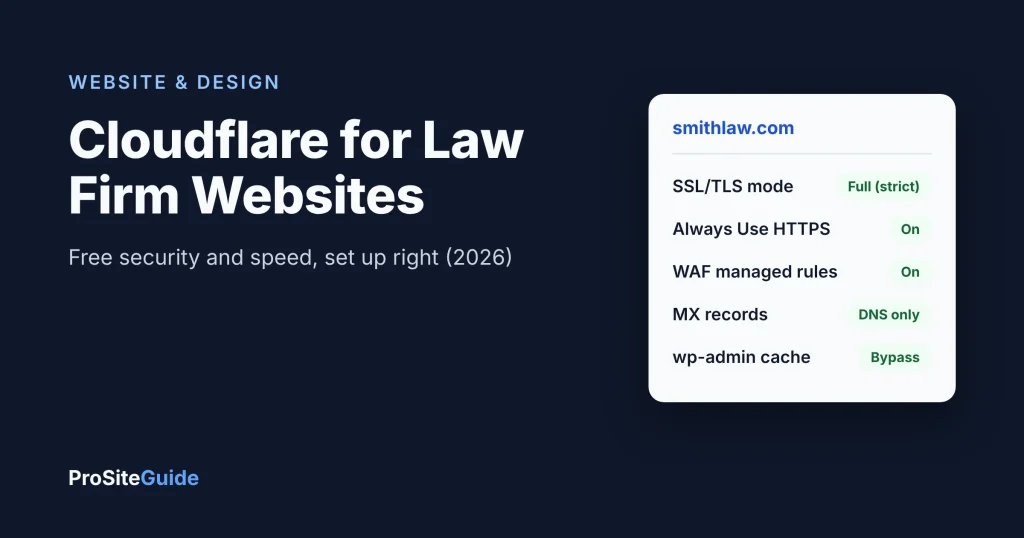
Quick answer: For most small law firm websites, Cloudflare’s Free plan is worth setting up. It adds DNS, a global CDN, unmetered DDoS protection, a free SSL certificate and a basic web application firewall at no cost. Getting it right comes down to a few settings: SSL/TLS mode Full (strict), Always Use HTTPS, email records left DNS-only, and caching rules that never cache the WordPress admin or logged-in pages.
This guide explains what Cloudflare actually does and what the Free plan includes compared with Pro. It then walks through setup step by step, covers the settings that matter for a WordPress law firm site, and shows how to fix the two most common problems: redirect loops and mixed content.
Key takeaways
- The Cloudflare Free plan ($0) includes unmetered DDoS protection, Universal SSL, a CDN and the Free Managed Ruleset. Pro costs $20/month billed annually or $25 billed monthly (as of November 2026).
- Use Full (strict) SSL, not Flexible. Flexible leaves traffic between Cloudflare and your server unencrypted, and it is the most common cause of redirect loops.
- Before you switch nameservers, check that your MX, SPF, DKIM and DMARC records were imported. Mail records are never proxied.
- Cloudflare does not cache HTML by default. If you add a “cache everything” rule, make sure it skips
/wp-admin, the login page and logged-in visitors. - If your host already runs Cloudflare for you (Kinsta does, for example), you may not need your own account at all.
What does Cloudflare do for a law firm website?
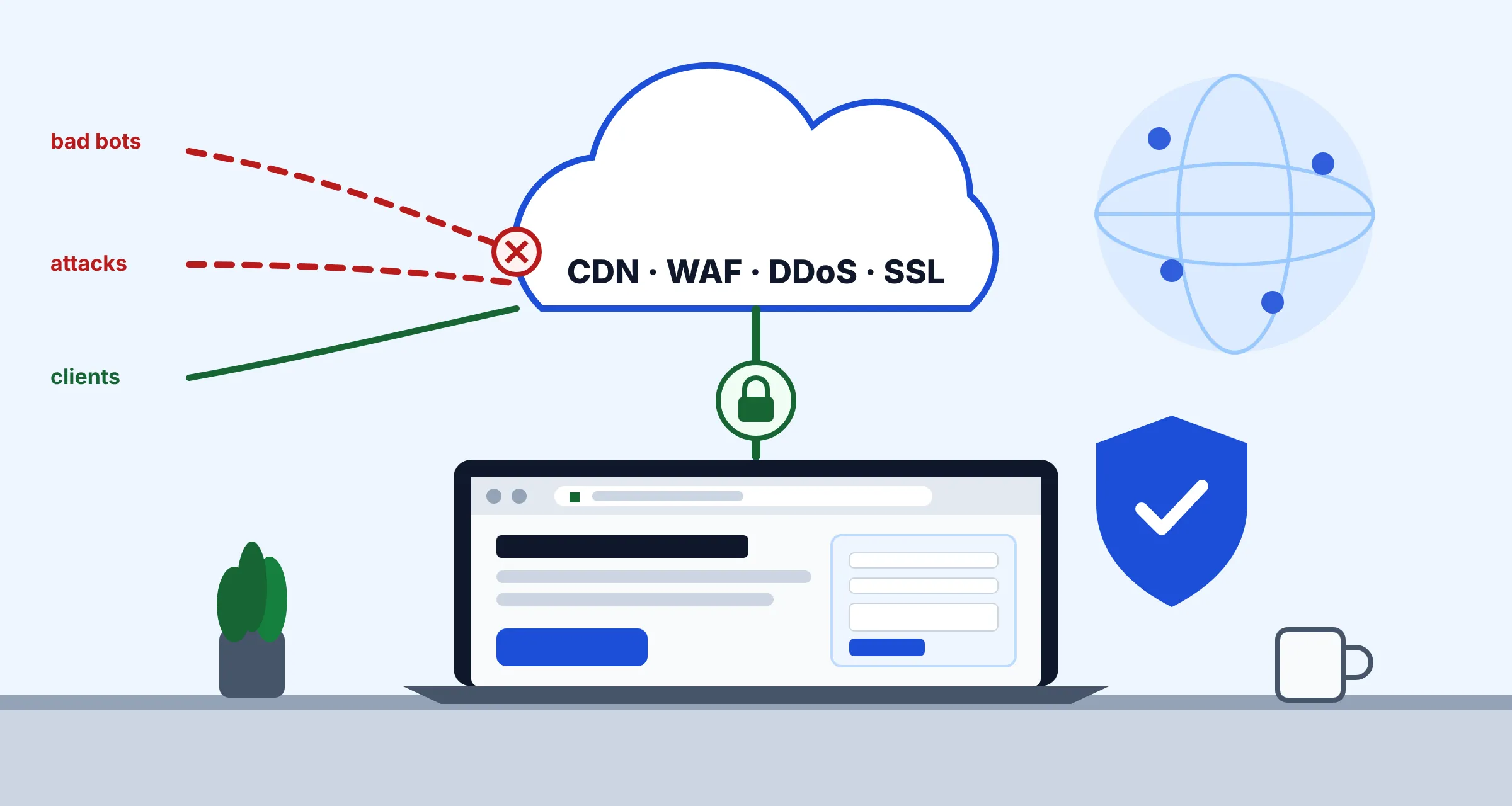
Cloudflare is a network that sits between your visitors and your web host. Visitors connect to Cloudflare, and Cloudflare then fetches the page from your server, filtering and caching along the way. You set this up by pointing your domain’s nameservers to Cloudflare. Your site stays where it is.
The five services that matter for a firm site:
- DNS: the address book for your domain. It tells the internet where your website and email live, and Cloudflare’s DNS is fast and free.
- CDN (content delivery network): copies of your images, CSS and JavaScript stored on servers around the world, so pages load faster for visitors who are far from your host.
- WAF (web application firewall): rules that block known attack patterns, such as attempts to exploit vulnerable plugins, before they reach WordPress.
- DDoS protection: absorbs floods of junk traffic meant to knock your site offline.
- SSL/TLS: the certificate that puts the padlock in the browser and encrypts form submissions, including your contact or intake form.
Cloudflare is one layer of protection, not a full security program. You still need updates, backups, strong logins and a secure form. Our law firm website security checklist covers the rest.
Cloudflare Free vs Pro: what’s included?
For a typical solo or small-firm brochure site, the Free plan covers what matters. The table below is based on Cloudflare’s plans page and its developer docs, as of November 2026.
| Feature | Free | Pro |
|---|---|---|
| Price | $0 | $20/mo billed annually, $25/mo billed monthly |
| DDoS protection | Unmetered | Unmetered |
| Universal SSL certificate | Included | Included |
| WAF managed rules | Free Managed Ruleset only | Adds Cloudflare Managed Ruleset and OWASP Core Ruleset |
| WAF custom rules | 5 | 20 |
| Rate limiting rules | 1 (by IP, 10-second period) | 2 (periods up to 1 minute) |
| Cache Rules | 10 | 25 |
| Bot protection | Bot Fight Mode (“simple bots”) | Super Bot Fight Mode |
| Image optimization | Not included | Lossless image optimization |
| APO for WordPress | $5/mo add-on | Included |
Sources: WAF managed rules, custom rules, rate limiting rules, Cache Rules.
When is Pro worth $20 a month?
Pro makes sense if your host offers no firewall of its own and you want the broader Cloudflare Managed Ruleset. It also helps if you need more than one rate limiting rule, or want image optimization and APO bundled together. The Free Managed Ruleset protects against “high-impact and widely exploited vulnerabilities”. The Pro rulesets go further. If you’re on a managed WordPress host with its own firewall, Free is usually enough.
Does your host already include Cloudflare?
Check this before you create a Cloudflare account. Some managed WordPress hosts run your site through Cloudflare automatically.
Kinsta is the clearest example. Its documentation describes a free Cloudflare integration. It includes Kinsta’s own firewall rules, caching rules and a wildcard SSL certificate installed by default. You can still put your own Cloudflare account in front, on any plan including Free, but there are trade-offs:
- Your nameservers move to Cloudflare, so you can no longer use Kinsta’s DNS.
- Kinsta says to point the root domain and
wwwat yoursitename.hosting.kinsta.cloudaddress with CNAME records, with the proxy left on. - Your firewall rules run first, and you can make them stricter. You can’t unblock IPs that Kinsta has blocked.
- Kinsta says Cloudflare APO and Kinsta Edge Caching are incompatible, so use one or the other.
- For redirect loops, Kinsta’s docs say to use Full, not Flexible.
Cloudflare calls this layered setup “Orange-to-Orange” and documents it in its Kinsta provider guide. If you’re comparing hosts, our best hosting for law firm websites guide notes which ones bundle a CDN and firewall. For other hosts, look for “Cloudflare” in their docs or ask support before you add your own account.
How to set up Cloudflare on a WordPress law firm site
Plan for about an hour of work, plus up to 24 hours for nameserver activation. Do it at a quiet time and take a full backup first. Here is the order that avoids downtime, based on Cloudflare’s full setup guide.
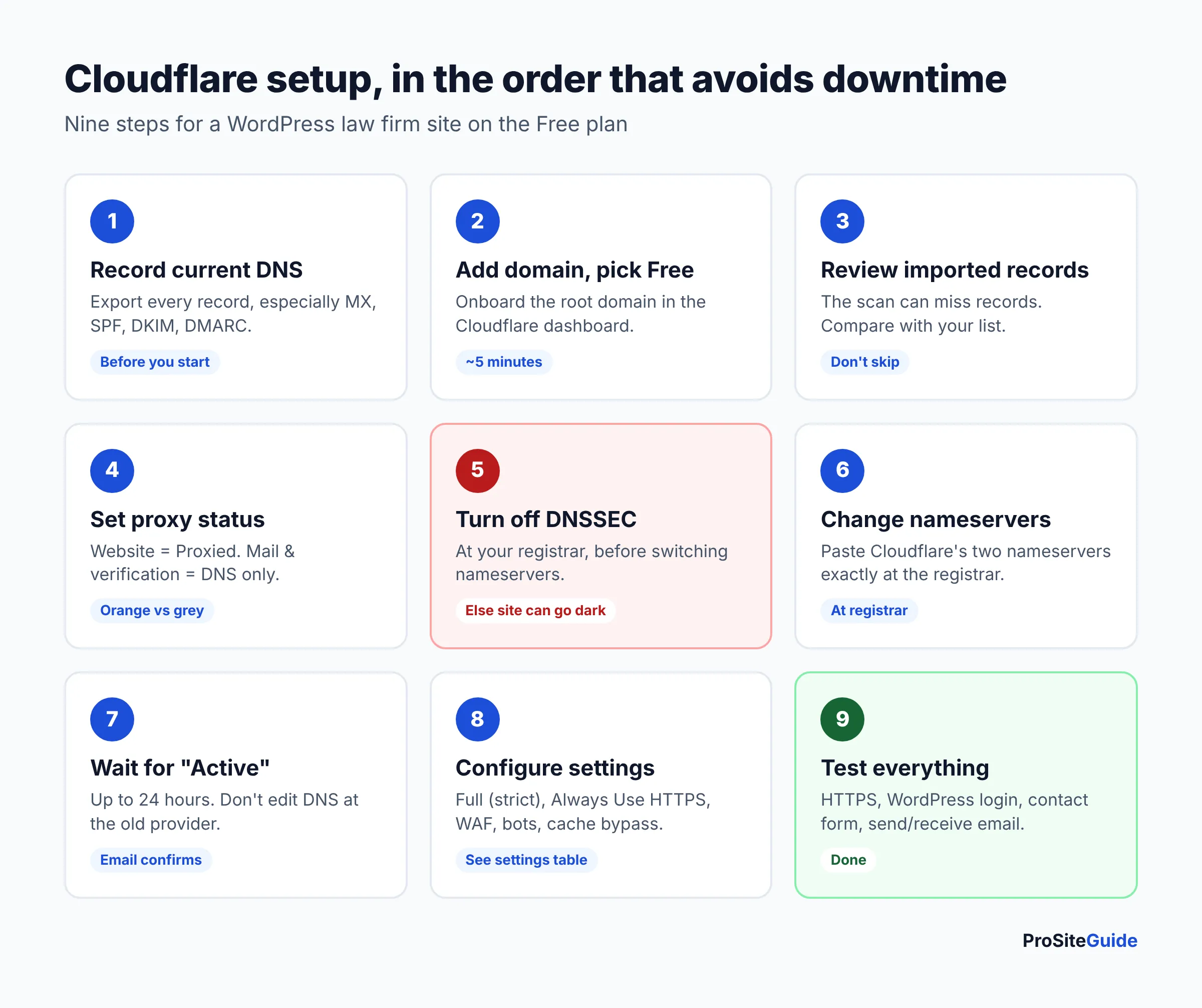
- Write down your current DNS records. Export or screenshot every record at your current DNS provider, especially MX, SPF, DKIM and DMARC. That gives you something to compare against later.
- Create a Cloudflare account and add your domain. In the dashboard, onboard the domain (the root, such as
smithlaw.com) and choose the Free plan. - Review the imported DNS records. Cloudflare scans your existing records, but its docs warn that the scan may miss some. Check the root domain,
www, and every email record against your list from step 1. Add anything that’s missing. - Set proxy status correctly. Set your website’s A/AAAA/CNAME records (root and
www) to Proxied (orange cloud). Set mail hostnames, verification records and non-web services to DNS only (grey cloud). See the email section below. - Turn off DNSSEC at your registrar, if it’s on. Cloudflare warns that changing nameservers while DNSSEC is active “can cause your domain to become unreachable.” You can turn it back on through Cloudflare after activation.
- Change your nameservers at the registrar. Replace the existing nameservers with the two Cloudflare gives you, copying them exactly. Domain registrars handle this in different places; our domain registrar guide covers the main ones.
- Wait for activation. Cloudflare emails you when the domain is active, which can take up to 24 hours. Don’t edit DNS at the old provider during this time.
- Configure SSL/TLS, HTTPS and security settings. Use the settings table below.
- Test everything. Load the site over HTTPS, log in to WordPress, submit your contact form, and send and receive a test email.
If you’re moving hosts at the same time, change one thing at a time. Our guide to moving a law firm website without downtime explains how to sequence it.
Recommended Cloudflare settings for a law firm WordPress site
These settings are a reasonable starting point for a typical brochure-style firm site on the Free plan. Make one change at a time and test after each.
| Setting (dashboard area) | Recommended | Why |
|---|---|---|
| SSL/TLS encryption mode (SSL/TLS) | Full (strict), or Automatic if your zone offers it | Encrypts and validates the connection to your host |
| Always Use HTTPS (Edge Certificates) | On | Redirects every http:// request to https:// |
| Automatic HTTPS Rewrites (Edge Certificates) | On | Fixes many mixed content warnings |
| HSTS | Off until HTTPS is stable everywhere | Hard to undo; turn on only once you’re sure |
| Website DNS records (DNS) | Proxied | Hides your server IP; enables CDN and WAF |
| Mail and verification records (DNS) | DNS only | Proxying would break email and verification |
| Free Managed Ruleset (Security / WAF) | Enabled | Blocks widely exploited vulnerabilities |
| Bot Fight Mode (Security / Bots) | On, then test forms and integrations | Challenges known bad bots; may hit legitimate tools |
| Rate limiting rule | Your one free rule on /wp-login.php | Slows down password-guessing attacks |
| Cache Rules (Caching) | Bypass for admin, login and logged-in users | Stops private pages being served to the public |
Why “Full (strict)” and not Flexible?
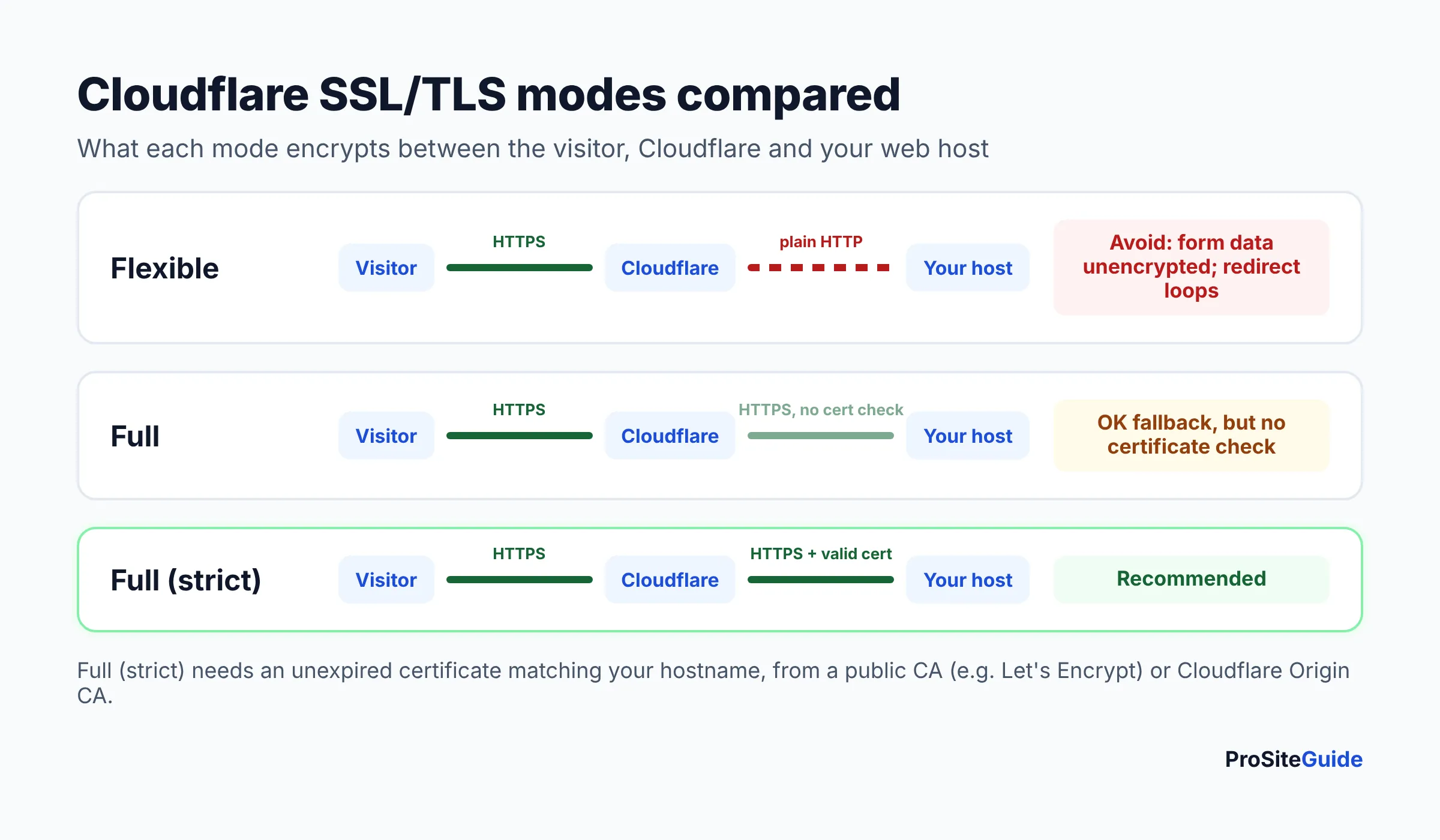
Full (strict) encrypts traffic between Cloudflare and your host and checks that your host’s certificate is valid. Per Cloudflare’s docs, the certificate must be unexpired, match your hostname, and come from a public certificate authority (such as Let’s Encrypt) or Cloudflare’s free Origin CA. Most hosts install a Let’s Encrypt certificate automatically, so this usually just works.
Flexible encrypts only the visitor-to-Cloudflare leg. Data from your intake form then travels to your server unencrypted, even though the browser shows a padlock. For a law firm handling prospective-client information, that’s a poor trade. Full (without “strict”) encrypts both legs but doesn’t validate the origin certificate. Some zones now show an Automatic SSL/TLS option that picks the most secure mode your server supports.
Bot Fight Mode: on or off?
Bot Fight Mode is a free, one-switch setting that challenges traffic matching known bot patterns. According to Cloudflare, it applies to the whole domain, can’t be bypassed with WAF custom rules, and “may challenge API or mobile app traffic”. Turn it on, then test your contact form and any outside integrations, such as a chat widget, scheduling tool or uptime monitor. If something breaks and you can’t exempt it, turn Bot Fight Mode off and rely on the WAF and Turnstile.
Use Turnstile to stop contact form spam
Turnstile is Cloudflare’s CAPTCHA replacement. It checks whether a visitor is human, usually without asking them to solve a puzzle. The Free plan allows up to 20 widgets with unlimited challenges. It works on any website, even one not proxied through Cloudflare. Major WordPress form plugins offer Turnstile as a spam-protection option. Check yours, then add it to your intake form. Our guide to adding a secure contact form covers the rest of form security.
Caching rules for WordPress: what not to cache
By default, Cloudflare caches static files (images, CSS, JS, PDFs, fonts) but does not cache HTML. That default is safe for WordPress. Problems start when someone adds a “cache everything” rule to speed up pages. A logged-in page can then get cached and served to the public, admin bar and all.
If you cache HTML, add a bypass Cache Rule that matches any of:
- URI path starts with
/wp-admin - URI path contains
/wp-login.php - A cookie containing
wordpress_logged_in(the cookie WordPress sets for logged-in users) - A cookie containing
wp-postpass(password-protected pages), and any client-portal or form-preview paths your site uses
Order matters. Cache Rules stack, and Cloudflare’s docs say “the value in the last matching rule wins”. Put your bypass rule after any cache-everything rule. The simpler alternative is APO ($5/month on Free, included on Pro), which is built specifically for WordPress and requires the official Cloudflare plugin. If your host already does page caching, as Kinsta’s Edge Caching does, don’t stack another HTML cache on top.
Don’t break your email: DNS records to check
Broken email is the costliest mistake in a Cloudflare move, because missed client email is a real problem for a law firm. The rules are simple:
- MX and TXT records can’t be proxied. Cloudflare’s proxy docs say only A, AAAA and CNAME records can be proxied, and MX and TXT records are “always DNS-only.”
- Mail hostnames must be DNS only. If your MX points to something like
mail.smithlaw.com, that A record must be grey-clouded. Cloudflare’s email records guide shows exactly this. - Keep SPF, DKIM and DMARC exactly as they were. These TXT (and sometimes CNAME) records prove your email is genuine. Verification CNAMEs, such as DKIM keys published as CNAMEs, should also be DNS only.
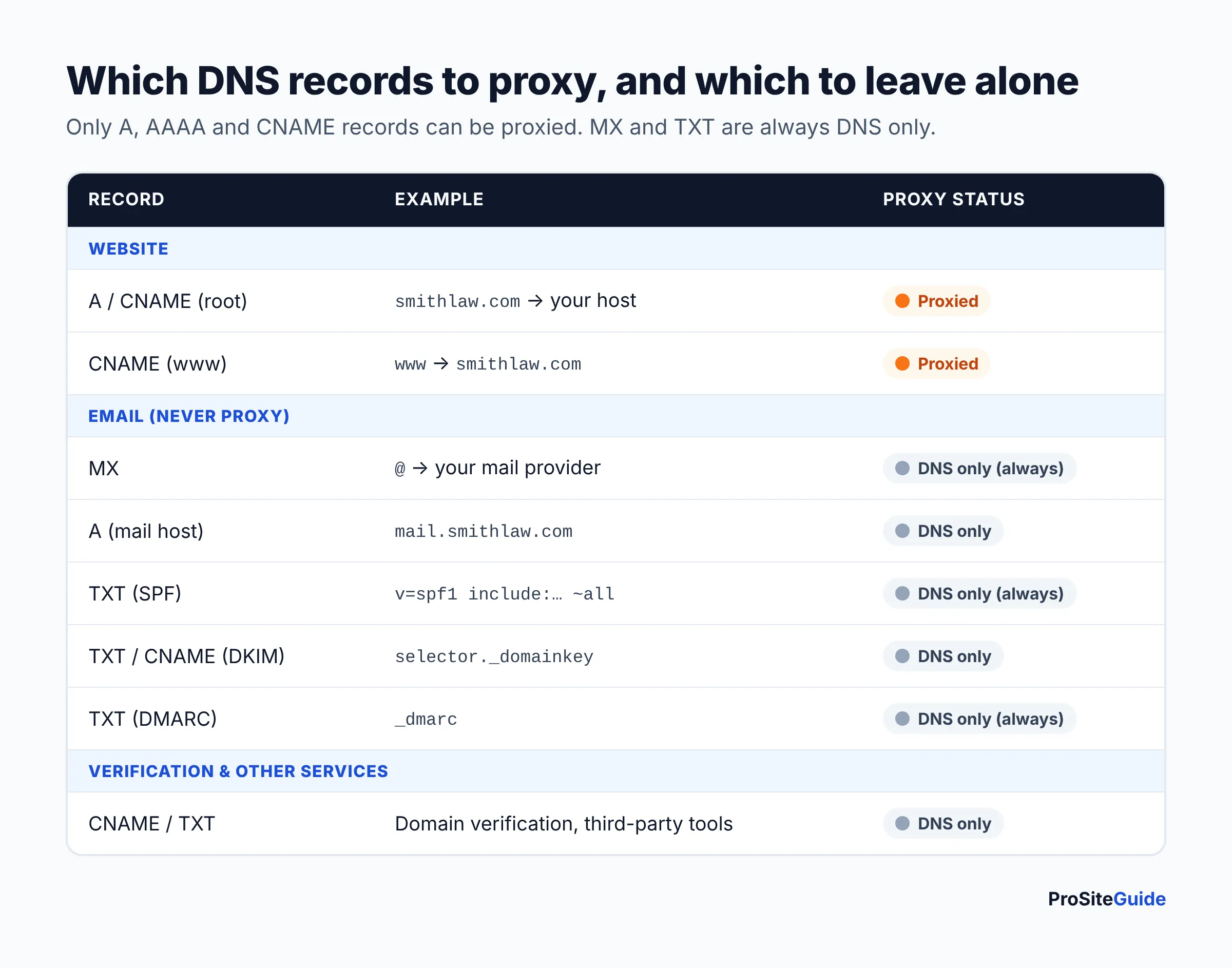
Google Workspace and Microsoft 365 publish the exact records you need. See our law firm email setup guide (SPF, DKIM and DMARC) to confirm every record before you change nameservers.
Troubleshooting: redirect loops and mixed content
How do I fix ERR_TOO_MANY_REDIRECTS after enabling Cloudflare?
Switch your SSL/TLS mode from Flexible to Full (strict). This is the most common cause. In Flexible mode, Cloudflare requests your site over plain HTTP. Your host redirects that to HTTPS, and Cloudflare sends the visitor back to HTTP, which creates a loop. If the loop continues, check for conflicting redirects. These can come from a Cloudflare Redirect Rule or Page Rule, a WordPress redirect plugin, or HSTS combined with an origin that redirects HTTPS back to HTTP.
How do I fix mixed content warnings?
Mixed content means an HTTPS page loads some files, usually images or scripts, over plain HTTP. Browsers then drop the padlock or block those files. Turn on Automatic HTTPS Rewrites first. Cloudflare notes that it can’t fix everything, especially URLs added by JavaScript or CSS at runtime, and that “forcing HTTPS does not resolve issues with mixed content”. For a permanent fix, make sure WordPress’s Site Address and WordPress Address both use https://. Then update old http:// links in your content with a search-and-replace tool after taking a backup.
Error 526 or 525 after switching to Full (strict)
A 526 error means Cloudflare couldn’t validate your host’s certificate. It may be expired, self-signed, or issued for the wrong hostname, or the host may not accept HTTPS on port 443. Ask your host to issue or renew a certificate that covers both the root domain and www, or install a Cloudflare Origin CA certificate. Don’t fall back to Flexible to make the error go away.
FAQ
Is Cloudflare’s free plan enough for a law firm website?
For most solo and small-firm websites, yes. The Free plan includes unmetered DDoS protection, Universal SSL, a CDN, the Free Managed Ruleset, five WAF custom rules, one rate limiting rule and Bot Fight Mode. Consider Pro ($20/month billed annually as of November 2026) if you want the broader managed rulesets and your host has no firewall of its own.
Will Cloudflare affect my firm’s email?
Not if your DNS records are imported correctly. MX and TXT records are always DNS-only, and any mail hostname’s A record must stay grey-clouded. Compare every MX, SPF, DKIM and DMARC record with your old DNS before switching nameservers.
Do I need the Cloudflare WordPress plugin?
No. Cloudflare works at the DNS level without a plugin. You need the official plugin only for APO. It is also handy for purging the cache from WordPress after you update pages.
Does Cloudflare replace a WordPress security plugin?
Partly. Cloudflare blocks many attacks before they reach your server. It doesn’t update plugins, scan files for malware or enforce two-factor login. Keep those covered by your host, a maintenance plan or a security plugin.
Can I use Cloudflare with Squarespace or Wix?
You can use Cloudflare for DNS, but hosted builders generally handle their own SSL and CDN, and Cloudflare’s docs note that some SaaS-hosted sites aren’t compatible with its proxy. Follow your builder’s instructions for DNS records. Our Squarespace vs WordPress vs Wix comparison covers how each platform handles hosting.
Does Cloudflare make my website ethics-compliant or confidential?
No. Encryption and a firewall are reasonable safeguards, but your duties around client information come from your state’s rules of professional conduct. Check with your state bar for guidance on technology and confidentiality.
Next steps
First, check whether your host already provides Cloudflare. If it doesn’t, back up the site and record your DNS, then add the domain on the Free plan. Confirm the email records, switch nameservers, and set Full (strict) with Always Use HTTPS. Add Turnstile to your forms and leave HTML caching alone unless you also set bypass rules. Then work through the rest of our security checklist.
Want this handled for you? ProSiteGuide builds and maintains fast, secure WordPress sites for law firms. Book a free consultation.
Sources
- Cloudflare: Plans (Network & CDN)
- Cloudflare Docs: Full setup
- Cloudflare Docs: Proxy status
- Cloudflare Docs: Email records
- Cloudflare Docs: Encryption modes
- Cloudflare Docs: Full (strict)
- Cloudflare Docs: Always Use HTTPS
- Cloudflare Docs: Automatic HTTPS Rewrites
- Cloudflare Docs: ERR_TOO_MANY_REDIRECTS
- Cloudflare Docs: WAF managed rules
- Cloudflare Docs: WAF custom rules
- Cloudflare Docs: Rate limiting rules
- Cloudflare Docs: Bot Fight Mode
- Cloudflare Docs: Turnstile and Turnstile plans
- Cloudflare Docs: Default cache behavior
- Cloudflare Docs: Cache Rules and rule order
- Cloudflare Docs: Automatic Platform Optimization
- Cloudflare Docs: Kinsta provider guide
- Kinsta Docs: Cloudflare