Quick answer: For most small firms, the best e-signature software for law firms comes down to how many documents you send. Dropbox Sign is the lowest-cost choice for a busy solo or small team, because its pricing page advertises unlimited signature requests. DocuSign Business Pro fits firms that want to collect a retainer payment in the same step as the signature. Adobe Acrobat Pro makes sense when your lawyers already live in Acrobat and Microsoft 365.
Below you will find a verdict by firm type, a side-by-side table of plans and limits (checked on each vendor’s official pages in November 2026), what US law says about electronic signatures, and a step-by-step engagement-letter workflow you can copy.
Key takeaways
- Volume is the deciding factor. DocuSign’s Standard and Business Pro plans allow 100 envelopes per user per year on annual billing. Dropbox Sign advertises unlimited signature requests.
- Bulk send and payments live on upper tiers. DocuSign puts them on Business Pro. Adobe puts them on Acrobat Pro and Acrobat Studio.
- Compliance claims differ by plan. Adobe says its Acrobat Standard and Pro e-signature features do not offer the same level of compliance as Acrobat Sign Solutions, its enterprise product.
- US law supports e-signed engagement letters under the federal ESIGN Act and state laws based on UETA. Wills, family law matters and court documents are carved out of ESIGN, so check your state’s rules.
- Using Clio? Check what your practice management software already includes before you buy a separate tool.
Best e-signature software for law firms, by firm type
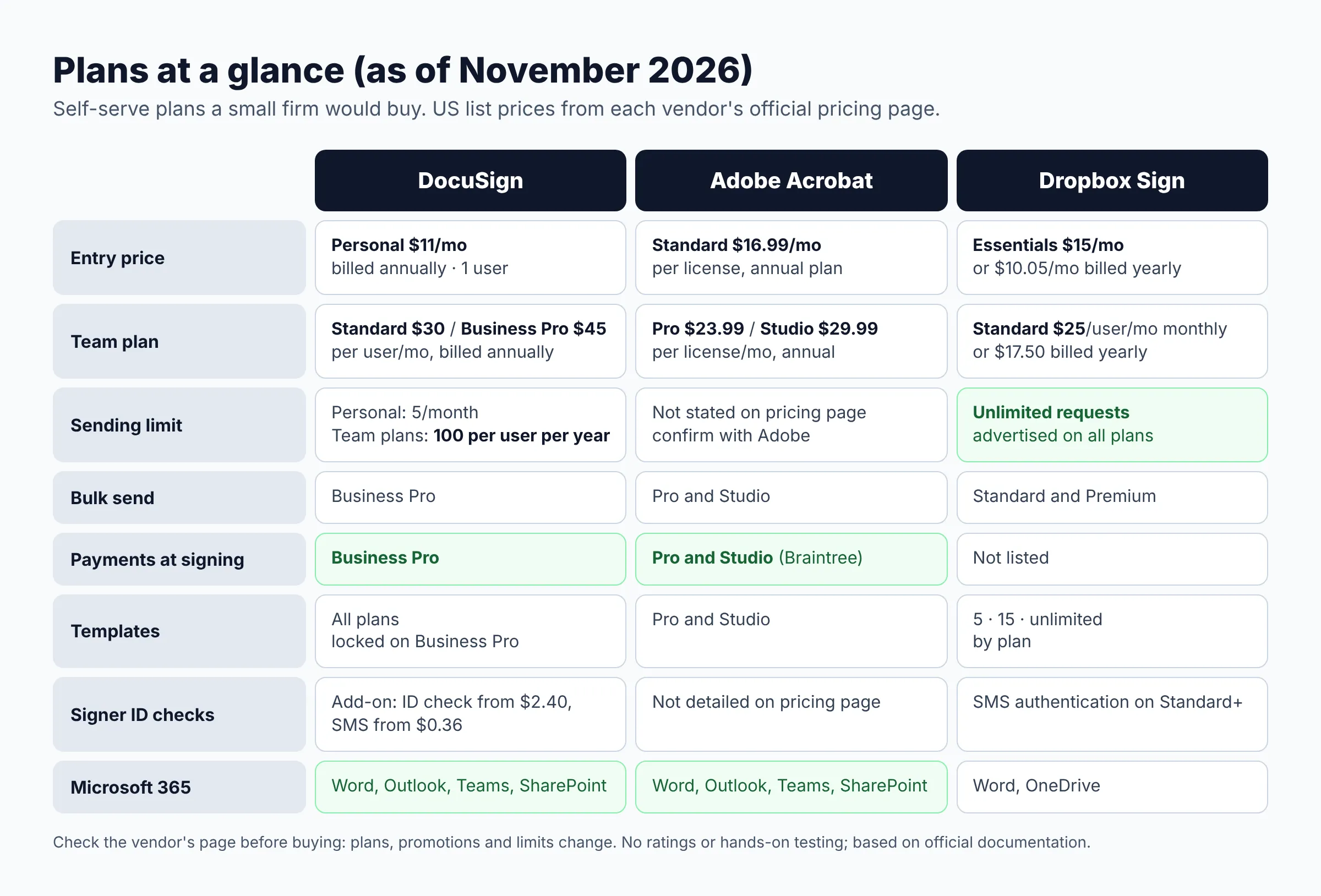
The right tool depends on your firm’s size, sending volume and the software you already pay for. Here is the short version by firm type.
| Your firm | Start with | Why |
|---|---|---|
| Solo, a handful of documents a month | Dropbox Sign Essentials or DocuSign Personal | Lowest entry price. DocuSign Personal caps you at 5 envelopes a month. Dropbox Sign Essentials limits you to 1 user and 5 templates. |
| Solo or small team sending engagement letters every week | Dropbox Sign Standard | Unlimited signature requests are advertised, plus bulk send, 15 templates and SMS authentication. |
| Firm that wants to collect the retainer at signing | DocuSign Business Pro or Adobe Acrobat Pro | Both list payment collection: DocuSign on Business Pro, Adobe on Pro and Studio (through Braintree). |
| Microsoft 365-heavy firm that edits PDFs every day | Adobe Acrobat Pro for teams | PDF editing and e-signature in one license, plus Word, Outlook, Teams and SharePoint integrations. |
| Firm with intake forms on its website | DocuSign Business Pro or Dropbox Sign Standard | DocuSign PowerForms and Dropbox Sign template links turn a template into a link you can share. |
| Firm that needs a HIPAA BAA, SSO or data residency | Talk to sales (DocuSign Enhanced, Acrobat Sign Solutions, Dropbox Sign Premium) | These features sit on custom-quoted tiers or require a minimum contract. |
If you mostly need clients to sign one engagement letter per new matter, any of the three will do. The differences show up in volume caps, bulk sending, payments and how each tool fits into your email and document storage.
DocuSign vs Adobe Acrobat Sign vs Dropbox Sign: comparison table
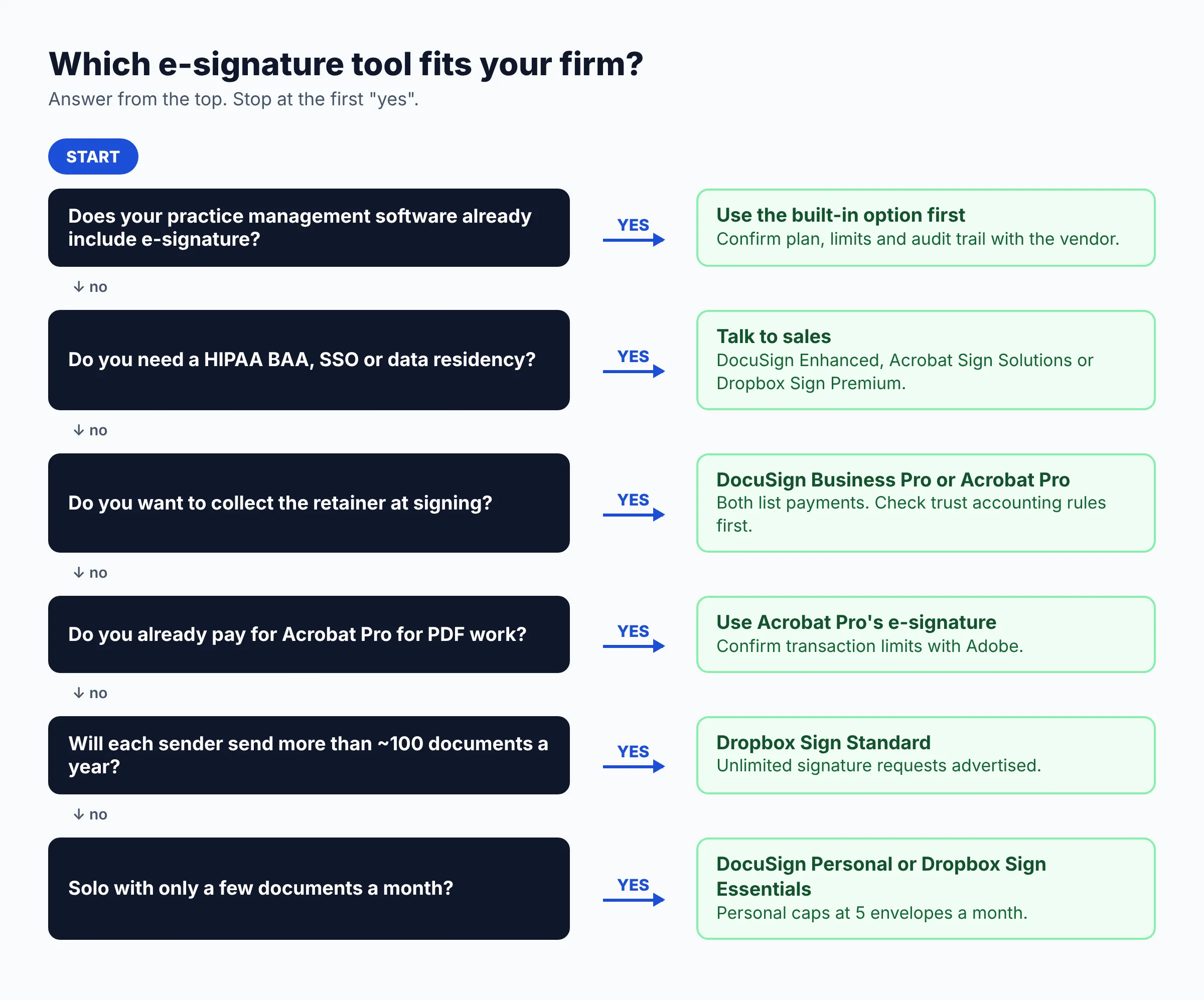
The table compares the self-serve plans a small firm would actually buy. Prices are as of November 2026, in US dollars, and come from DocuSign’s eSignature pricing page, Adobe’s Acrobat for business pricing page and Dropbox Sign’s pricing page. “Envelope” is DocuSign’s word for one package of documents sent for signature. It counts as soon as you send it, whether or not anyone signs.
| Feature | DocuSign | Adobe Acrobat (teams) | Dropbox Sign |
|---|---|---|---|
| Entry plan price | Personal: $11/month, billed annually ($132/year), 1 user | Acrobat Standard: $16.99/license/month (annual plan, billed monthly) or $203.88/year prepaid | Essentials: $15/month billed monthly, or $10.05/month billed yearly ($120.60/year), 1 user |
| Team plan price | Standard: $30/user/month billed annually. Business Pro: $45/user/month billed annually | Acrobat Pro: $23.99/license/month. Acrobat Studio: $29.99/license/month (annual plans) | Standard: $25/user/month billed monthly, or $17.50/user/month billed yearly (from $420/year) |
| Sending limits | Personal: 5 envelopes/month. Standard and Business Pro: 100 per user per year (annual) or 10 per user per month (monthly) | Not stated on the pricing page. Confirm with Adobe | “Unlimited signature requests” advertised |
| Reusable templates | All plans. Locked templates on Business Pro | Acrobat Pro and Studio | Essentials: 5. Standard: 15. Premium: unlimited |
| Bulk send | Business Pro | Pro and Studio (“Send in bulk”) | Standard and Premium |
| Payments at signing | Business Pro | Pro and Studio (via Braintree) | Not listed on the pricing page |
| Web forms / signing links | PowerForms on Business Pro (they count toward the envelope limit) | Web forms on Pro and Studio | Template links on Standard and Premium |
| Signer attachments | Business Pro | Not listed on the pricing page | Standard and Premium |
| Audit trail | Real-time audit trail on all plans | Not detailed on the pricing page | Non-editable audit trail on all plans |
| Signer ID checks | Add-on: ID verification from $2.40/attempt, SMS delivery from $0.36 (Standard or Business Pro) | Not detailed on the pricing page | SMS authentication on Standard and Premium |
| Microsoft 365 | Word, Outlook, Teams, SharePoint, Dynamics 365, Power Automate | Word, PowerPoint, Outlook, Teams, SharePoint, Power Automate, Dynamics 365 | Microsoft Word, Microsoft OneDrive |
| eSignature for Google Workspace | Google Drive (listed as a prebuilt integration) | Google Drive, Google Docs, Google Workspace | |
| Single sign-on (SSO) | Contact sales | Not detailed on the pricing page | Premium |
A few notes on the fine print. Dropbox Sign’s pricing page also displays promotional offer terms, so first-year prices may differ from renewal prices. Confirm the figure at checkout. Adobe’s team plans are annual commitments. Its page says a fee of half the remaining annual commitment applies if you cancel the monthly-billed option after 14 days. DocuSign’s page notes that envelopes beyond your allowance are billed pay-as-you-go.
How we compared
This comparison is based only on each vendor’s official pricing pages, feature pages, integration pages and trust or compliance pages, read in November 2026. We did not run hands-on tests and we do not score or rate the products. Where a vendor’s page did not state something, the table says so instead of guessing. Plans and limits change often, so check the vendor’s page before you buy.
DocuSign for lawyers: strengths and trade-offs
DocuSign is the best-known name, and its plans are the most clearly tiered. That clarity also makes the limits easy to see.
- Pros: a real-time audit trail on every plan. Business Pro adds bulk send, payments, signer attachments and PowerForms. Broad Microsoft coverage (Word, Outlook, Teams, SharePoint). An Identify product family that covers ID document checks with liveness, knowledge-based authentication (US only) and phone or SMS one-time passcodes.
- Cons: the 100-envelopes-per-user-per-year cap on Standard and Business Pro is tight for a high-volume intake practice. Standard does not include bulk send or payments. ID verification and SMS are paid add-ons.
- Compliance claims: DocuSign’s trust center lists ISO 27001:2022, SOC 1 Type 2, SOC 2 Type 2 and PCI-DSS. It also says DocuSign adheres to HIPAA, among other regulations.
Best for: firms that want payment collection at signing, intake via PowerForms, and an audit trail clients and opposing counsel will recognize.
Adobe Acrobat Sign: strengths and trade-offs
For small firms, “Adobe Sign” now usually means the e-signature features built into Acrobat Standard, Acrobat Pro and Acrobat Studio. Adobe sells its separate enterprise product, Acrobat Sign Solutions, through sales.
- Pros: one license covers PDF editing and e-signature. Acrobat Pro adds Send in bulk, web forms, reusable signable templates and payments through Braintree. Adobe lists deep Microsoft integrations for Word, Outlook, Teams, SharePoint and Power Automate.
- Cons: the pricing page does not state transaction limits, so confirm them with Adobe before relying on high volume. Plans are annual commitments with cancellation fees after 14 days. Adobe’s own footnote says Acrobat Standard and Pro e-signature capabilities “do not offer the same level of compliance” as Acrobat Sign Solutions.
- Compliance claims: Adobe’s compliance list shows SOC 2 Type 2, ISO 27001:2022 and HIPAA-ready status for Acrobat Sign Solutions (enterprise) and Acrobat Sign for Government. Those listings apply to the enterprise offering, not automatically to an Acrobat Pro license.
Best for: firms that already buy Acrobat Pro for PDF work and want e-signature without another subscription.
Dropbox Sign for law firms: strengths and trade-offs
Dropbox Sign (formerly HelloSign) is the simplest of the three. Its pricing page leads with “unlimited signature requests with no hidden fees.”
- Pros: no envelope counting. Standard includes bulk send, signer attachments, template links, branding, an admin console and SMS authentication. The features page lists tamper-proof documents and a non-editable audit trail.
- Cons: Essentials is limited to 1 user and 5 templates. Standard allows 15 templates and tops out at 5 users before you need a quote. SSO, data residency and advanced reporting are Premium-only. Payments are not listed on the pricing page. The integrations page names Microsoft Word and OneDrive, but not Outlook or Teams.
- Compliance claims: Dropbox Sign states SOC 2 Type II, ISO 27001, GDPR and eIDAS compliance, plus AES 256-bit encryption at rest. HIPAA support requires a signed BAA and a minimum contract value.
Best for: solos and small teams who send many engagement letters, fee agreements and authorizations and do not want to track a quota.
Adobe Sign vs DocuSign: which costs less for a small firm?
On list price, Adobe Acrobat Pro for teams ($23.99 per license per month on an annual plan) costs less than DocuSign Business Pro ($45 per user per month billed annually). Both include bulk send and payments. The trade-off is that DocuSign publishes its envelope limit (100 per user per year) while Adobe’s pricing page does not publish one.
A quick worked example for a three-lawyer firm on annual billing, at November 2026 list prices:
- DocuSign Business Pro: 3 × $540 = $1,620 a year, with up to 300 envelopes in total
- Adobe Acrobat Pro for teams: 3 × $287.88 = $863.64 a year
- Dropbox Sign Standard: 3 × $17.50 × 12 = $630 a year at the displayed yearly rate (confirm the renewal price)
All three price by sender (user or license), so if not every lawyer sends documents, you may only need licenses for the people who send.
Is electronic signature legal for law firms?
Yes, for most documents a firm uses day to day. The federal ESIGN Act (15 U.S.C. § 7001) says a signature, contract or record relating to a transaction in or affecting interstate commerce may not be denied legal effect “solely because it is in electronic form.” At the state level, most states have adopted the Uniform Electronic Transactions Act (UETA) from the Uniform Law Commission. New York uses its own Electronic Signatures and Records Act (ESRA).
Some documents are carved out. ESIGN’s exceptions (15 U.S.C. § 7003) include:
- wills, codicils and testamentary trusts
- state laws on adoption, divorce and other family law matters
- court orders, notices and official court documents such as briefs and pleadings
- certain notices, such as foreclosure or eviction notices for a primary residence and cancellation of health or life insurance
An exception from ESIGN does not mean electronic signing is always banned. It means another law governs, and that law varies by state and by court. Before e-signing estate planning documents, family law agreements, real estate instruments or anything that must be notarized or witnessed, check your state’s statutes, your court’s e-filing rules and your state bar’s guidance.
One more rule matters when your client is a consumer. If a law requires you to give the client certain information in writing, ESIGN’s consumer consent provision (§ 7001(c)) requires affirmative consent and specific disclosures before an electronic record can satisfy that requirement. Most e-signature tools show a consent screen, but confirm it fits your situation.
E-signature vs digital signature: what is the difference?
An electronic signature is any electronic mark or process a person adopts to sign a record, such as a typed name or a click. A digital signature is a specific technology that uses certificates and encryption to seal a document so any later change is detectable. Dropbox Sign’s “tamper-proof documents” feature, for example, adds a digital seal to each document after signing.
How to send an engagement letter for e-signature: step by step
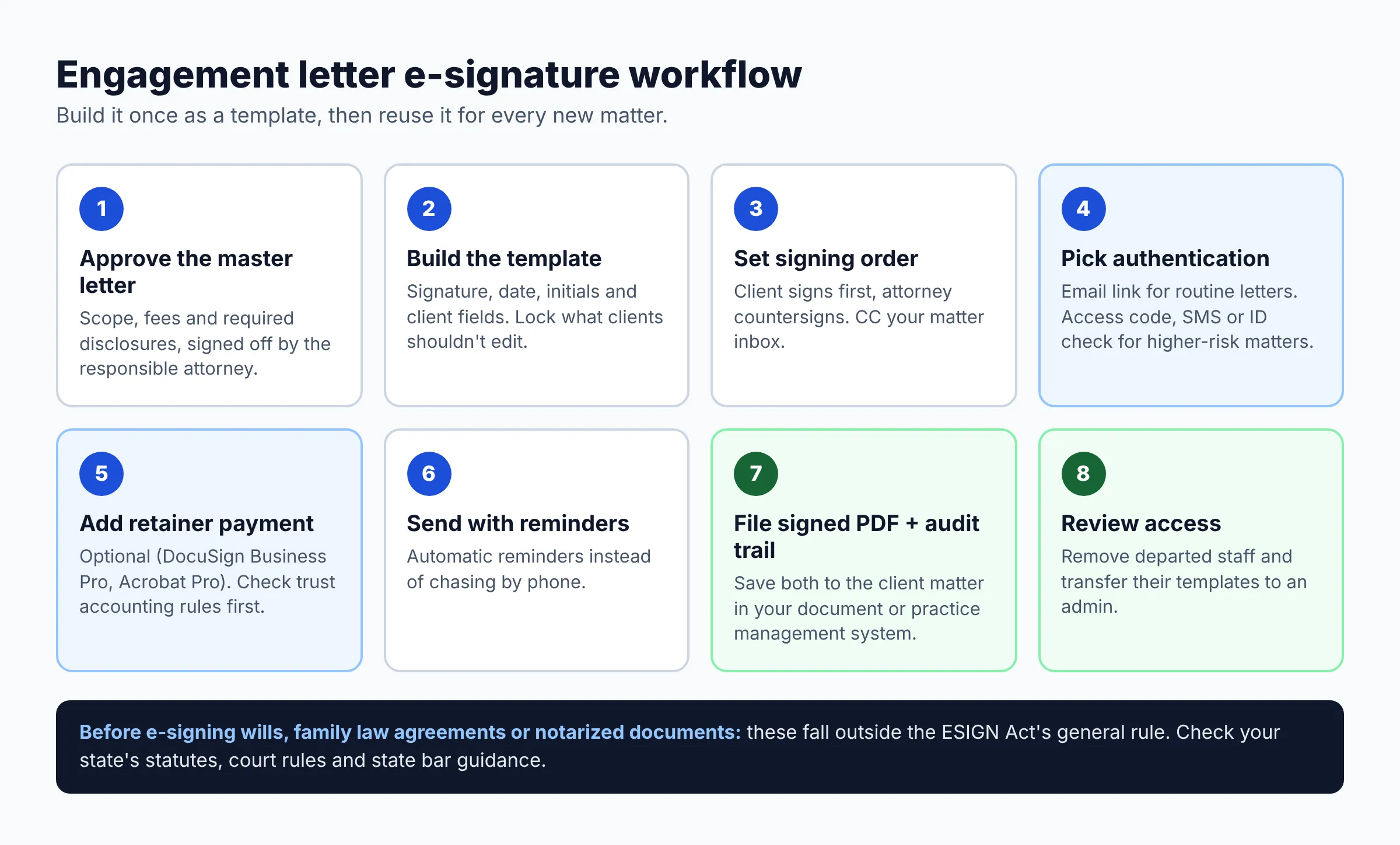
This workflow works in any of the three tools. Build it once as a template, and every new client gets the same clean process.
- Finalize your engagement letter template. Put the scope, fee terms and any required disclosures in one document. Have the responsible attorney approve the master version.
- Create a reusable template in the e-signature tool. Add signature, date and initials fields, and text fields for client name and matter. Lock the fields clients should not edit (DocuSign locked templates are on Business Pro).
- Set the signing order. Usually the client signs first and the attorney countersigns. Add a CC recipient for your file or practice management inbox.
- Choose signer authentication. Email-only is common for routine letters. For higher-risk matters, add an access code, SMS authentication or ID verification, where your plan includes it.
- Add the retainer step, if any. DocuSign Business Pro and Acrobat Pro can request a payment during signing. Before you take advance fees this way, check your state’s trust accounting rules on where advance fees must be deposited.
- Send and set reminders. Turn on automatic reminders so you do not have to chase signatures by hand.
- File the completed package. Save the signed PDF and the audit trail (also called a certificate of completion) to the client matter, in your document system or practice management software.
- Review access. When staff leave, remove their accounts and transfer their templates and documents to an admin.
Getting clients to the signing step is often the slow part. If you book consultations online, see our guide to appointment scheduling tools for law firms. If calls go to voicemail, compare Smith.ai vs Ruby virtual receptionists, which can handle intake before you send the letter.
Security and confidentiality: what to check before you buy
Engagement letters, retainer agreements and medical authorizations contain confidential client information. Your duty to protect that information applies to the e-signature tool just as it does to email and file storage. Use this checklist when you set up any of the three:
- Turn on two-factor authentication for every sender account (Dropbox Sign lists 2FA as an account security option).
- Use your firm’s domain email for sender accounts, not personal Gmail. See our Microsoft 365 setup guide for law firms or the Google Workspace setup guide.
- Read the vendor’s compliance page for the exact plan you buy. Adobe’s and Dropbox Sign’s certifications and HIPAA terms depend on the offering or contract.
- If you need a HIPAA business associate agreement, get it in writing from sales before you upload health records.
- Decide who can see completed envelopes. Shared team folders are convenient, but not every staff member needs every client’s documents.
- Do not email signed copies around unencrypted. Our guide to law firm email encryption covers safer options.
If clients reach you through your website first, the same care applies there. Read how to add a secure contact form to a law firm website and work through our law firm website security checklist.
What about Clio and other practice management software?
Check your practice management software first, because it may already include e-signature or a direct connector. Clio, for example, promotes an e-signature feature inside Clio Manage, and its app directory includes a DocuSign app. We could not open Clio’s help pages to confirm the current plan requirements and limits, so ask Clio which plans include e-signature and what volume limits apply. If the built-in option covers your engagement letters, you may not need a standalone subscription at all.
Your office suite matters too. DocuSign and Adobe both list Word, Outlook, Teams and SharePoint integrations. Dropbox Sign lists Word, OneDrive and Google Workspace. If you have not picked a suite yet, start with Google Workspace vs Microsoft 365 for law firms.
Alternatives worth a look
Other e-signature tools also market to law firms, including SignNow, PandaDoc, SignWell and OneSpan Sign. We have not compared their official pricing here. Apply the same tests: sending limits, template count, bulk send, audit trail, signer authentication, integrations you actually use, and the compliance terms for the specific plan. For more side-by-side reviews, browse our tool comparisons hub.
FAQ
Is DocuSign legally binding for lawyers and clients?
Generally yes, for ordinary contracts such as engagement letters. Under the ESIGN Act and state UETA laws, a signature cannot be denied legal effect just because it is electronic. Exceptions such as wills, family law matters and court documents are governed by other rules, so check your state.
Which is cheaper, Adobe Sign or DocuSign?
At November 2026 list prices, Adobe Acrobat Pro for teams ($23.99 per license per month, annual) is cheaper than DocuSign Business Pro ($45 per user per month, billed annually) for similar features like bulk send and payments. DocuSign Personal ($11 per month, billed annually) is the cheapest single-user entry point of the two.
Does Dropbox Sign limit how many documents I can send?
Dropbox Sign’s pricing page advertises unlimited signature requests. The limits are on users (1 on Essentials, up to 5 on Standard before a quote) and templates (5 on Essentials, 15 on Standard). SMS features carry their own limits.
Can I e-sign a will or a divorce agreement?
Not under ESIGN’s general rule. ESIGN excludes wills, codicils, testamentary trusts and state family law matters. Whether those documents can be signed electronically depends on your state’s laws and court rules, so check them and your state bar’s guidance first.
Is DocuSign HIPAA compliant?
DocuSign’s trust center says it adheres to HIPAA. Adobe lists HIPAA-ready status for Acrobat Sign Solutions, its enterprise product. Dropbox Sign requires a signed BAA and a minimum contract value. If your firm handles protected health information, confirm a BAA with the vendor for your exact plan.
Do my clients need an account to sign?
Generally no. All three price their plans per sender (user or license), and clients sign from a link they receive by email, or by SMS where enabled. Confirm the signer experience during your free trial.
What is an audit trail, and why do lawyers need it?
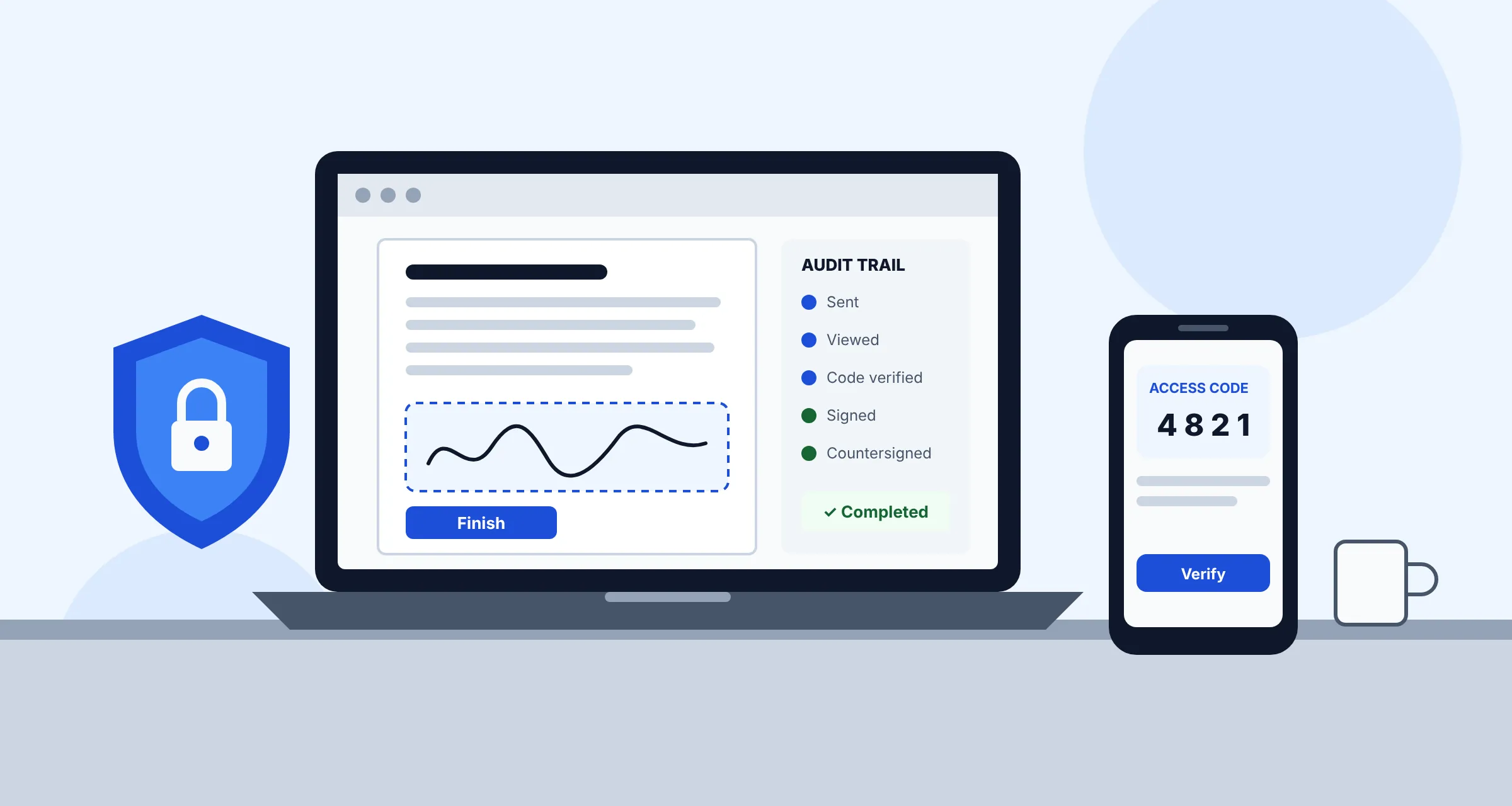
An audit trail is a record of who viewed and signed a document, when, and from what email address or device. It is your evidence if a client later disputes signing. Save it with the signed document in the client file.
Choosing e-signature software for your law firm: next steps
- Count how many documents your firm sent for signature last year and how many people send them.
- Check whether your practice management software already includes e-signature.
- Shortlist one tool from the verdict table and start a free trial with your real engagement letter template.
- Confirm sending limits, HIPAA or BAA terms and cancellation terms for the exact plan before you pay.
- Build your template, turn on 2FA, and document the workflow for staff.
Want this handled for you? ProSiteGuide builds and maintains fast, secure WordPress sites for law firms. Book a free consultation.
Sources
- Docusign eSignature plans and pricing
- Docusign Trust Center: compliance
- Docusign Identify (identity verification)
- Docusign + Microsoft integrations
- Docusign integrations directory
- Adobe Acrobat for business: pricing plans
- Adobe Acrobat: Microsoft integrations
- Adobe compliance list
- Dropbox Sign pricing
- Dropbox Sign features
- Dropbox Sign integrations
- 15 U.S.C. Chapter 96 (ESIGN Act), GovInfo
- Uniform Law Commission: Electronic Transactions Act
- New York State ITS: Electronic Signatures and Records Act (ESRA)