This guide contains affiliate links. If you buy through them, we may earn a commission at no extra cost to you. It never changes our recommendations. Learn more.
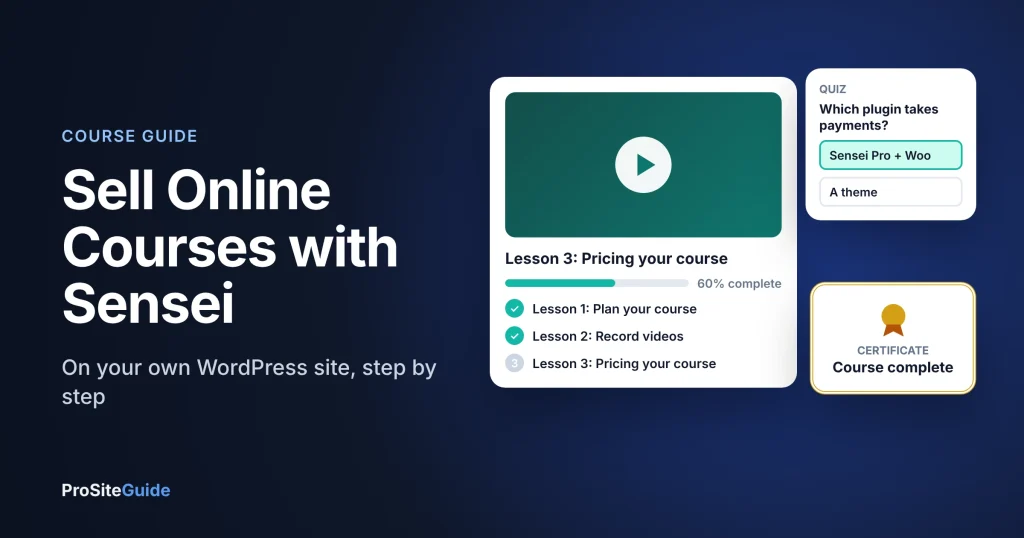
Quick answer: to sell online courses on WordPress with Sensei LMS you need three things: the free Sensei LMS plugin to build courses, the free WooCommerce plugin to take payments, and Sensei Pro ($179 a year for one site) to connect the two. You then pair each course with a WooCommerce product, and students are enrolled automatically when they pay.
Key takeaways
- The free Sensei LMS plugin lets you publish unlimited free courses with lessons, basic quizzes and certificates.
- Selling courses needs both WooCommerce and Sensei Pro. The free plugin alone cannot take payments.
- You keep your students, content and data on your own site, and choose your own payment provider.
- Sensei is not a video host: upload videos to VideoPress, YouTube or Vimeo and embed them.
Why sell courses on your own WordPress site?
Hosted course platforms are quick to start, but you pay monthly fees and sometimes a share of each sale, and your students live on someone else’s platform. Selling from your own WordPress site means you own the student list and content, choose your payment provider and keep course pages on your domain, where they build your search traffic.
The trade-off is setup and upkeep: you are responsible for hosting, updates and backups. If you are new to WordPress, read how to start a WordPress website first.
What is Sensei LMS?
Sensei LMS is a learning management system (LMS) plugin for WordPress made by Automattic, the company behind WooCommerce and WordPress.com. It turns WordPress into a course platform: you build courses from lessons and quizzes in the normal block editor, and students get a distraction-free “learning mode” that works with any theme.
Sensei free vs Sensei Pro
| Sensei LMS (free) | Sensei Pro | |
|---|---|---|
| Price | $0 | $179/year for one site (shown as $15/month, billed yearly) |
| Courses | Unlimited free courses | Unlimited, and you can sell them |
| Selling | No | Yes, with WooCommerce |
| Quizzes | Basic: multiple choice, true/false, fill in the blank, free response, file upload | Advanced: quiz timer, ordering questions, AI-generated questions |
| Lesson pacing | All lessons available at once | Drip lessons and scheduled courses |
| Interactive content | No | Interactive videos, flashcards, image hotspots, task lists |
| Groups | No | Groups, cohorts and co-teachers |
| Certificates | Free Certificates extension | Included |
| Support | WordPress.org forum | Email support |
Sensei Pro has a 14-day refund guarantee and no free trial, because the free plugin lets you try most of the course-building features first. An Agency plan ($360 a year) covers up to 20 sites.
What you need before you start
- WordPress hosting. Courses with many students and video embeds need reliable hosting. A managed host such as Pressable or the options in our hosting comparison will handle it.
- A video host. Sensei embeds video from VideoPress, YouTube or Vimeo; it does not store videos itself.
- A payment account. WooPayments, Stripe, PayPal or another gateway WooCommerce supports.
- Your course outline: modules, lessons, and what each quiz checks.
How to sell a course with Sensei: step by step
- Install Sensei LMS. Plugins → Add New, search “Sensei LMS”, install and activate, then run the setup wizard.
- Create your course. Go to Sensei LMS → Courses → Add New. Add a title, description and featured image, then use the course outline block to add modules and lessons.
- Write your lessons. Each lesson is a normal block editor page: text, images, embedded video and downloads.
- Add quizzes. Attach a quiz to a lesson and set a pass mark if students must pass to continue.
- Install WooCommerce and Sensei Pro. Add the free WooCommerce plugin and set up your payment gateway, then install Sensei Pro with your license key.
- Create a product for the course. In WooCommerce, add a product with the course price (a one-off price, or a subscription if you add WooCommerce Subscriptions).
- Pair the course and product. In the course settings, link the WooCommerce product. Buyers are enrolled automatically after checkout.
- Test the whole journey. Buy the course yourself (use a test payment mode or a 100% coupon), check the enrollment email, take a lesson and finish a quiz.
- Launch. Add the course to your menu, link it from relevant blog posts, and announce it to your email list.
To sell memberships instead of single courses, Sensei works with WooCommerce Memberships; see our WooCommerce extensions guide for what that and Subscriptions cost.
Tips for a course that sells
- Make lesson one free as a preview, so visitors can see the quality before they buy.
- Keep lessons short (5 to 15 minutes) with one clear outcome each.
- Use drip content (Pro) for cohort-style courses so students move through together.
- Collect testimonials after the first cohort and add them to the sales page.
- Keep your site secure: courses hold student accounts and payment flows. Follow our WordPress security checklist.
Sensei pros and cons
| Pros | Cons |
|---|---|
| Free plugin for unlimited free courses | Selling needs Sensei Pro plus WooCommerce |
| Built by Automattic; works with any theme and the block editor | Smaller user base than some LMS plugins; WordPress.org ratings are mixed |
| You own your students, content and payments | You manage hosting, updates and backups |
| 14-day refund guarantee on Pro | No video hosting; no free trial of Pro |
FAQ
Can I sell courses with the free Sensei LMS plugin?
No. Sensei’s own FAQ says you can create courses without WooCommerce, but to sell them you need WooCommerce and Sensei Pro.
How much does Sensei Pro cost?
When we checked, Sensei Pro was $179 a year for one site, and the Agency plan was $360 a year for up to 20 sites. Prices can change; check the pricing page.
Does Sensei take a cut of my sales?
Sensei’s pages do not mention a revenue share. You pay your payment provider’s transaction fees.
Can I give certificates?
Yes. Sensei offers a free Certificates extension that creates downloadable PDF certificates when students complete a course.
Do I need WooPayments?
No. Sensei says you can use any WooCommerce payment provider, such as Stripe or PayPal.
Conclusion
Sensei LMS is a sensible way to sell courses from a site you own: build with the free plugin, then add WooCommerce and Sensei Pro when you are ready to take payments. Test the full student journey before launch, and keep hosting and security in good shape. Prices and features were checked on the vendors’ official pages in November 2026. They change, so confirm on the vendor’s site before you buy.
1 comment