Quick answer: to set up 1Password for business, start a free trial of a business plan, make two people Owners, save each Emergency Kit offline, create a few shared vaults, give those vaults to groups (not individuals), invite staff, turn on required two-factor authentication, and write down how you will offboard people. Most small firms can do this in about 30 days without disrupting anyone. The plan names and steps below come from 1Password’s own support pages.
This guide is a practical rollout for a firm of roughly two to ten people. If you are still deciding whether 1Password is the right tool, read our 1Password review for law firms and our broader password manager guide for law firms first.
Which 1Password plan should a small law firm choose?
For shared firm logins you need a business plan, not a personal one. As of November 2026, 1Password’s business pricing page lists two options, billed yearly:
| Plan | Price (as of Nov 2026) | Users | Guest accounts | Notable |
|---|---|---|---|---|
| Teams Starter Pack | $24.95 per month for the pack (the page also shows $2.49 per user per month) | 10 included, up to 20 | Up to 5 | Shared vaults, role-based permissions, security alerts |
| Business | $8.99 per user per month | Per seat | 20 | Everything in Starter Pack, plus identity-provider integrations (Okta, Entra ID, OneLogin, Duo), Watchtower alerts and more |
Both offer a 14-day free trial with no credit card required. Extra Starter Pack seats are listed at $4.99 per seat per month. Prices change, so confirm on the pricing page before you buy.
Which one fits? A firm of three to nine people is usually fine on the Starter Pack for the core needs in this guide. Two things to check first. The groups documentation says custom groups are a Business feature, and the 2FA and permission screens described below are documented for Business. If you want custom groups such as “Attorneys” and “Staff”, price the Business plan, and ask 1Password support which controls your specific plan includes before you commit.
How do I create the account and choose owners and admins?
Start the trial from the business pricing page and sign up with a firm email address. The account creator automatically becomes an Owner. According to the groups page, Owners can do everything Administrators can, plus change billing and delete the team. Administrators can manage vaults, groups and people and can recover accounts. Team Members have no team-level administrative permissions.
A sensible small-firm setup:
- Two Owners. The managing attorney and one trusted backup (a partner or office manager). The groups page notes there must be at least one Owner, but a single Owner is a single point of failure.
- One or two Administrators if you have an office manager who handles staff changes.
- Everyone else as a Team Member. Fewer admins means fewer people who can see everything.
1Password also advises that at least two people have recovery permission so someone can help if a recovering person is locked out (recovery guide). Two Owners satisfies that.
What do I do with the Emergency Kit?
Each person gets an Emergency Kit PDF when they create their account. Per 1Password, it holds your sign-in address, email, Secret Key and a Setup Code QR, plus a blank line to write your account password. It does not contain your password. 1Password suggests printing a copy and keeping it somewhere safe, such as a safe deposit box. For a law firm, keep the printed kits in a locked cabinet or safe, not in a shared folder or in email. Note that if your administrator turns Emergency Kits off, or you sign in with SSO, you cannot save one.
What vault structure works for a law firm?
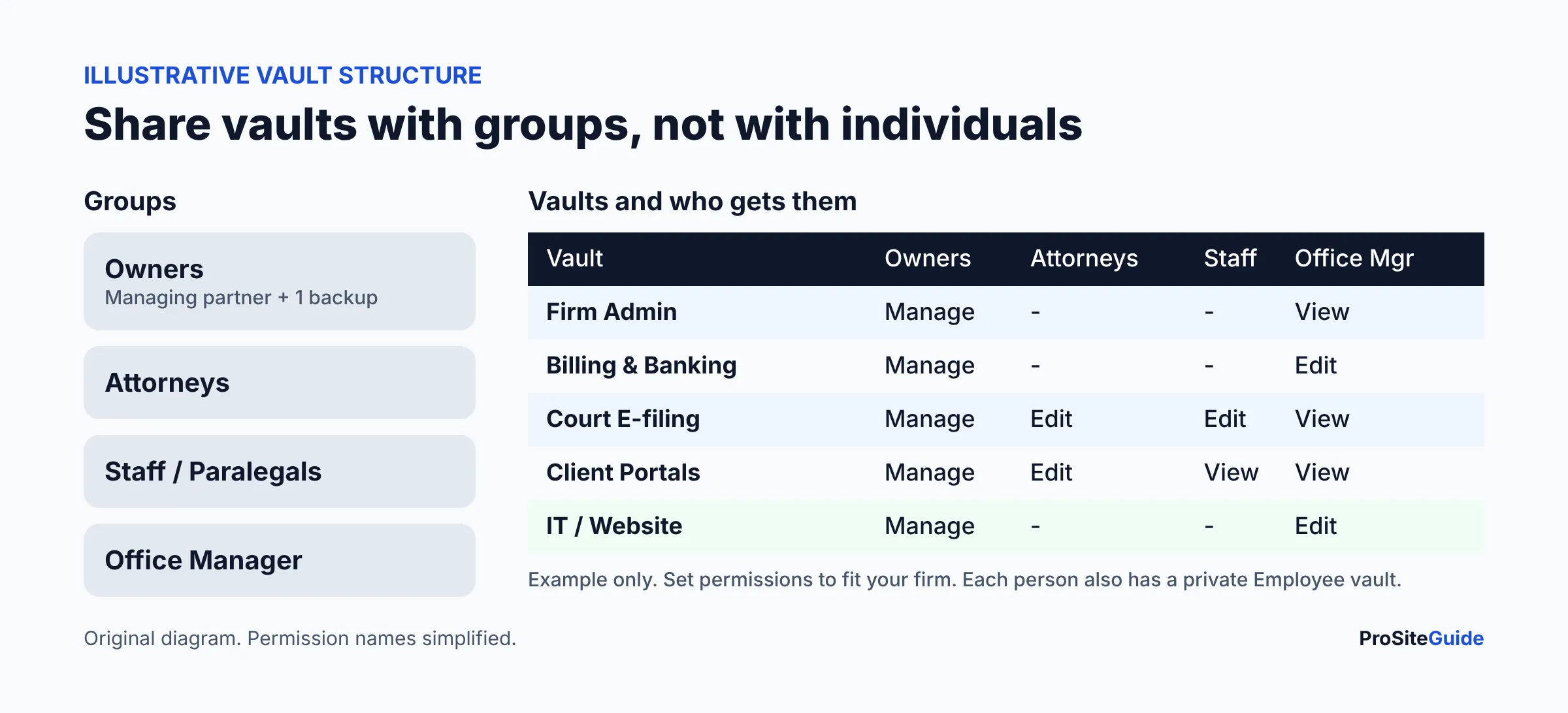
A vault is a container of logins that you share with chosen people or groups. There is no single right layout, and the one below is illustrative. The principle: split by who needs the access, not by software brand.
| Vault (example) | What goes in it | Who typically needs it |
|---|---|---|
| Firm Admin | Registrar, Microsoft 365 or Google admin, firm-wide accounts | Owners only |
| Billing & Banking | Operating-account portals, payment processors, accounting | Owners, office manager |
| Court E-filing | Shared e-filing and PACER-style accounts your firm uses | Attorneys and staff who file |
| Client Portals | Shared logins to client or third-party portals | Matter teams |
| IT / Website | Hosting, WordPress admin, domain DNS, email marketing | Owners, whoever maintains the site |
Two cautions. First, trust-account and banking credentials deserve the tightest vault; many firms keep it to Owners only. Second, check your court’s and your bank’s rules before you share any login. Some courts require individual e-filing credentials per attorney, and sharing those may violate their terms. When in doubt, ask the court clerk. For the ethics background on securing client information, check the ABA model rules on confidentiality and your state bar’s guidance.
Everyone also has a built-in Employee vault that cannot be renamed or deleted. Treat it as private working space, and tell staff that firm credentials belong in the shared vaults so they are still there when someone leaves.
How do groups and permissions work?
The vault sharing page explains that you share a vault with a group via Vaults, then People or Groups, then Manage. On Business, permissions include View Items, Create Items, Edit Items, Archive Items and Delete Items, plus a separate Manage Vault permission that controls access and deletion but does not by itself let you view or edit items. Business also has client settings such as View and Copy Passwords, Export Items, Print Items and Copy and Share Items. On Teams plans the choices are simpler: Allow Viewing, Allow Editing and Allow Managing.
Practical rules:
- Share vaults with groups, so adding a new paralegal is one click.
- Give “view and copy” to people who only need to log in; reserve edit rights for the few who maintain the logins.
- Remove export and print rights from the groups that do not need them.
- If you remove someone from a vault but they still have access, check whether a group still grants it.
How do I invite staff and import existing passwords?
Per the team member guide, you can invite by email, share a sign-up link restricted to your allowed email domains, or (for smaller teams) invite through Slack. Email invitations expire after five days and can be resent. Sign-up links do not expire until you revoke them, so treat the link like a password and revoke it after onboarding.
For importing, the import guide lists Chrome, Firefox, Edge, Brave and Safari plus other password managers such as LastPass, Bitwarden, Dashlane and KeePass. CSV files can bring in logins, credit cards and secure notes through 1Password.com. If you cannot create vaults, you can only import into your own Employee-type vault.
A clean way to migrate:
- Have each person export their browser passwords to a file and import them into their own Employee vault.
- For shared firm logins in a spreadsheet, import the CSV once, then move items into the right shared vault.
- Delete the exported file, empty the trash, and then remove saved passwords from the browser. 1Password’s page does not cover this step, but an exported plain-text file is the riskiest thing in the whole project.
How do I require two-factor authentication?
Owners, administrators, or members of a group with the Manage Settings permission can do it. Per the 2FA management page:
- Sign in at 1Password.com and choose Policies in the sidebar.
- Select Manage on the Authentication policy.
- First set the account password policy to Strict requirements. 1Password says you cannot enforce 2FA until this is done.
- Turn on Enforce two-factor authentication.
Members are prompted to set it up when they sign up, sign in on a new device, or next unlock 1Password. You can allow security keys, use Duo, and create a team report to see who has turned it on. Also turn on 2FA for your email, domain registrar and website admin accounts, since those are what an attacker wants. Our law firm website security checklist covers the website side.
How do I share a password with an outside vendor or accountant?
You have two options.
- Guest account. Per the guest accounts page, a guest has no Employee vault and can access only one vault that an Owner or Administrator chooses. Invite from Invitations, choose Invite by Email, then Guest as the user type; the guest must accept and be confirmed before you share a vault with them. Teams includes 5 guests and Business 20; extra guests cost more. This suits an ongoing web developer or IT provider, who gets just the “IT / Website” vault.
- Item sharing link. For one-off sharing, the item sharing page says you copy a link with an expiry you choose; if you enter the recipient’s email, they must verify it first. Business admins can manage sharing settings and stop links from the audit log.
When a guest leaves, remove them and change the passwords they could see. 1Password notes guests may have copied items before removal.
What happens when someone forgets their password?
For a business account, the recovery route is an administrator. Per the recovery guide:
- An Owner or Administrator opens People, picks the person and selects Begin Recovery.
- The person gets an email, confirms their address, and sets a new Secret Key and account password.
- The admin receives an email and selects Complete Recovery.
Afterward the person keeps access to their vaults, must sign in again on all devices, must save a new Emergency Kit, and their two-factor authentication is reset. Because recovery relies on email, verify the request by phone or in person before approving it. 1Password’s own guidance on verifying identity is thin, so set a firm rule. The recovery codes page describes codes for individual and family accounts only; business accounts rely on administrators, which is why a second Owner matters.
How do I offboard a departing employee?
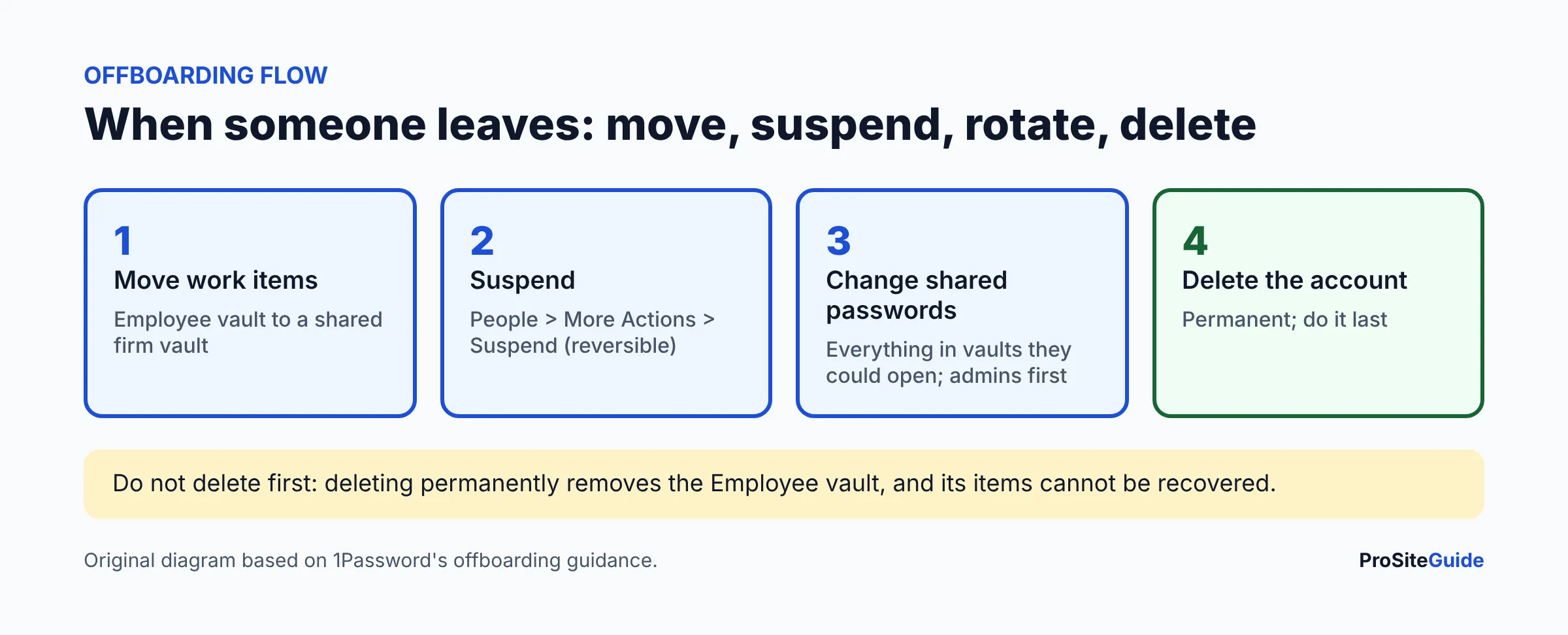
1Password’s offboarding guide gives this order:
- Move data. Have the person move work items from their Employee vault to a shared firm vault. 1Password warns not to delete the account until they have, and a Business Watchtower report can confirm the vault is empty.
- Suspend. Go to People, select the person, More Actions, Suspend. It is reversible with Reactivate.
- Change shared passwords. Review the vaults they could access. If they were an Owner or Administrator, assume they could reach every password in the vaults they managed. Change each affected password, starting with banking, email, registrar and website admin.
- Delete the account. This is permanent, and the Employee vault items are not recoverable.
One caveat from the team member guide: if the person is offline when you suspend or delete them, their items stay accessible until they next unlock 1Password while online. So rotate critical passwords quickly. Also remove them from systems 1Password does not control, such as email, case management and the website. If a departure involves suspected misuse, see what to do if your law firm website is hacked.
What is a realistic 30-day rollout?
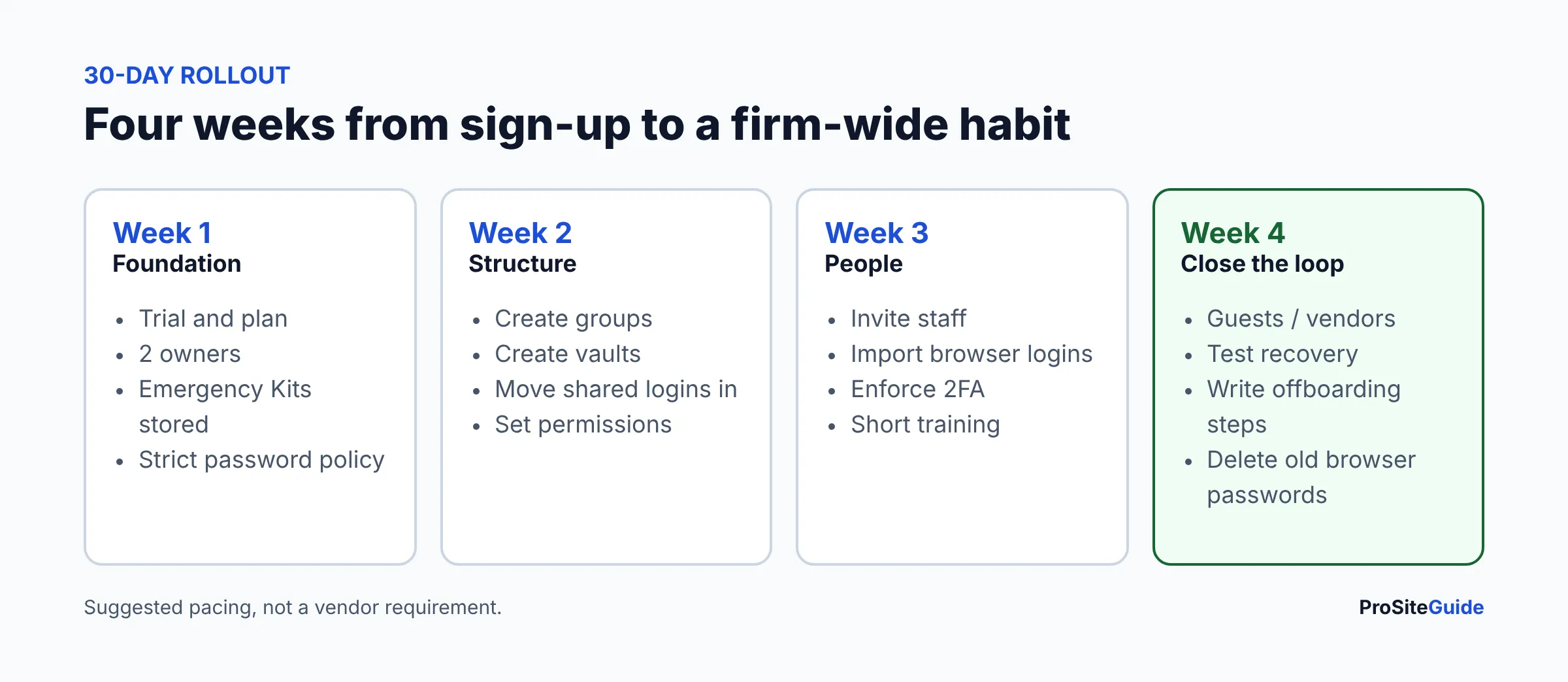
- Days 1-7: Start the trial, pick the plan, create the account, add a second Owner, store Emergency Kits, set the strict password policy.
- Days 8-14: Create groups and vaults, move shared logins in, set permissions.
- Days 15-21: Invite staff, run imports, enforce 2FA, hold a 20-minute training.
- Days 22-30: Add guests for vendors, test a recovery with a spare account, write a one-page offboarding checklist, delete old exports and browser-saved passwords.
After 30 days, schedule a quarterly review of who is in each group. Website logins also belong in your regular maintenance routine; see our law firm website maintenance guide and WordPress security plugin comparison.
FAQ
How much does 1Password for business cost?
As of November 2026, the pricing page lists Teams Starter Pack at $24.95 per month for 10 users and Business at $8.99 per user per month, both billed yearly. Both have a 14-day free trial.
Can a law firm share one 1Password login among staff?
Yes, through shared vaults. Check the rules of the site first; some courts and banks require individual credentials.
What if the only Owner loses their password?
Recovery needs an administrator or owner, so a sole admin can be locked out. Keep two Owners and store Emergency Kits safely.
Does suspending an employee lock them out immediately?
Not necessarily. 1Password says offline members keep access until they next unlock while connected to the internet, so change critical passwords promptly.
Can I require 2FA for everyone?
Yes, from Policies, Authentication policy, after setting the password policy to Strict requirements.
Where do I start?
With the trial, two Owners and one shared vault. Add the rest in stages.
Conclusion: next steps
Start the 14-day trial, add a second Owner, and build only three vaults at first. Enforce 2FA before inviting everyone, and write your offboarding checklist before you need it. For the buying decision see the 1Password review, and for the bigger picture visit Start Here or our tool comparisons.
Want this handled for you? ProSiteGuide builds and maintains fast, secure WordPress sites for law firms. Book a free consultation.
Sources
- 1Password business pricing
- 1Password support: groups
- 1Password support: create and share vaults
- 1Password support: Emergency Kit
- 1Password support: add and remove team members
- 1Password support: import
- 1Password support: manage 2FA
- 1Password support: guests
- 1Password support: share items
- 1Password support: recovery
- 1Password support: offboarding